

When a new product is created in WooCommerce, remove the background of its image in BackgroundCut
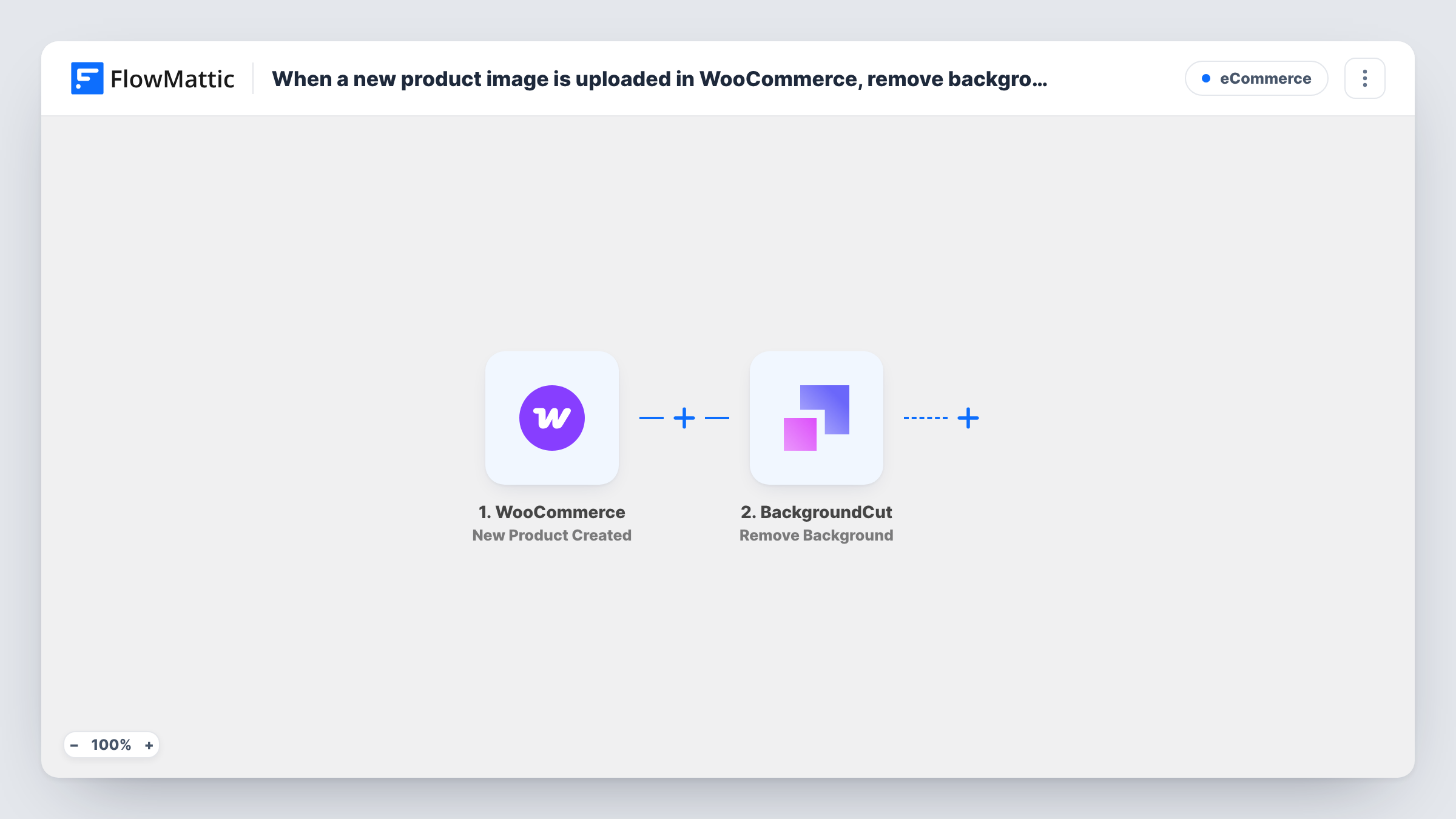
When a product is created in WooCommerce, FlowMattic sends its image to BackgroundCut for background removal and gets the processed result back, ready for a step you add.
 WooCommerce
 BackgroundCut
2 steps Setup ~5 min Used on 2.6k sites Free to import
What this workflow does
Store owners who shoot their own product photos often end up with kitchen tables, carpets and shadows behind the item. Cleaning each picture before listing it is slow. This workflow sends the image of each new WooCommerce product to BackgroundCut so the background is removed without opening an editor.
The WooCommerce New Product Created trigger runs when a product is created and passes its details, including the image, to FlowMattic. The BackgroundCut Remove Background step then processes that image, and BackgroundCut's response comes back to the run.
The template leaves both steps for you to map. After import, create a test product with an image, see which image field WooCommerce sends, and map it into the BackgroundCut step. A product saved without an image yet gives BackgroundCut nothing to work on.
The workflow ends there. It doesn't replace the product photo or save the cutout anywhere, so as imported you would only see the result in Task History. To use it, add a step after BackgroundCut, such as WooCommerce's Update Product, and map the processed image into it. Test that on a draft product first.
Handmade goods shot at home
A jewellery maker photographs pieces on her desk and gets a background-free version of each new product's image to use in the listing.
Consistent catalogue look
A clothing shop wants every product on a plain background, so each image added with a new product goes through BackgroundCut first.
Images for ads and social posts
A gadget store sends each new product's photo for background removal and saves the cutout for use in ad creatives.
How this workflow runs
What happens at each step once the workflow is on, and what you need before you import it.
 WooCommerce New Product Created
Starts a run each time a product is created in WooCommerce. The product's details, including its image when one is set, are passed to BackgroundCut.
- BackgroundCut Remove Background
Sends the product image to BackgroundCut to remove its background. The step ships unmapped: connect BackgroundCut and map the image from a test product. The result is returned but not saved.
What you need
- FlowMatticCore
- WooCommerce PluginPlugin
- BackgroundCut AccountAccount
After importing, map your own data. To keep the template universal, not every step is pre-filled. Open each step in the builder and connect your accounts and fields (channels, lists, sheets, recipients) before you switch the workflow on.
Make it yours
Changes worth making after you import it.
- Add a Filter between the WooCommerce trigger and the BackgroundCut step that continues only when the product image is not empty, so products created without a photo don't reach BackgroundCut.
- Add a step after BackgroundCut to keep the result, for example WooCommerce's Update Product or an upload to cloud storage, and map the processed image from BackgroundCut's output.
- Run the workflow on two or three test products first and open Task History to see what BackgroundCut returns, before you map its output into a later step.
Questions about this workflow
Does this replace my WooCommerce product image?
Not as imported. BackgroundCut returns the processed image to the run, but no step writes it back to the product. Add an Update Product step after it if you want that.
Are products I add before uploading an image processed later?
The trigger is meant for newly created products, not later edits. Create a test product without a photo, add one afterwards, and check Task History to see whether your setup starts a run for it.
Do I need a BackgroundCut account for this WooCommerce workflow?
Yes. The background removal runs through BackgroundCut, so connect your account in the second step after import.
Are gallery images processed too?
Only the image you map. To process each gallery image, put an Iterator over the gallery between the trigger and BackgroundCut, if WooCommerce sends the gallery as a list.
More E-Commerce workflows
Other ready-to-import templates from the same category.






Import this workflow into your WordPress site
Download the JSON, import it from the Workflows screen and connect your accounts. Every run stays on your server, with no per-task fees.
30-day money-back guarantee Unlimited workflows and runs Self-hosted