

When a new response is received, add a row in Google Sheets
Each new Quriobot chatbot response is written to a new row in Google Sheets, giving you one spreadsheet of every conversation’s answers to sort, share or report on.
 Quriobot
 Google Sheets
2 steps Setup ~5 min Used on 2.7k sites Free to import
What this workflow does
A Quriobot chatbot on your site asks visitors questions and collects their answers. Reviewing those answers inside the chatbot tool works for a quick look, but a spreadsheet is easier to share with colleagues, filter by date or answer, and use for reports. This workflow copies each response into a sheet as it arrives.
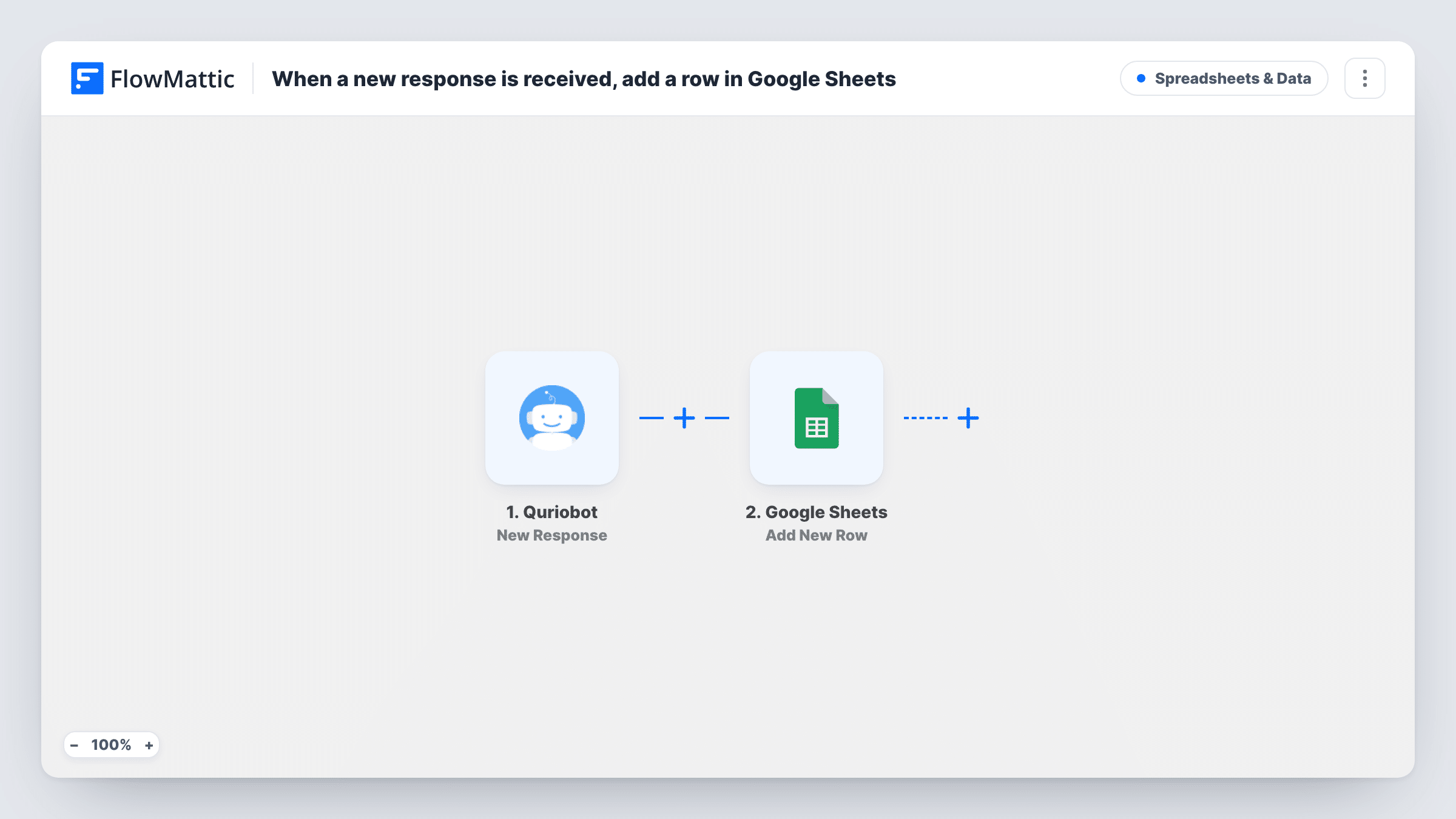
The Quriobot trigger runs when a new response comes in. The answers in that response become data you can map in FlowMattic. The second step adds a new row in Google Sheets, where you pick the spreadsheet and decide which answer goes into which column.
Every response gets its own row, and existing rows are never changed. If the same visitor responds twice, the sheet holds two rows. Task History lists each run, so you can check the answers Quriobot sent if a row looks wrong.
Lead qualification chatbot
Your Quriobot asks about company size and need before offering a call. Sales reviews each answer set in a shared Google Sheet and decides who to contact first.
Customer feedback survey
A chatbot survey after purchase collects ratings and comments. The sheet becomes the raw data for a monthly feedback summary.
Event registration by chat
Visitors register for a workshop through a Quriobot conversation, and the spreadsheet doubles as the attendee list you print on the day.
How this workflow runs
What happens at each step once the workflow is on, and what you need before you import it.
 Quriobot New Response
Runs each time your connected Quriobot chatbot receives a new response. The answers from that conversation are passed to the Google Sheets step for mapping.
- Google Sheets Add New Row
Writes one new row per Quriobot response into a sheet you pick. Connect your Google account, add column headings to the sheet first, then map each chatbot answer to its column.
What you need
- FlowMatticCore
- Quriobot AccountAccount
- Google Sheets AccountAccount
After importing, map your own data. To keep the template universal, not every step is pre-filled. Open each step in the builder and connect your accounts and fields (channels, lists, sheets, recipients) before you switch the workflow on.
Make it yours
Changes worth making after you import it.
- Add a column for the date and time of the response, and map it if Quriobot sends one. Sorting the sheet by date is then simple.
- Want only responses with a particular answer in the sheet? Add a Filter after the Quriobot trigger with a condition on that answer.
- Complete a test conversation with your chatbot after import so FlowMattic captures real answers, then map them in the Google Sheets step.
Questions about this workflow
Does every Quriobot response create a separate Google Sheets row?
Yes. Each new response runs the workflow once and adds one row. Rows already in the sheet are left alone.
Will earlier Quriobot responses be copied into the sheet?
No. Only responses received after you turn the workflow on reach Google Sheets. Older ones stay in Quriobot.
What if one visitor answers the Quriobot chatbot twice?
You get two rows. The Google Sheets step adds a row for every response and does not look for earlier ones from the same person, so remove duplicates in the sheet if you need to.
More Spreadsheets & Data workflows
Other ready-to-import templates from the same category.



Import this workflow into your WordPress site
Download the JSON, import it from the Workflows screen and connect your accounts. Every run stays on your server, with no per-task fees.
30-day money-back guarantee Unlimited workflows and runs Self-hosted