

When a new submission is captured in NoCodeForm, create a contact in FluentCRM
Each new NoCodeForm submission creates a contact in FluentCRM, or updates the existing contact with the same email, so form respondents land in the CRM on your WordPress site ready for your email sequences.
 NoCodeForm
 FluentCRM
2 steps Setup ~5 min Used on 2.0k sites Free to import
What this workflow does
NoCodeForm makes it easy to put a form on any page, but the people who fill it in are not on your email list until someone moves them. FluentCRM runs inside WordPress, and keeping it in step with a separate form tool by hand means exports, imports and a delay before your follow-up. This workflow connects the two.
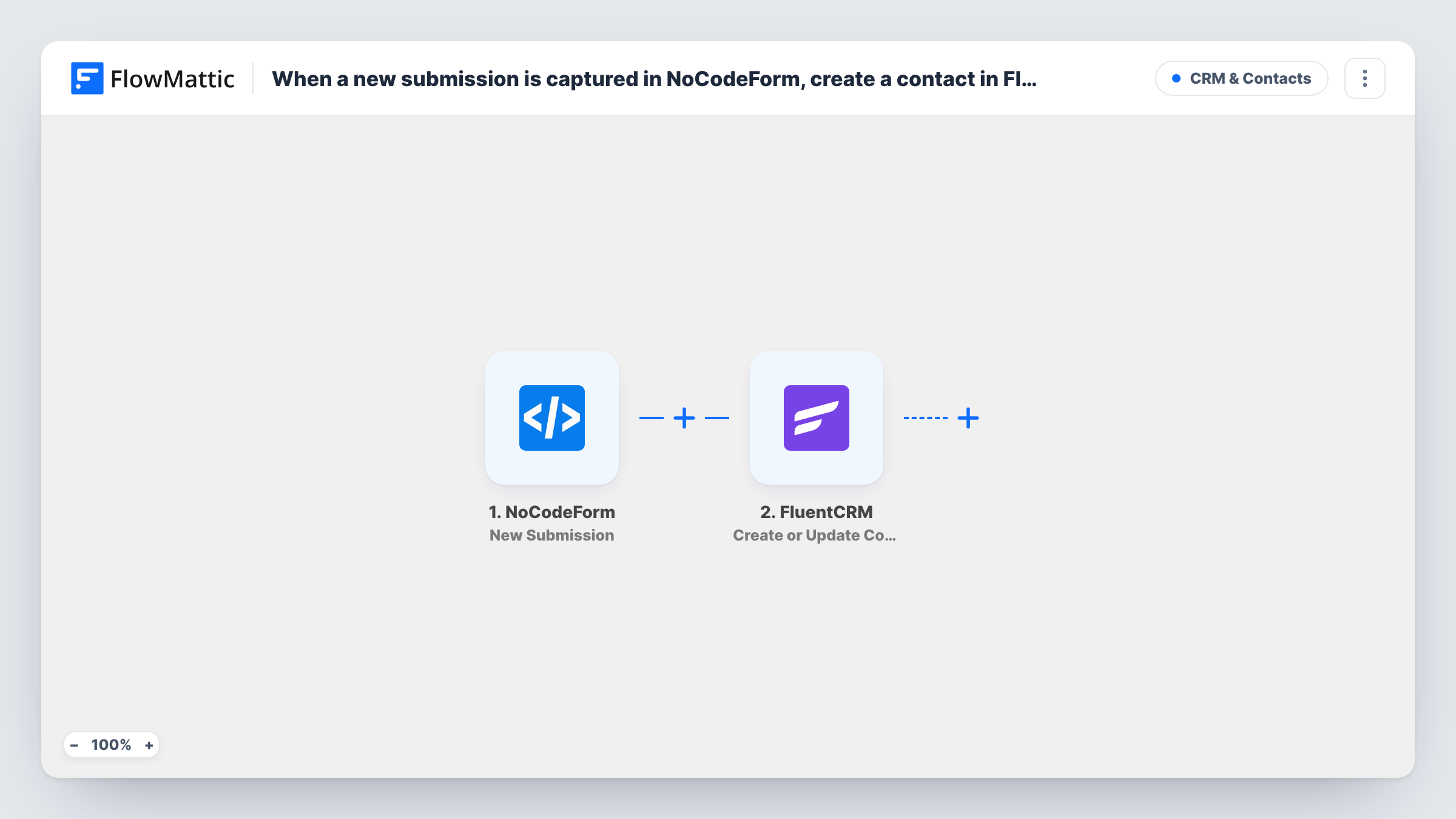
The NoCodeForm trigger starts a run for each response your NoCodeForm form records. FlowMattic receives the answers and passes them to FluentCRM. The Create or Update Contact action looks at the email address: a new address becomes a new contact, and an address already in FluentCRM has its contact updated with the values you map.
Every submission runs the workflow once, with no conditions. Because FluentCRM matches on email, someone who submits twice stays a single contact. The contact is stored in your own WordPress database. Task History shows what was sent for each submission.
Lead form on a landing page
A NoCodeForm lead form on a campaign page sends each prospect to FluentCRM, where your nurture sequence can pick them up.
Waitlist for a product launch
People join a waitlist through NoCodeForm and appear in FluentCRM, ready for the launch announcement when it goes out.
Updating details from returning visitors
A client who fills in the form again with a new phone number or company has their existing FluentCRM contact updated rather than duplicated.
How this workflow runs
What happens at each step once the workflow is on, and what you need before you import it.
 NoCodeForm New Submission
Fires when a new submission is captured in NoCodeForm. The respondent's answers become data for the FluentCRM step.
- FluentCRM Create or Update Contact
Creates a contact in FluentCRM, or updates the one that already has the same email. Map the email answer, then any name or other answers you want stored on the contact.
What you need
- FlowMatticCore
- NoCodeForm AccountAccount
- FluentCRM PluginPlugin
After importing, map your own data. To keep the template universal, not every step is pre-filled. Open each step in the builder and connect your accounts and fields (channels, lists, sheets, recipients) before you switch the workflow on.
Make it yours
Changes worth making after you import it.
- Make the email question required in NoCodeForm, since FluentCRM matches and creates contacts by email address.
- Add a Filter before FluentCRM that continues only when a marketing-consent answer is yes, if your form asks for consent.
- Submit a test entry in NoCodeForm after import, then open the contact in FluentCRM to check that each answer landed where you expected.
Questions about this workflow
What happens if the NoCodeForm respondent is already a FluentCRM contact?
The Create or Update Contact action matches on email address, so the existing contact is updated with the new values instead of a duplicate being created.
Where does FluentCRM need to be installed for NoCodeForm contacts to arrive?
Install it on the WordPress site that runs FlowMattic. FluentCRM is a WordPress plugin, and the contact step writes to the copy on that site.
Are earlier NoCodeForm submissions added to FluentCRM?
No. Only submissions captured after the workflow is active create or update contacts. Import older ones into FluentCRM with its own import tool if needed.
More CRM & Contacts workflows
Other ready-to-import templates from the same category.




Import this workflow into your WordPress site
Download the JSON, import it from the Workflows screen and connect your accounts. Every run stays on your server, with no per-task fees.
30-day money-back guarantee Unlimited workflows and runs Self-hosted