

When a new ticket is created in Fluent Support, generate alt text in AltTextLab
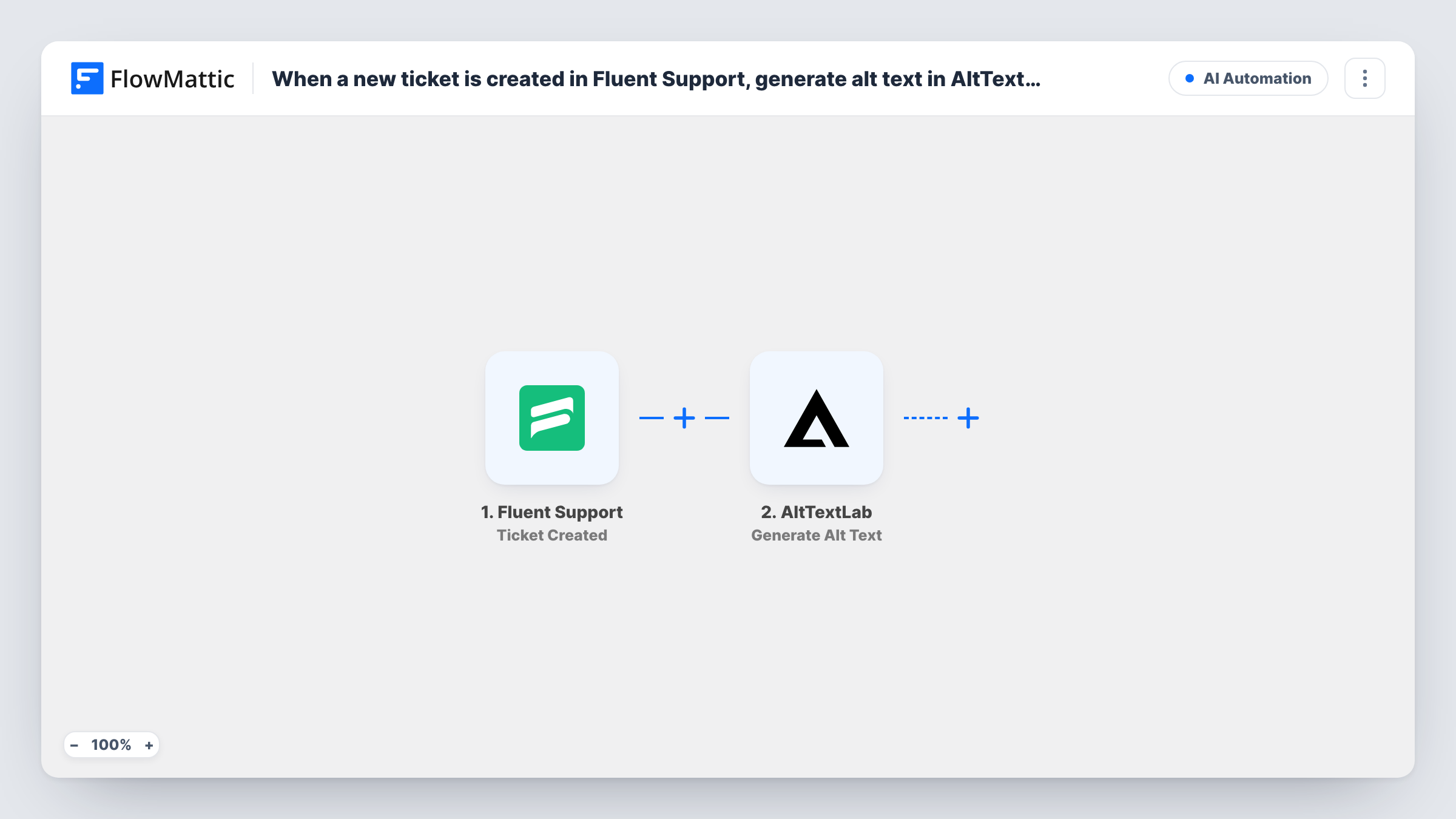
When a new ticket is created in Fluent Support, this workflow sends an image from that ticket to AltTextLab, which generates alt text describing it. The result is available in the run for any step you add next.
 Fluent Support
 AltTextLab
2 steps Setup ~5 min Used on 3.2k sites Free to import
What this workflow does
Customers often attach screenshots to support tickets. A text description of an image is useful when you pass a ticket to someone who cannot see it, or when you keep a written record of what was reported. This workflow asks AltTextLab to describe an image as each new ticket comes in.
The Fluent Support trigger runs on Ticket Created. FlowMattic passes the ticket data to the Generate Alt Text action in AltTextLab. You map the image from the ticket into that step, and AltTextLab returns alt text for it.
The template stops there. The alt text is not written back to the ticket or sent anywhere unless you add a step after AltTextLab. Every new ticket starts a run, including tickets with no image, so run a test with and without an attachment and check Task History to see how the AltTextLab step responds in each case.
Describing screenshots for a screen reader user
An agent who uses a screen reader gets a text description of the screenshot a customer attached, once you add a step that delivers the alt text to them.
Written record of reported issues
Add a step that logs the generated alt text next to the ticket number, giving you a searchable description of what customers showed you.
Product images sent by shoppers
Customers attach photos of damaged items. The alt text gives a first written description your team can check against the photo.
How this workflow runs
What happens at each step once the workflow is on, and what you need before you import it.
 Fluent Support Ticket Created
Runs when a new ticket is created in Fluent Support on your WordPress site. The ticket data is passed on so you can map an image from it in the next step.
- AltTextLab Generate Alt Text
Sends the image you map from the Fluent Support ticket to AltTextLab, which returns alt text describing it. Connect your AltTextLab account and test with a ticket that has an image.
What you need
- FlowMatticCore
- Fluent Support PluginPlugin
- AltTextLab AccountAccount
After importing, map your own data. To keep the template universal, not every step is pre-filled. Open each step in the builder and connect your accounts and fields (channels, lists, sheets, recipients) before you switch the workflow on.
Make it yours
Changes worth making after you import it.
- Add a step after AltTextLab to use the result, such as a note on the ticket or a message to your team, and map the generated alt text into it.
- Add a Filter after the trigger that continues only when the ticket has an attachment, so tickets without images do not reach AltTextLab. Use a captured run to pick the value.
- Create one test ticket with a screenshot after import, so FlowMattic captures real ticket data and you can see how the image appears for mapping.
Questions about this workflow
Where does the AltTextLab result go?
As imported, it stays in the run data and Task History. Add a step after AltTextLab to write it to the ticket, a sheet or a message.
What about Fluent Support tickets with several images?
The step handles the image you map. To describe more than one, you would need to loop over the attachments, for example with an Iterator, if the ticket data provides them as a list.
Do I need Fluent Support on the same site as FlowMattic?
Yes. Fluent Support is a WordPress plugin, and the trigger listens for tickets on the site where FlowMattic is installed. AltTextLab connects through your own account.
What happens when a Fluent Support ticket has no image?
The workflow still runs, because nothing checks for an attachment. Task History shows what AltTextLab returned. Add a Filter to skip those tickets.
More AI Automation workflows
Other ready-to-import templates from the same category.







Import this workflow into your WordPress site
Download the JSON, import it from the Workflows screen and connect your accounts. Every run stays on your server, with no per-task fees.
30-day money-back guarantee Unlimited workflows and runs Self-hosted