

When a new task is generated in Sembly AI, create a task in ClickUp
When Sembly AI generates a task from one of your meetings, this workflow creates a matching task in ClickUp, so action items from calls land in the project tool your team already works from.
 Sembly AI
 ClickUp
2 steps Setup ~5 min Used on 1.6k sites Free to import
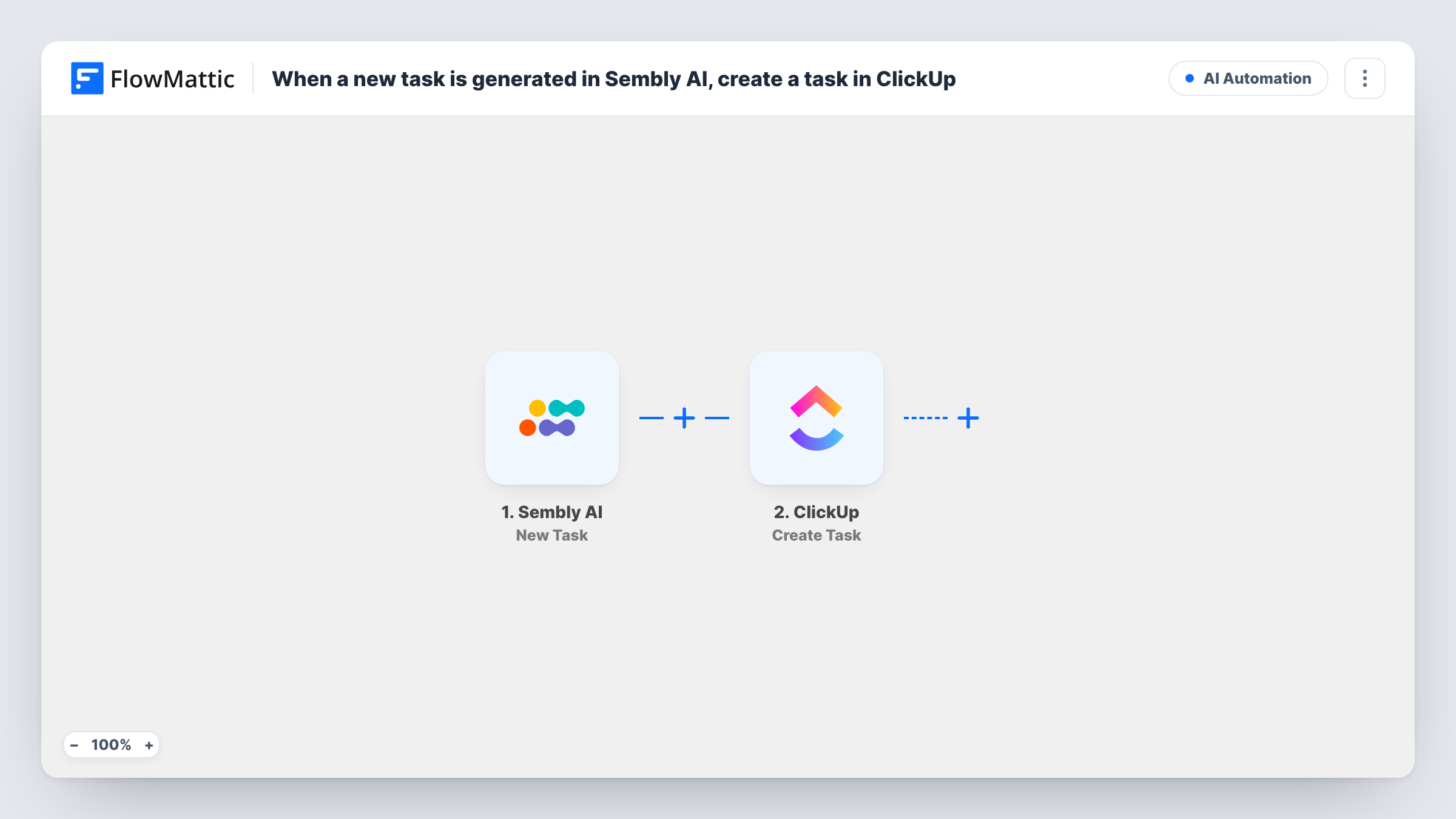
What this workflow does
Sembly AI pulls action items out of your meetings, but those items live in Sembly. If your team plans its work in ClickUp, someone has to copy each one across after the call. This workflow does that copying for you.
The Sembly AI trigger, New Task, fires when Sembly generates a new task. FlowMattic receives the task data Sembly sends. The ClickUp step, Create Task, then adds a task in ClickUp. You pick where it goes and map the Sembly task details into it, for example using the task text as the ClickUp task name.
Every task Sembly generates becomes a ClickUp task, because the template has no Filter. The workflow creates tasks only. It doesn't update ClickUp when something changes in Sembly later. Task History keeps a record of each run, with the data from Sembly and ClickUp's response.
Client calls for a service team
Action items Sembly picks up during a client call appear in the client's ClickUp list, ready for someone to assign and schedule.
Weekly team meetings
Tasks agreed in the weekly meeting reach ClickUp without anyone taking notes, so the team starts the week with them already on the board.
Sales discovery calls
Follow-ups such as sending a proposal or a case study become ClickUp tasks the account manager can track until they're done.
How this workflow runs
What happens at each step once the workflow is on, and what you need before you import it.
 Sembly AI New Task
Fires when Sembly AI generates a new task from a meeting. The task data Sembly sends is passed to the ClickUp step for mapping.
- ClickUp Create Task
Adds a new task in ClickUp. Choose where it is created, map the Sembly task details into it, and connect your ClickUp account when you import the workflow.
What you need
- FlowMatticCore
- Sembly AI AccountAccount
- ClickUp AccountAccount
After importing, map your own data. To keep the template universal, not every step is pre-filled. Open each step in the builder and connect your accounts and fields (channels, lists, sheets, recipients) before you switch the workflow on.
Make it yours
Changes worth making after you import it.
- Hold a short test meeting with Sembly after import so FlowMattic captures a real task, then map its fields into the ClickUp step.
- Add a Filter after the trigger if Sembly creates tasks you don't want in ClickUp, for example continuing only when the task text contains a keyword.
- Add a Slack step after ClickUp to tell the team a new task has arrived, and map the task name into the message.
Questions about this workflow
Does every Sembly AI task become a ClickUp task?
Yes, as imported. There is no Filter, so each task Sembly generates starts a run. Add a Filter if you want to pick which ones reach ClickUp.
Will a ClickUp task change if I edit the task in Sembly AI?
No. The trigger fires when Sembly generates a new task, and the ClickUp step only creates tasks. Later changes in Sembly aren't passed on.
Can the ClickUp task include the meeting notes as well?
Only data that arrives with the Sembly task can be mapped. Sembly has a separate New Meeting Notes trigger in FlowMattic if you want notes in another workflow.
Do I need accounts for both Sembly AI and ClickUp?
Yes. FlowMattic connects to Sembly to receive tasks and to your ClickUp workspace to create them, so you connect both when you import.
More AI Automation workflows
Other ready-to-import templates from the same category.







Import this workflow into your WordPress site
Download the JSON, import it from the Workflows screen and connect your accounts. Every run stays on your server, with no per-task fees.
30-day money-back guarantee Unlimited workflows and runs Self-hosted