

When a new ticket is created in Fluent Support, generate image in DocsFold
Each new Fluent Support ticket fills a DocsFold image template with the ticket’s details, giving you a generated image per ticket that you can pass to a later step.
 Fluent Support
 DocsFold
2 steps Setup ~5 min Used on 1.5k sites Free to import
What this workflow does
Ticket text is fine for agents, but some teams want a visual card for each request: for a wall display, a status update or an internal report. Building those by hand is slow. This workflow creates one from a DocsFold template every time a ticket is opened.
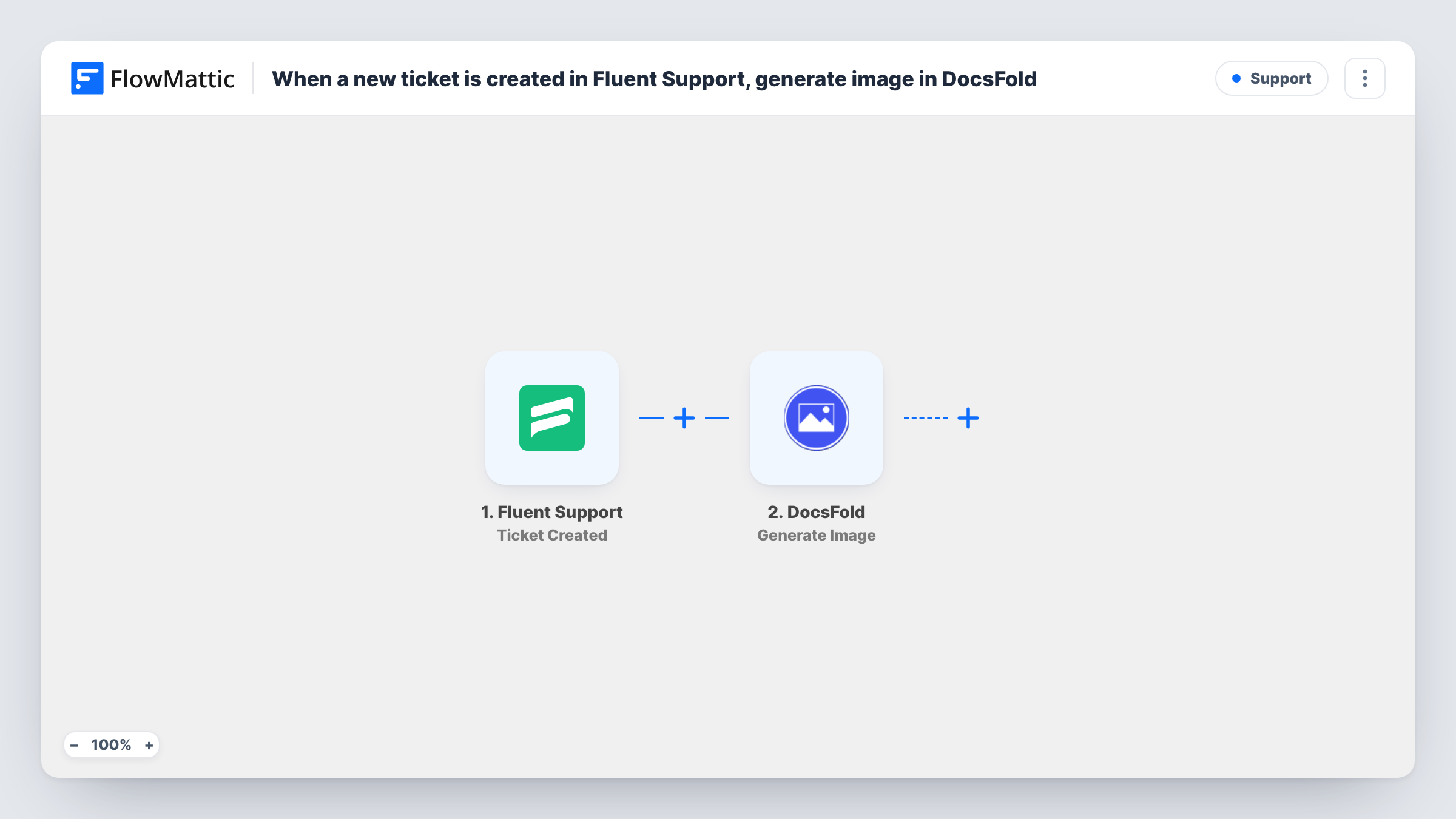
The Fluent Support trigger fires on Ticket Created and passes the ticket's data to FlowMattic. The second step runs Generate Image in DocsFold, which uses templates to produce images. You map ticket details, such as the subject, customer name or priority, into the template.
As imported, the workflow ends there. The image is created in DocsFold, and DocsFold's response appears in Task History. To do something with the image, add a step after DocsFold that maps what it returns into Slack, email or wherever you want the card to appear.
Ticket cards for a team channel
Add a Slack step after DocsFold, and each new Fluent Support ticket shows up as a branded card your support team can see at a glance.
Image log of incoming requests
Add a step after DocsFold that saves or shares each image, and you build a visual log of new Fluent Support tickets with the subject and customer on every card.
Ticket snapshots for reports
Each ticket produces a consistent image from your DocsFold template, which you collect for weekly reports on the requests you received.
How this workflow runs
What happens at each step once the workflow is on, and what you need before you import it.
 Fluent Support Ticket Created
Starts each time a customer or agent opens a new Fluent Support ticket. The ticket's details are passed on for mapping into the DocsFold template.
- DocsFold Generate Image
Generates an image from your DocsFold template using the ticket data you map. Connect your DocsFold account, point the step at your template, and check the output with a test ticket.
What you need
- FlowMatticCore
- Fluent Support PluginPlugin
- DocsFold AccountAccount
After importing, map your own data. To keep the template universal, not every step is pre-filled. Open each step in the builder and connect your accounts and fields (channels, lists, sheets, recipients) before you switch the workflow on.
Make it yours
Changes worth making after you import it.
- Add a Slack or email step after DocsFold and map the result it returns, so the generated image is actually sent somewhere.
- Add a Filter after the trigger that continues only for high-priority tickets, if you want images for urgent requests only.
- Design the DocsFold template with spaces for the ticket subject and customer name first, then create a test ticket and map those values.
Questions about this workflow
Where does the DocsFold image for each ticket end up?
In DocsFold, which returns a response to FlowMattic. The template has no further step, so add one if you want the image posted or emailed.
Do I need a DocsFold template before importing?
Yes. Generate Image works from a template, so create one in DocsFold with the areas you want filled from Fluent Support tickets.
Does the workflow change the Fluent Support ticket?
No. It reads the new ticket and passes its data to DocsFold. The ticket itself is left as it was.
More Support workflows
Other ready-to-import templates from the same category.








Import this workflow into your WordPress site
Download the JSON, import it from the Workflows screen and connect your accounts. Every run stays on your server, with no per-task fees.
30-day money-back guarantee Unlimited workflows and runs Self-hosted