

When a new Uploadcare file is uploaded, save it to Google Drive and record the link in Google Sheets
Each new Uploadcare upload is saved to Google Drive, then a Google Sheets row records the file along with its Drive link, so you have both the stored copy and a list that tells you where every file went.
 Uploadcare
 Google Drive
 Google Sheets
3 steps Setup ~5 min Used on 1.9k sites Free to import
What this workflow does
Copying uploads into Drive is half the job. Once hundreds of files pile up in a folder, finding the one a customer sent last Tuesday is slow. This workflow saves each new Uploadcare file to Google Drive and then writes a row about it in Google Sheets, so the sheet works as an index you can sort and search.
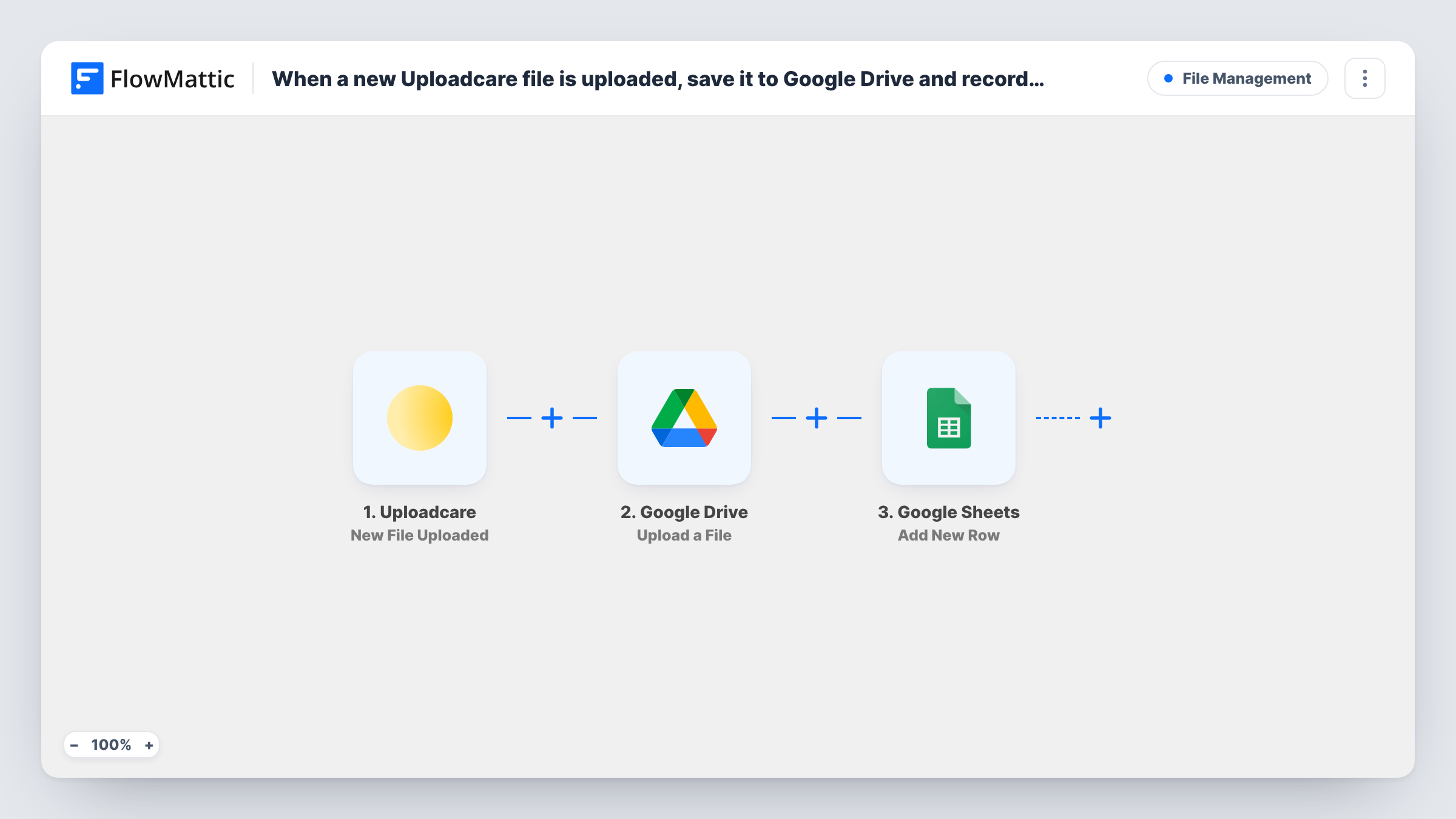
The Uploadcare trigger runs when a file is uploaded and hands its details to FlowMattic. The Google Drive step uploads the file to the Drive account you connect. Its response, including details of the new Drive file, can be mapped in the last step. The Google Sheets step adds a row where you place Uploadcare values and the Drive link side by side.
Every upload produces one Drive file and one row. Upload a test file after import and look at the Drive step in Task History to find the value that holds the link, then map it into the sheet.
Customer artwork for print orders
Customers upload artwork through Uploadcare. Production staff open the sheet, find the order's row and click straight through to the file in Drive.
Media library for a content team
Photos uploaded by contributors are stored in Drive, and the sheet lists every file so editors can add columns for usage rights or captions.
Proof of documents received
When clients upload contracts or ID documents, the sheet records each one with its Drive link, giving you a single list of what arrived.
How this workflow runs
What happens at each step once the workflow is on, and what you need before you import it.
 Uploadcare New File Uploaded
Fires as each new file reaches Uploadcare. The file details are handed to the Google Drive step and stay available for the Google Sheets row.
- Google Drive Upload a File
Uploads the file to Google Drive. Connect your Google account and map the file from the Uploadcare data. The response from Drive, with the new file's details, is passed on to the sheet.
- Google Sheets Add New Row
Writes one row per upload to the sheet you select. Map the Drive link from the previous step and any Uploadcare details you want, so each row points to the stored file.
What you need
- FlowMatticCore
- Uploadcare AccountAccount
- Google Drive AccountAccount
- Google Sheets AccountAccount
After importing, map your own data. To keep the template universal, not every step is pre-filled. Open each step in the builder and connect your accounts and fields (channels, lists, sheets, recipients) before you switch the workflow on.
Make it yours
Changes worth making after you import it.
- Leave a few blank columns in the sheet, such as Status or Notes, that your team fills in by hand after reviewing each upload.
- If only certain uploads matter, add a Filter between the Uploadcare trigger and the Google Drive step that checks a value your test run shows, such as the file type. A Filter stops every later step, so other files get neither a Drive copy nor a row.
- Add a Slack step at the end that posts the Drive link to a channel, so the team can open a new upload without visiting the sheet.
Questions about this workflow
Where does the Drive link in the Google Sheets row come from?
From the Google Drive step's response. After a test upload, check that step in Task History to find the value that holds the file's link, then map it into a sheet column.
Which Google Drive folder receives the Uploadcare files?
Whichever folder you pick when you set up the Drive step. FlowMattic describes this action as uploading the file to your selected Drive folder, so choose it when you connect your Google account, and every new upload is saved there.
Are Uploadcare files from before the import saved too?
No. Only files uploaded after you turn the workflow on start a run.
Can one Google account cover both the Uploadcare copies in Drive and the log sheet?
Yes. You can connect the same Google account to both steps, as long as it can write to the Drive and to the spreadsheet you pick.
More File Management workflows
Other ready-to-import templates from the same category.




Import this workflow into your WordPress site
Download the JSON, import it from the Workflows screen and connect your accounts. Every run stays on your server, with no per-task fees.
30-day money-back guarantee Unlimited workflows and runs Self-hosted