

When a new user is created in SuperSaaS, add them to a mailing list in FluentCRM
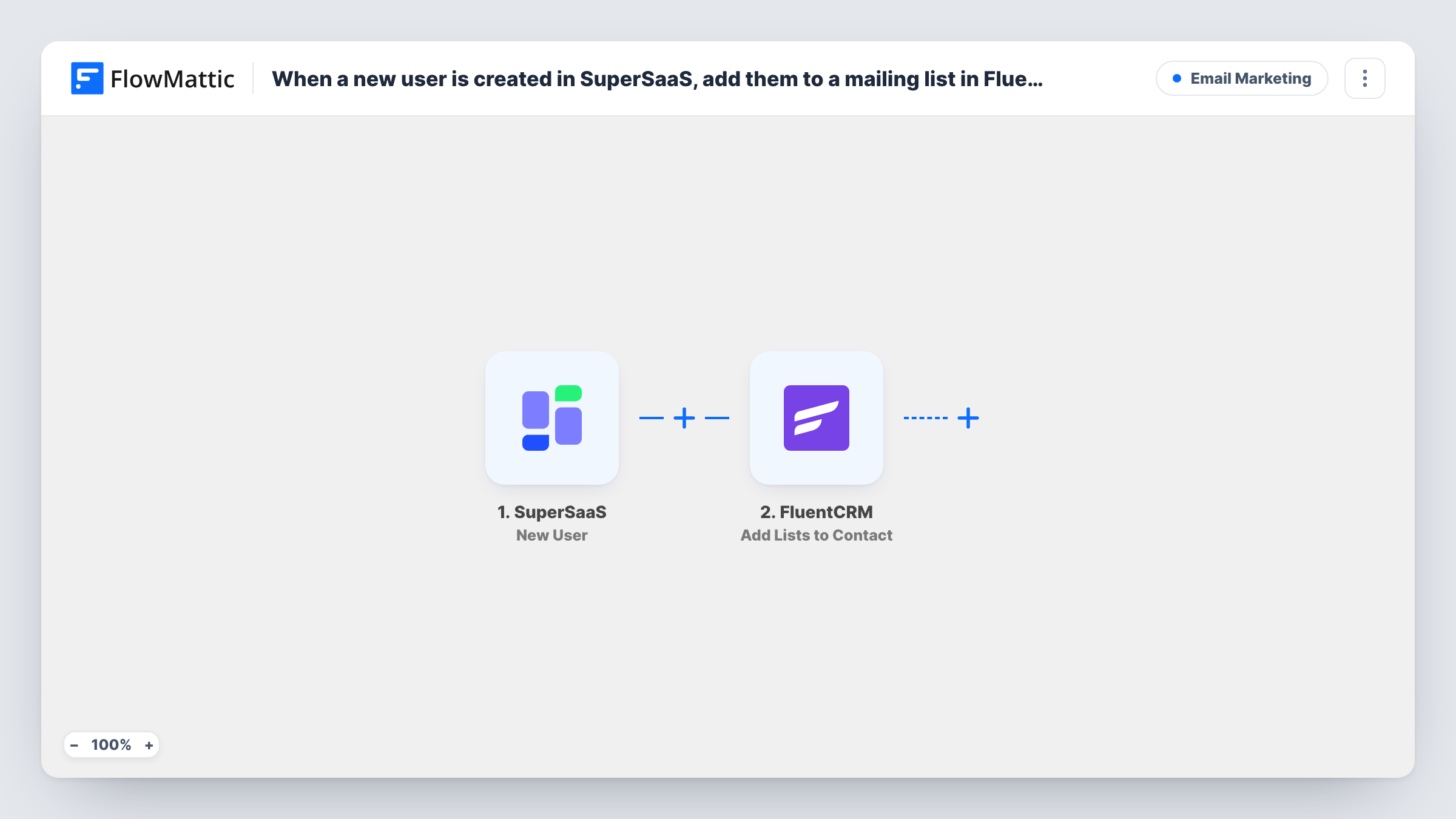
When someone creates a user account in SuperSaaS, FlowMattic creates or updates them as a FluentCRM contact by email and then adds that contact to the mailing lists you choose.
 SuperSaaS
 FluentCRM
3 steps Setup ~5 min Used on 2.6k sites Free to import
What this workflow does
People who sign up for an account in your SuperSaaS booking system are clients you can keep in touch with: appointment tips, new services, holiday hours. This workflow passes each new SuperSaaS user to FluentCRM and puts them on a mailing list, so your WordPress-based email marketing reaches them without an export.
The SuperSaaS New User trigger fires when a new user account is created. The account details, such as the name, email and phone the person entered, are handed to FluentCRM.
The first FluentCRM step creates a contact, or updates the existing contact with the same email address. The second adds lists to that contact. FlowMattic describes this action as working on an existing contact, which is why it comes after the create-or-update step. You fill in both after import: map the SuperSaaS email and name into step 2, then pick the lists and point step 3 at the contact.
Every new SuperSaaS account runs both steps. Accounts that are later edited or deleted don't, since that is a different SuperSaaS trigger. Create a test user and check FluentCRM and Task History to confirm the contact landed on the list.
Salon client newsletter
A hair salon's clients create SuperSaaS accounts to book, and each one joins a FluentCRM list that receives the monthly offers email.
Tutoring updates for families
A tutoring centre adds every parent who registers in SuperSaaS to a FluentCRM list used for term dates and schedule changes.
Clinic patient onboarding
A physiotherapy practice puts new SuperSaaS users on a list that triggers a FluentCRM welcome sequence with what to bring to the first visit.
How this workflow runs
What happens at each step once the workflow is on, and what you need before you import it.
 SuperSaaS New User
Starts the workflow when a new user account is created in SuperSaaS. The account's details, such as name and email, are passed to FluentCRM.
- FluentCRM Create or Update Contact
Creates the SuperSaaS user as a FluentCRM contact, or updates the contact that already has that email. Map the email and name after import; the step ships empty.
- FluentCRM Add Lists to Contact
Puts the contact created or updated in step 2 on the FluentCRM lists you select. Choose the mailing lists after import and map the contact, then confirm with a test account.
What you need
- FlowMatticCore
- SuperSaaS AccountAccount
- FluentCRM PluginPlugin
After importing, map your own data. To keep the template universal, not every step is pre-filled. Open each step in the builder and connect your accounts and fields (channels, lists, sheets, recipients) before you switch the workflow on.
Make it yours
Changes worth making after you import it.
- Start a FluentCRM automation on the list you choose in step 3, so new SuperSaaS users receive a welcome email without another step here.
- Map the phone number from SuperSaaS into the FluentCRM contact as well, if you collect it, so your team has it alongside the email.
- Add tags in FluentCRM with a separate Add Tags to Contact step after step 3 if you want to mark these contacts by source, for example SuperSaaS.
Questions about this workflow
What if the SuperSaaS user is already a FluentCRM contact?
Step 2 matches by email, so FluentCRM updates the existing contact instead of creating a duplicate. Step 3 then adds the chosen lists to it.
Where do the SuperSaaS contacts end up in FluentCRM?
In the FluentCRM plugin on the WordPress site where FlowMattic runs, so it must be installed there. Create the mailing lists there before you configure step 3.
Are SuperSaaS users who only book without an account included?
No. The trigger fires when a user account is created. Bookings are a separate SuperSaaS trigger, New Appointment, which you could use in another workflow.
Does editing a SuperSaaS user update FluentCRM?
Not with this workflow. It listens only for new accounts. SuperSaaS also has a Change User trigger in FlowMattic, which fires on creates, updates and deletions.
More Email Marketing workflows
Other ready-to-import templates from the same category.





Import this workflow into your WordPress site
Download the JSON, import it from the Workflows screen and connect your accounts. Every run stays on your server, with no per-task fees.
30-day money-back guarantee Unlimited workflows and runs Self-hosted