

When a payment is successful in QuestionScout, create a new order in WooCommerce
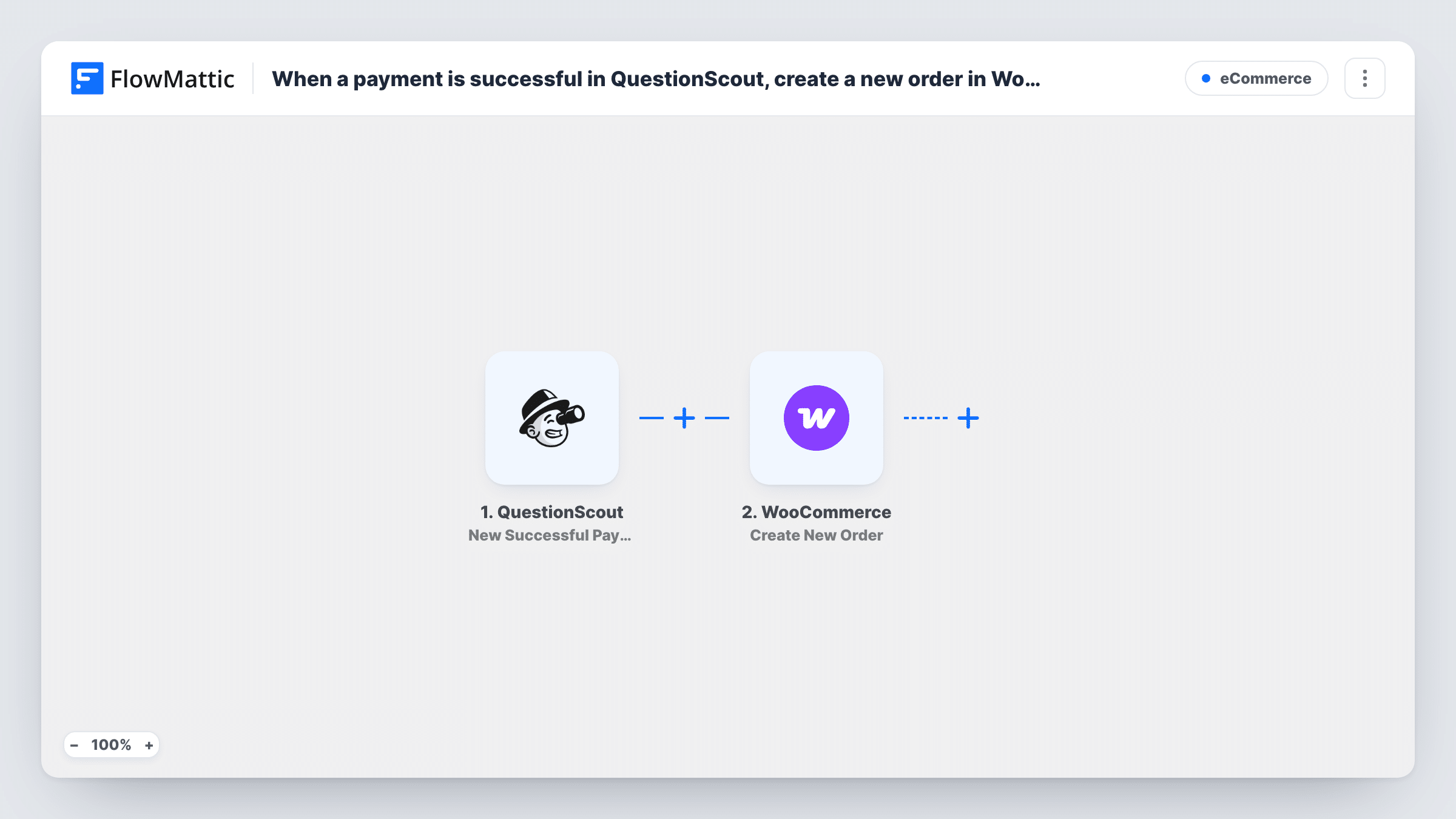
When a payment through a QuestionScout form succeeds, the workflow creates a new order in WooCommerce from the payment and form data, so sales taken in your forms show up alongside your store’s orders.
 QuestionScout
 WooCommerce
2 steps Setup ~5 min Used on 2.6k sites Free to import
What this workflow does
QuestionScout lets you take payments inside a form, which suits order forms, deposits and simple product sales. If the rest of your sales live in WooCommerce, those form payments sit outside your order list, reports and fulfilment routine. This workflow records each one as a WooCommerce order.
The QuestionScout trigger is New Successful Payment, so failed or abandoned payments don't start a run. FlowMattic receives the payment and the form answers and sends them to WooCommerce with Create New Order. You decide which product, customer and address details the order gets by mapping QuestionScout data into the step.
The money has already been taken by QuestionScout's payment, and creating the order in WooCommerce does not charge the customer again. QuestionScout doesn't know your WooCommerce product IDs, so plan how each form maps to a product. Task History shows the response WooCommerce returns for each order.
Deposits taken through a booking form
Clients pay a deposit in a QuestionScout form, and each payment becomes a WooCommerce order so your accounts see it with the rest of your sales.
Single-product order form
A QuestionScout form sells one product. Each successful payment creates a WooCommerce order for that product, ready for your normal shipping process.
Workshop registration fees
Paid registrations collected in QuestionScout are recorded as WooCommerce orders, giving you one order history for the workshop and your shop.
How this workflow runs
What happens at each step once the workflow is on, and what you need before you import it.
 QuestionScout New Successful Payment
Fires when a payment through a QuestionScout form succeeds. The payment details and the respondent's form answers become available to map into the WooCommerce order.
- WooCommerce Create New Order
Adds an order to your WooCommerce store. Map the buyer's details from the form and match the payment to a product in your store. Place a test payment and check the new order in WooCommerce before you go live.
What you need
- FlowMatticCore
- QuestionScout AccountAccount
- WooCommerce PluginPlugin
After importing, map your own data. To keep the template universal, not every step is pre-filled. Open each step in the builder and connect your accounts and fields (channels, lists, sheets, recipients) before you switch the workflow on.
Make it yours
Changes worth making after you import it.
- If one QuestionScout form sells several products, add a Router with a route per product answer and a Create New Order step in each, so every order gets the right item.
- Check the status of a test order in WooCommerce. If it isn't the one your fulfilment uses, look for a status option in the order step during setup.
- Map the QuestionScout payment reference into an order note or field if the step offers one, so you can match the WooCommerce order to the payment later.
Questions about this workflow
Will the customer be charged twice?
No. QuestionScout takes the payment, and this workflow only creates an order record in WooCommerce. Creating an order this way does not take a payment.
How does the order know which WooCommerce product was bought?
QuestionScout doesn't send WooCommerce product IDs, so you set the product when you configure the order step, either fixed or picked by a form answer through a Router. Test with a real payment to confirm the line items.
Do failed QuestionScout payments create orders?
No. The trigger is New Successful Payment, so only payments that succeed start the workflow.
Do orders made from QuestionScout payments trigger WooCommerce customer emails?
That depends on your WooCommerce email settings and the status the new order gets. Place a test payment and check which emails go out before you rely on them.
More E-Commerce workflows
Other ready-to-import templates from the same category.





Import this workflow into your WordPress site
Download the JSON, import it from the Workflows screen and connect your accounts. Every run stays on your server, with no per-task fees.
30-day money-back guarantee Unlimited workflows and runs Self-hosted