

When a payment is successful in Swipe Pages, add a new subscription in Pabbly Subscriptions and add details to Google Spreadsheet
When a payment succeeds on your Swipe Pages landing page, FlowMattic creates the buyer as a customer in Pabbly Subscriptions, starts a subscription for them and logs the details in Google Sheets.
 Swipe Pages
 Pabbly Subscriptions
 Google Sheets
4 steps Setup ~8 min Used on 1.6k sites Free to import
What this workflow does
Selling a recurring offer from a Swipe Pages landing page leaves you with a payment in one place and billing in another. This workflow joins them: each successful payment sets the buyer up in Pabbly Subscriptions and writes a record you can review in a spreadsheet.
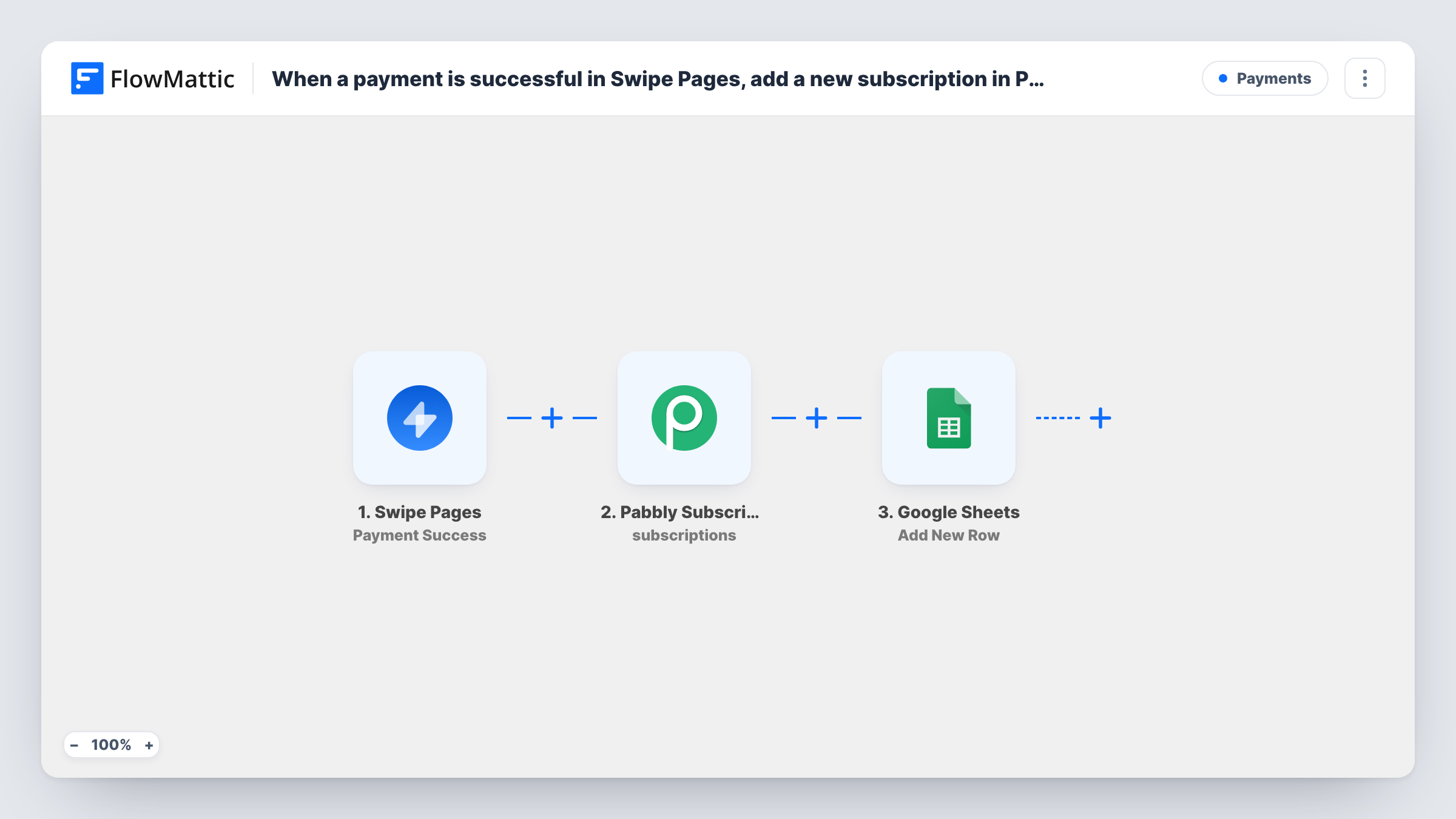
The Swipe Pages trigger starts a run when a payment on your page succeeds and passes the payment and buyer details on. The first Pabbly Subscriptions step creates a new customer from that data. The second Pabbly step creates a subscription for an existing customer, so you point it at the customer the step before it just made.
The last step adds a row to Google Sheets, where you can keep the buyer's name, email, amount and anything Pabbly returned, such as the new customer or subscription ID.
No step in the template has its fields set yet. After import you link the Swipe Pages trigger, connect Pabbly Subscriptions and Google, and map the buyer's details through each step. Because every successful payment starts a run, a returning buyer goes through Create Customer again; check what Pabbly returns for an email it already holds in Task History during testing.
Membership sold from a landing page
A coach sells a monthly coaching membership on a Swipe Pages page and wants each buyer set up in Pabbly Subscriptions, which handles the recurring billing.
Software trial converted on payment
A SaaS founder takes the first payment on a Swipe Pages checkout and has the matching Pabbly subscription created for the account, with a row for the finance sheet.
Sales log for a launch campaign
During a launch, the marketing team watches the Google Sheet fill with each paying buyer and the subscription Pabbly created for them.
How this workflow runs
What happens at each step once the workflow is on, and what you need before you import it.
 Swipe Pages Payment Success
Starts the workflow when a payment on your Swipe Pages page succeeds. The buyer's details and the payment data become available to map into Pabbly Subscriptions and the sheet.
- Pabbly Subscriptions Create Customer
Adds the Swipe Pages buyer to Pabbly Subscriptions as a new customer. The step ships unmapped: connect your Pabbly account and map the buyer's name, email and any other details from the Swipe Pages payment.
- Pabbly Subscriptions Create Subscription
Creates a subscription for an existing Pabbly customer. Map the customer returned by the previous step so the subscription belongs to the new buyer, then check a test run for what Pabbly returned.
- Google Sheets Add New Row
Adds one row to your Google Sheets spreadsheet for each payment. Pick the sheet and map the buyer details, the amount and the IDs Pabbly returned into your columns.
What you need
- FlowMatticCore
- Swipe Pages AccountAccount
- Pabbly Subscriptions AccountAccount
- Google Sheets AccountAccount
After importing, map your own data. To keep the template universal, not every step is pre-filled. Open each step in the builder and connect your accounts and fields (channels, lists, sheets, recipients) before you switch the workflow on.
Make it yours
Changes worth making after you import it.
- Run one real or test payment before going live and look at each step in Task History, so you know which Pabbly fields hold the customer and subscription IDs you want in the sheet.
- Add an Email step after the Google Sheets step that tells your billing team about each new subscription, with the buyer's email and the subscription ID from Pabbly mapped into the message.
- Map the payment amount and date into their own columns, so the sheet can total sales by day.
Questions about this workflow
Why does the workflow create the Pabbly customer before the subscription?
Pabbly's Create Subscription action works on an existing customer. The Create Customer step makes that customer first, and you map its result into the subscription step.
Which subscription does Pabbly Subscriptions create for the Swipe Pages buyer?
The one you set up in the Create Subscription step. It ships unmapped, so after import you choose what the subscription is for in Pabbly and map the customer from the step before. A test run shows what Pabbly created.
What if the buyer already exists in Pabbly Subscriptions?
The Create Customer step still runs for them. Pabbly decides whether to accept or refuse an email it already holds, so test with a known customer and read the response in Task History.
Do Swipe Pages form submissions without a payment start this workflow?
No. The trigger is Payment Success. FlowMattic's Swipe Pages integration has a separate New Form Submission trigger for forms.
More Payments workflows
Other ready-to-import templates from the same category.





Import this workflow into your WordPress site
Download the JSON, import it from the Workflows screen and connect your accounts. Every run stays on your server, with no per-task fees.
30-day money-back guarantee Unlimited workflows and runs Self-hosted