

When a PDF is generated, add the details to a Google Sheets row for tracking
Each time DocSpring records a new PDF submission, this workflow adds its details to a new Google Sheets row, so you keep one running log of the documents you generate.
 DocSpring
 Google Sheets
2 steps Setup ~5 min Used on 2.6k sites Free to import
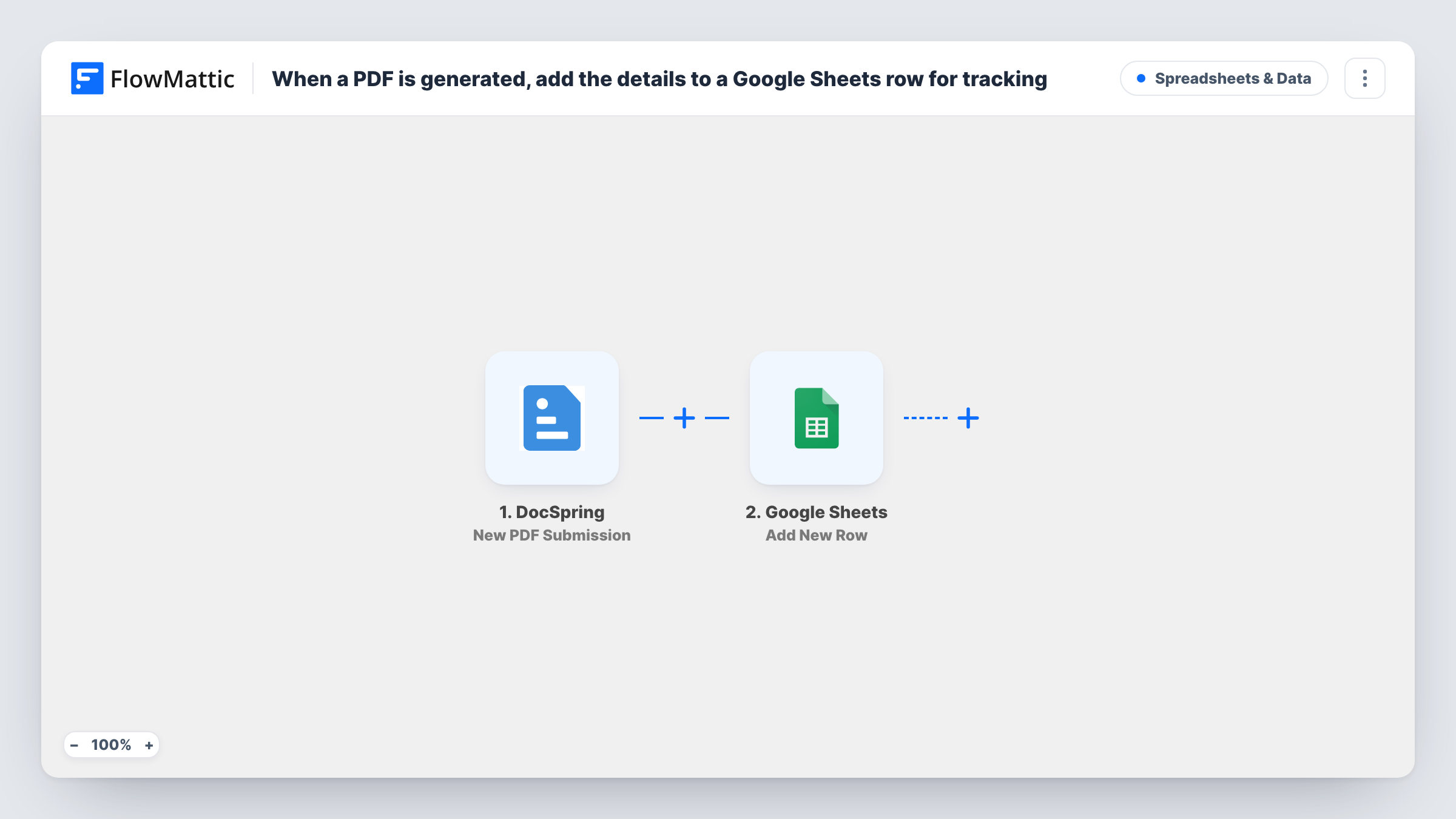
What this workflow does
DocSpring fills PDF templates with data and produces finished documents such as contracts, certificates or invoices. Keeping track of what was generated, for whom and when, usually means opening the DocSpring dashboard or copying details into a spreadsheet yourself. This workflow writes that log for you.
The DocSpring trigger fires on each new PDF submission in your account. FlowMattic receives the submission data that DocSpring sends and makes it available for mapping. The second step adds a row to the Google Sheets spreadsheet you pick, with the submission values placed in the columns you map.
Every submission produces one row, so the sheet grows into a plain record you can sort, filter or share with people who never log in to DocSpring. Which values you can map depends on what DocSpring returns for your templates, so run a test after import and check the captured data. Task History keeps a record of each run.
Contract register for a small business
Each contract your DocSpring template generates lands in a sheet, giving the office manager one list of every agreement produced.
Certificate log for a training provider
Course certificates created in DocSpring each add a row, so you can answer a learner's question about their certificate from the spreadsheet.
Shared view for an accountant
Invoices or statements built as DocSpring PDFs are listed in a Google Sheet you share with your accountant, who has no DocSpring access.
How this workflow runs
What happens at each step once the workflow is on, and what you need before you import it.
 DocSpring New PDF Submission
Runs when a new PDF submission is recorded in your DocSpring account. The submission data DocSpring sends becomes available to map in the Google Sheets step.
- Google Sheets Add New Row
Adds a new row to the Google Sheets spreadsheet and worksheet you choose. Map each column to a value from the DocSpring submission, and connect your Google account on import.
What you need
- FlowMatticCore
- DocSpring AccountAccount
- Google Sheets AccountAccount
After importing, map your own data. To keep the template universal, not every step is pre-filled. Open each step in the builder and connect your accounts and fields (channels, lists, sheets, recipients) before you switch the workflow on.
Make it yours
Changes worth making after you import it.
- Put a header row in the sheet before you map the step, with names such as template, submission ID and date, so each mapped value has a clear column.
- If you use several DocSpring templates and only want one logged, add a Filter after the trigger. Base its condition on a value in the submission data that identifies the template, once a test run shows you one.
- Generate one test PDF in DocSpring after import so FlowMattic captures a real submission, then map the columns from that sample data.
Questions about this workflow
Does every DocSpring PDF submission get its own row?
Yes. There is no Filter in this template, so each new submission DocSpring reports adds a row. Add a Filter after the trigger if you only want some of them logged.
Is the PDF file itself saved in Google Sheets?
No. The sheet holds the values you map from the submission. If DocSpring includes a link to the document in its data, you can map that link to a column, so check the sample from a test run.
Will PDFs created before I turn this on be added to the sheet?
No. The trigger reacts to new submissions, so only PDFs generated after the workflow is active reach the spreadsheet.
Which accounts do I need for this DocSpring workflow?
A DocSpring account to connect to the trigger, and a Google account with edit access to the spreadsheet that will hold the log.
More Spreadsheets & Data workflows
Other ready-to-import templates from the same category.





Import this workflow into your WordPress site
Download the JSON, import it from the Workflows screen and connect your accounts. Every run stays on your server, with no per-task fees.
30-day money-back guarantee Unlimited workflows and runs Self-hosted