

When a Rocketlane customer is invited, log it in Google Sheets and notify the onboarding team in Slack
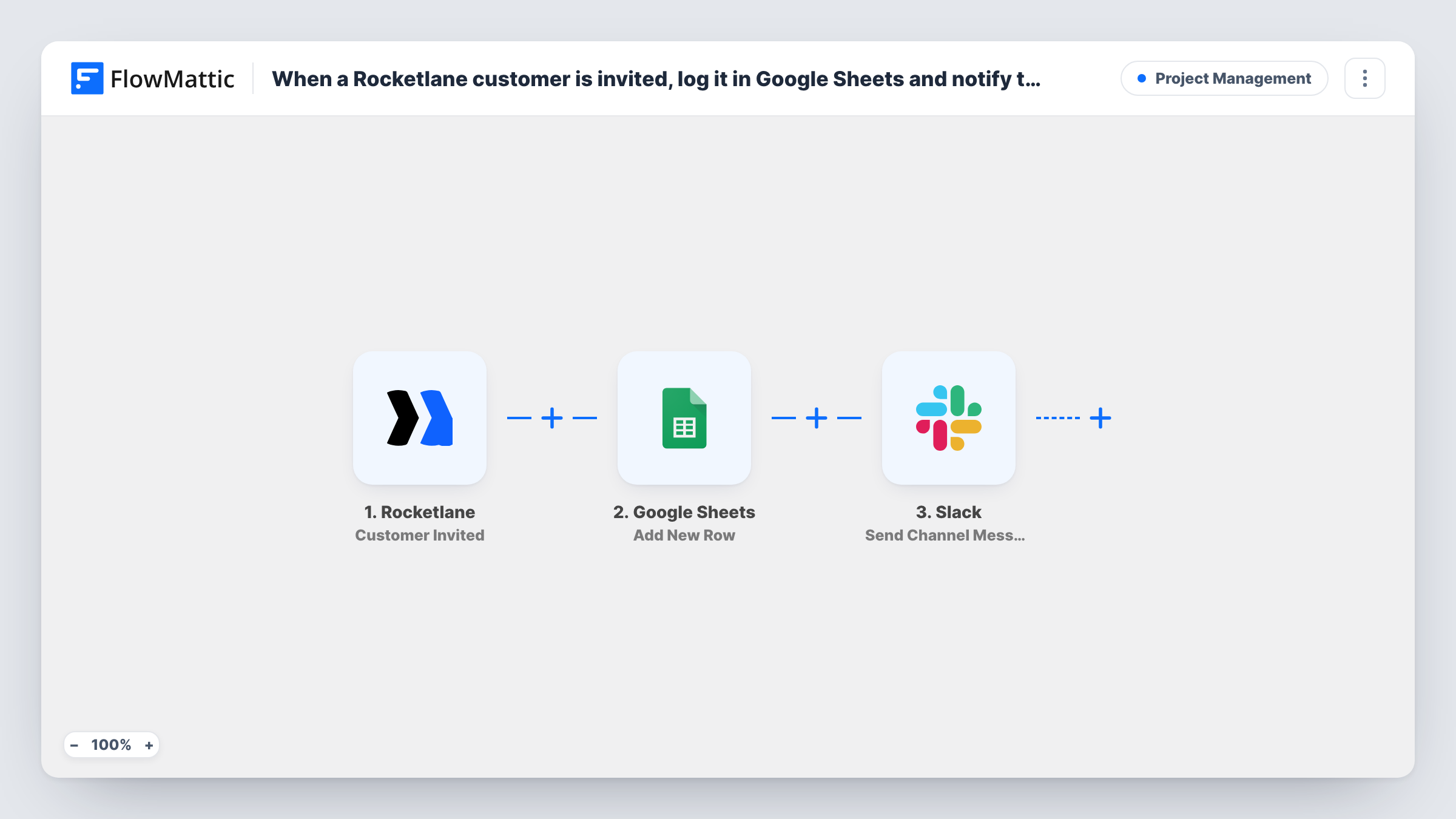
When a customer is invited to a Rocketlane project, this workflow adds a row to Google Sheets and then posts a message to your onboarding team’s Slack channel, so the invite is both recorded and announced.
 Rocketlane
 Google Sheets
 Slack
Slack3 steps Setup ~5 min Used on 2.7k sites Productivity Free to import
What this workflow does
Inviting a customer into a Rocketlane project is often the moment onboarding really starts. The team that runs the kickoff needs to hear about it, and someone usually wants a running list of who was invited and when. This workflow covers both from one Rocketlane event.
The Rocketlane trigger fires when a customer is invited in a project. FlowMattic hands the invite details to Google Sheets, which adds a new row to the spreadsheet you pick, with the columns you map. Next, Slack posts a message to the channel you choose. You write that message after import and can drop in any detail from the invite, such as the customer or the project name.
The steps run in order for every invite. The sheet becomes a log of every customer invited since you switched the workflow on, and the Slack post tells the team in real time. Task History keeps a record of each run, including any step that returned an error.
Kickoff scheduling for a CS team
The onboarding channel sees each new invite and the assigned manager books the kickoff call, while the sheet tracks how many invites went out each week.
Handing over from sales
Sales invites the customer into the Rocketlane project after signing. The Slack post tells onboarding the account is theirs, and the sheet records the handover.
Reporting to leadership
A shared Google Sheet of invited customers gives managers a plain view of onboarding volume without a Rocketlane login.
How this workflow runs
What happens at each step once the workflow is on, and what you need before you import it.
 Rocketlane Customer Invited
Runs when a customer is invited in a Rocketlane project. The invite's details are passed on so you can map them into the sheet row and the Slack message.
- Google Sheets Add New Row
Writes one line per invite into the Google Sheets tab you choose. Connect your Google account and map each column to a Rocketlane field, for example the customer's email and the project.
- Slack Send Channel Message
Sends the onboarding announcement to a Slack channel of your choice. Write the text after import and insert Rocketlane details so the onboarding team knows who was invited to which project.
What you need
- FlowMatticCore
- Rocketlane AccountAccount
- Google Sheets AccountAccount
- Slack AccountAccount
After importing, map your own data. To keep the template universal, not every step is pre-filled. Open each step in the builder and connect your accounts and fields (channels, lists, sheets, recipients) before you switch the workflow on.
Make it yours
Changes worth making after you import it.
- Mention a user group in the Slack text, such as your onboarding group, so the right people get a notification instead of just a new line in the channel.
- Add a Filter after the trigger if only some Rocketlane projects should reach this sheet and channel, for example by matching the project name.
- Put a date column in the sheet and map a date from the invite data, if a test run shows one, so you can sort the log by when customers were invited.
Questions about this workflow
Does inviting the same customer to two Rocketlane projects add two rows?
Yes. Each invite is its own event, so every invite adds a row and posts its own Slack message.
Does this workflow change anything in Rocketlane?
No. It only reads the invite event. The project, the customer and the invite stay as they are in Rocketlane.
Are customers invited before I import this added to the sheet?
No. The trigger only reacts to invites that happen while the workflow is on, so you would need to add earlier customers by hand.
Which Rocketlane details can I use in Google Sheets and Slack?
Whatever the Customer Invited event sends. Invite a test customer after import, and the captured fields appear for mapping in both later steps.
More Project Management workflows
Other ready-to-import templates from the same category.




Import this workflow into your WordPress site
Download the JSON, import it from the Workflows screen and connect your accounts. Every run stays on your server, with no per-task fees.
30-day money-back guarantee Unlimited workflows and runs Self-hosted