

Create a ClickUp task when a new MaintainX work order is opened
Whenever a new work order is created in MaintainX, this workflow opens a matching task in ClickUp, so maintenance jobs show up where the rest of your team plans its work.
 MaintainX
 ClickUp
2 steps Setup ~5 min Used on 1.4k sites Productivity Free to import
What this workflow does
Maintenance crews often work in MaintainX while managers, office staff or contractors plan their week in ClickUp. When a work order only exists in one tool, people on the other side don't see it until someone mentions it. This workflow puts each new work order into ClickUp as a task.
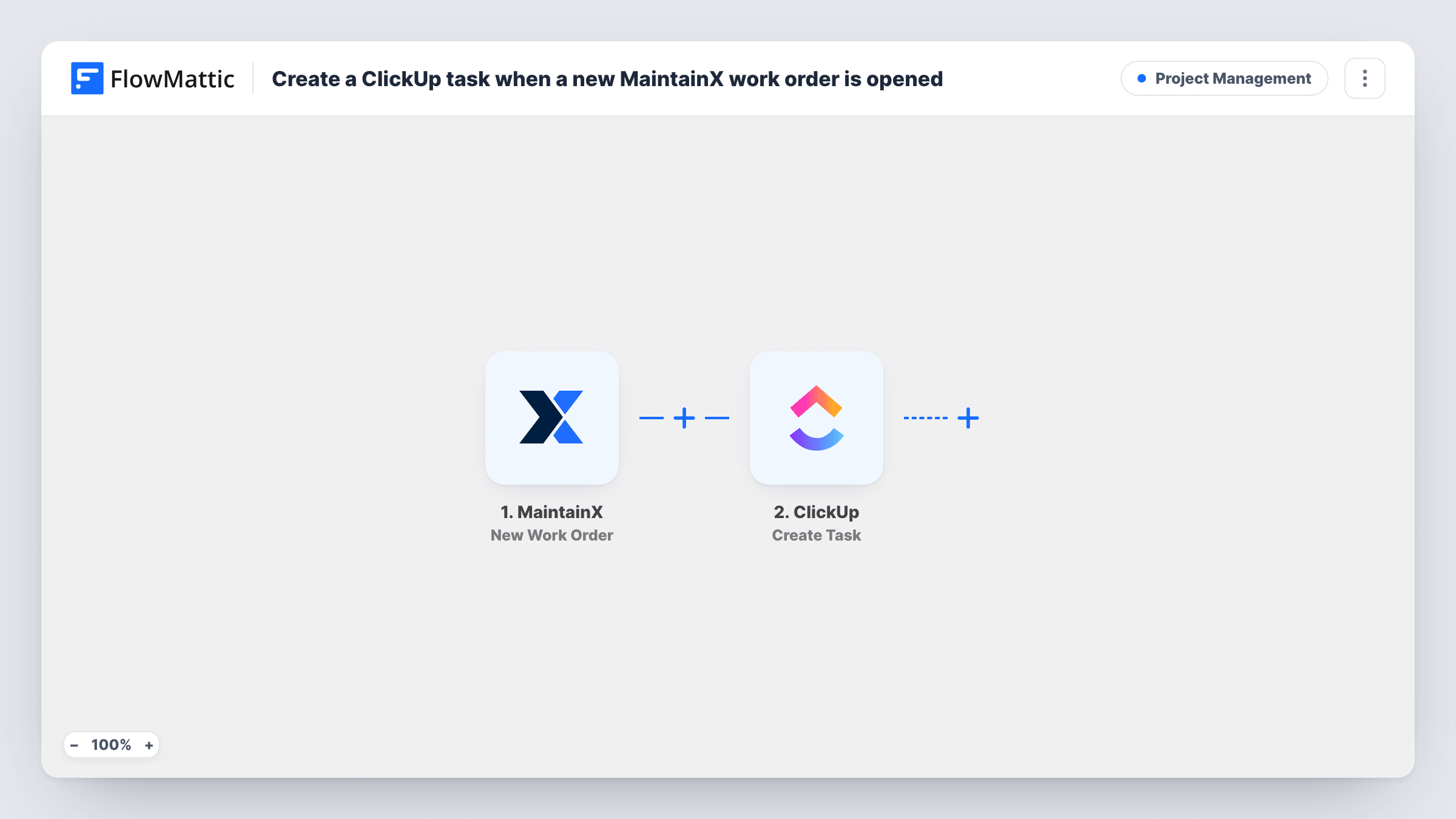
The MaintainX trigger starts a run whenever someone in your MaintainX account opens a new work order. FlowMattic takes the work order's details and sends them to ClickUp, where Create Task adds a new task. You decide which work order values go into the task when you map the step.
Each new work order produces one task, because nothing filters the runs. Changes made later in MaintainX, such as a status update, don't reach the ClickUp task. For each work order, Task History lists the run along with ClickUp's response.
Facilities requests seen by the office team
A technician logs a broken HVAC unit as a MaintainX work order. The office manager sees it as a ClickUp task and can arrange access or parts.
Contractor jobs tracked alongside projects
Work orders that need an outside contractor appear in ClickUp next to your other projects, so the person who books contractors has them in one list.
Weekly planning across two teams
Your operations lead plans the week in ClickUp. New MaintainX work orders show up there as tasks, so maintenance work is part of the same plan.
How this workflow runs
What happens at each step once the workflow is on, and what you need before you import it.
 MaintainX New Work Order
Fires when a new work order is created in your MaintainX account. The work order's details are passed on, ready to map into the ClickUp task.
- ClickUp Create Task
Creates a new task in ClickUp from the work order. Map the MaintainX values you want into the task, connect your ClickUp account, and check a test run to confirm where the task lands.
What you need
- FlowMatticCore
- MaintainX AccountAccount
- ClickUp AccountAccount
After importing, map your own data. To keep the template universal, not every step is pre-filled. Open each step in the builder and connect your accounts and fields (channels, lists, sheets, recipients) before you switch the workflow on.
Make it yours
Changes worth making after you import it.
- Create one test work order in MaintainX after import. FlowMattic captures its data, so you can see which work order values are available to put in the ClickUp task.
- If only some work orders belong in ClickUp, add a Filter after the trigger on a value from the work order, such as its priority or category, if the test data shows one.
- MaintainX also has a Work Order Status Change trigger. A second workflow on that trigger can post updates to Slack or log them to a sheet.
Questions about this workflow
Does the ClickUp task update when the MaintainX work order changes?
No. The workflow only runs when a work order is created. Later edits or status changes in MaintainX stay in MaintainX.
Are existing MaintainX work orders copied into ClickUp?
No. Only work orders created after you turn the workflow on become ClickUp tasks.
Do I need accounts on both MaintainX and ClickUp?
Yes. You connect your MaintainX account to the trigger and your ClickUp account to the Create Task step.
Will closing the ClickUp task close the MaintainX work order?
No. Nothing in this workflow writes back to MaintainX, so the two stay separate after the task is created.
More Project Management workflows
Other ready-to-import templates from the same category.






Import this workflow into your WordPress site
Download the JSON, import it from the Workflows screen and connect your accounts. Every run stays on your server, with no per-task fees.
30-day money-back guarantee Unlimited workflows and runs Self-hosted