

Create a ClickUp task when a GrowthBook experiment is created
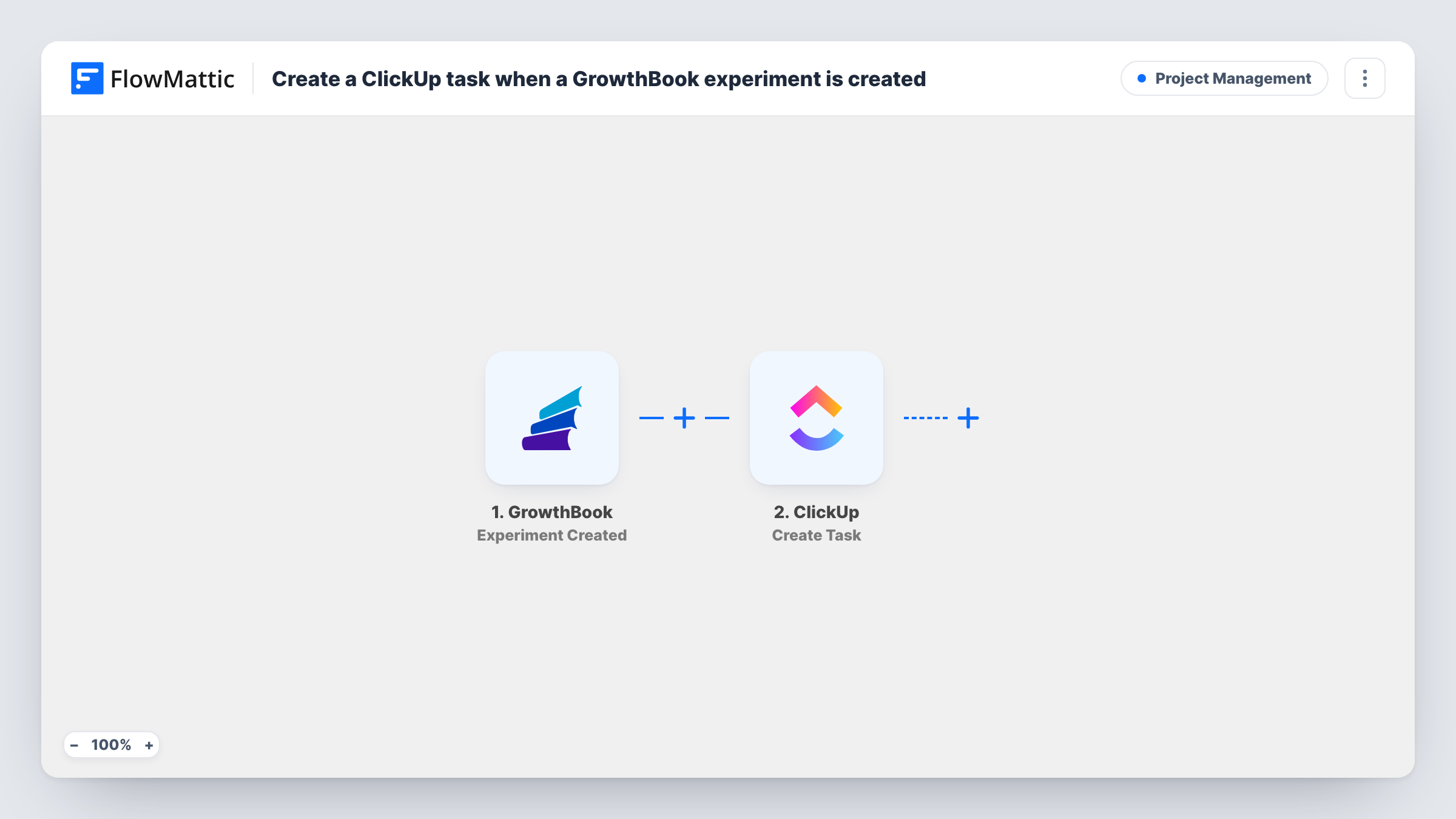
When someone creates a new experiment in GrowthBook, this workflow opens a matching task in ClickUp, so the setup, review and write-up work for each test is tracked in the same place as your other product work.
 GrowthBook
 ClickUp
2 steps Setup ~5 min Used on 3.4k sites Productivity Free to import
What this workflow does
An A/B test is more than the experiment record. Someone has to check the metrics, watch the results and write up what was learned, and that work tends to live outside GrowthBook. When it is not on anyone's task list, finished experiments sit without a decision. This workflow gives each new experiment its own ClickUp task from the start.
The GrowthBook trigger runs when an experiment is created in your account. FlowMattic receives the experiment data GrowthBook sends and makes it available to map. The ClickUp step then creates a task in your workspace, carrying whichever experiment details you map into it.
Each experiment created produces one task, and nothing flows back to GrowthBook. Status changes and results stay in GrowthBook unless you add more steps. A test experiment after import shows you which values the trigger passes along, so you can name tasks in a way your team recognises.
Analysis queue for a data team
Each new GrowthBook experiment appears as a ClickUp task in the analysts' list, so nobody has to scan GrowthBook for tests that still need a results review.
Product sprint planning
Product managers see a ClickUp task for every experiment their team starts and can pull the follow-up work into the next sprint.
Audit trail for growth tests
A ClickUp list with one task per experiment gives a running record of what was tested and when, alongside the tasks that came out of each test.
How this workflow runs
What happens at each step once the workflow is on, and what you need before you import it.
 GrowthBook Experiment Created
Runs when a new experiment is created in your GrowthBook account. The experiment data that GrowthBook sends becomes available to map into the ClickUp task.
- ClickUp Create Task
Creates a task in ClickUp for the new experiment. Connect your ClickUp account and map GrowthBook values into the task. A test run shows where the task lands and what else the step lets you set.
What you need
- FlowMatticCore
- GrowthBook AccountAccount
- ClickUp AccountAccount
After importing, map your own data. To keep the template universal, not every step is pre-filled. Open each step in the builder and connect your accounts and fields (channels, lists, sheets, recipients) before you switch the workflow on.
Make it yours
Changes worth making after you import it.
- Add a Slack or Gmail step after ClickUp so the person who reviews experiments also hears about each new one.
- If only some experiments need a task, add a Filter after the trigger that checks a value in the GrowthBook data, such as a tag or project your test run shows.
- Create one throwaway experiment in GrowthBook after import, then open Task History to see every field the trigger captured before you map the task.
Questions about this workflow
Does the ClickUp task update when the GrowthBook experiment changes?
No. The workflow runs once, when the experiment is created. Later edits, status changes or results in GrowthBook do not touch the task.
Will experiments that already exist in GrowthBook get ClickUp tasks?
No. Only experiments created after the workflow is turned on start a run. Add tasks for older experiments by hand.
Can I assign the ClickUp task to a person automatically?
Check the ClickUp step during a test run to see what it lets you set. If it offers an assignee, you can pick one person for every experiment's task.
Do I need both a GrowthBook and a ClickUp account?
Yes. You connect both in FlowMattic: GrowthBook so the trigger can receive new experiments, and ClickUp so the action can create tasks in your workspace.
More Project Management workflows
Other ready-to-import templates from the same category.






Import this workflow into your WordPress site
Download the JSON, import it from the Workflows screen and connect your accounts. Every run stays on your server, with no per-task fees.
30-day money-back guarantee Unlimited workflows and runs Self-hosted