

When a Sendcloud refund is requested, log it in Google Sheets, notify finance in Slack, then mark the row as handled
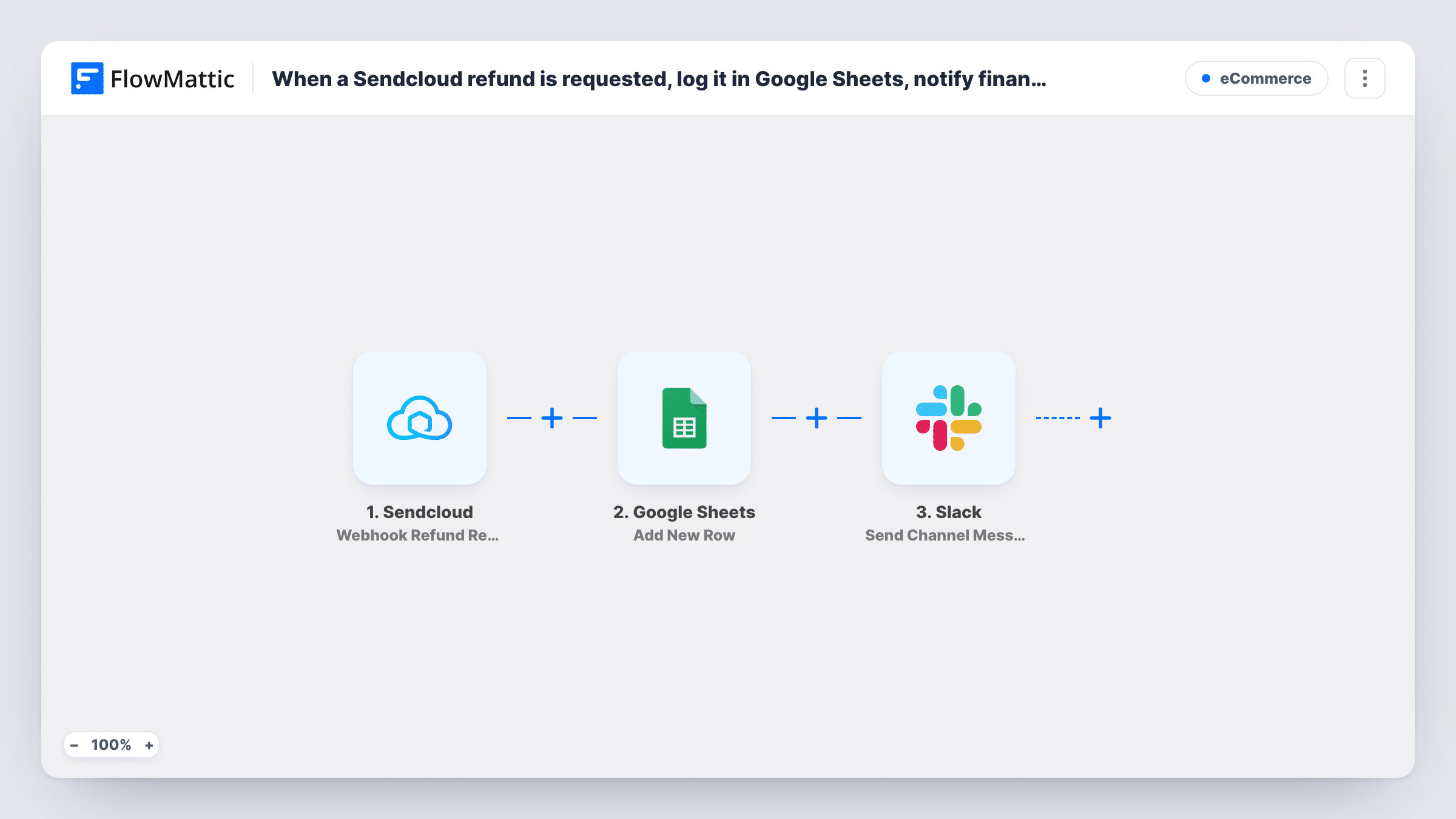
When a refund is requested in Sendcloud, FlowMattic logs it as a new Google Sheets row, posts a Slack message for your finance team, then updates that same row by its row number to mark it handled.
 Sendcloud
 Google Sheets
 Slack
Slack4 steps Setup ~8 min Used on 3.1k sites Free to import
What this workflow does
Refund requests on shipments need two things: a record finance can reconcile against, and a prompt so someone actually issues the money back. This workflow creates both from each Sendcloud refund request, then stamps the log row so you can see it went through every step.
The Sendcloud trigger fires when a refund is requested. The Google Sheets Add New Row step writes the request to your sheet and returns the number of the row it added. Then a Slack message goes to the channel your finance team watches. Finally, Update Row edits that same row: its row number is already mapped to {google_spreadsheets2.row_number}, the value Add New Row returned.
You complete the mapping after import. In Add New Row, choose the spreadsheet and sheet and map the refund details Sendcloud sends into columns. Write the Slack message and pick the channel. In Update Row, choose the same spreadsheet and sheet and set a status column to a value such as Handled.
That value is written as soon as the Slack message has gone out, so it marks that finance was told, not that the refund was paid. Task History lists each request and what every step returned.
Refund log for month-end
An online shop's bookkeeper reconciles the Sendcloud refund sheet against payment provider reports at the end of each month.
Finance channel prompt
A fashion retailer's #finance Slack channel gets a message for each Sendcloud refund request, so the person on duty issues the refund the same day.
Weekly review of return volume
An operations lead filters the Sendcloud refund sheet by week to see how many refunds were requested and which carriers or products come up most.
How this workflow runs
What happens at each step once the workflow is on, and what you need before you import it.
 Sendcloud Webhook Refund Requested Object
Fires when a refund is requested in Sendcloud. The request data is passed to the next steps; a test run in Task History shows the fields you can map.
- Google Sheets Add New Row
Writes the refund request as a new row in the spreadsheet you choose and returns that row's number. Columns aren't mapped in the template, so match Sendcloud fields to your headers after import.
- Slack Send Channel Message
Sends a message to the Slack channel you choose, typically one finance watches. The text is left for you to write; map refund details from the Sendcloud data into it.
- Google Sheets Update Row
Edits the row from step 2, located by the row number that step returned, which is already mapped. Select the same spreadsheet and sheet and set your status column to Handled or a similar value.
What you need
- FlowMatticCore
- Sendcloud AccountAccount
- Google Sheets AccountAccount
- Slack AccountAccount
After importing, map your own data. To keep the template universal, not every step is pre-filled. Open each step in the builder and connect your accounts and fields (channels, lists, sheets, recipients) before you switch the workflow on.
Make it yours
Changes worth making after you import it.
- Create a Status column in the sheet before mapping, so the Update Row step has somewhere to write Handled.
- If your finance channel is private, use Slack's Send Private Channel Message action in place of Send Channel Message.
- Add a second column, such as Refund paid, that finance fills in by hand, so the sheet separates requests that were flagged from refunds that were paid.
- To message one finance person instead of a channel, switch the Slack step to the Send Direct Message action.
Questions about this workflow
Does the Handled mark mean the Sendcloud refund was paid?
No. Update Row sets it right after the Slack message, so it shows finance was notified. Track the actual refund in a separate column your team fills in.
How does Update Row find the refund's row?
Add New Row returns the row number of the row it created, and the template maps {google_spreadsheets2.row_number} into Update Row, so the same row is updated in place.
What will finance see in the Slack message about a Sendcloud refund?
Whatever you write. The Slack step ships without text, so add the refund details you want finance to see, mapped from the Sendcloud trigger data.
More E-Commerce workflows
Other ready-to-import templates from the same category.





Import this workflow into your WordPress site
Download the JSON, import it from the Workflows screen and connect your accounts. Every run stays on your server, with no per-task fees.
30-day money-back guarantee Unlimited workflows and runs Self-hosted