

When a tag is added to a contact in We-Connect, add contact to list in Mailchimp
Tag a contact in We-Connect and FlowMattic adds them to your Mailchimp audience as a member, or updates them if they are already on it, so LinkedIn prospects can join your email campaigns.
 We-Connect
 Mailchimp
2 steps Setup ~5 min Used on 1.9k sites Free to import
What this workflow does
Outreach on LinkedIn and email marketing often run as separate projects. You tag a promising prospect in We-Connect, then someone has to copy them into Mailchimp by hand. This workflow uses the tag itself as the signal, so applying it is all it takes to move the person onto your list.
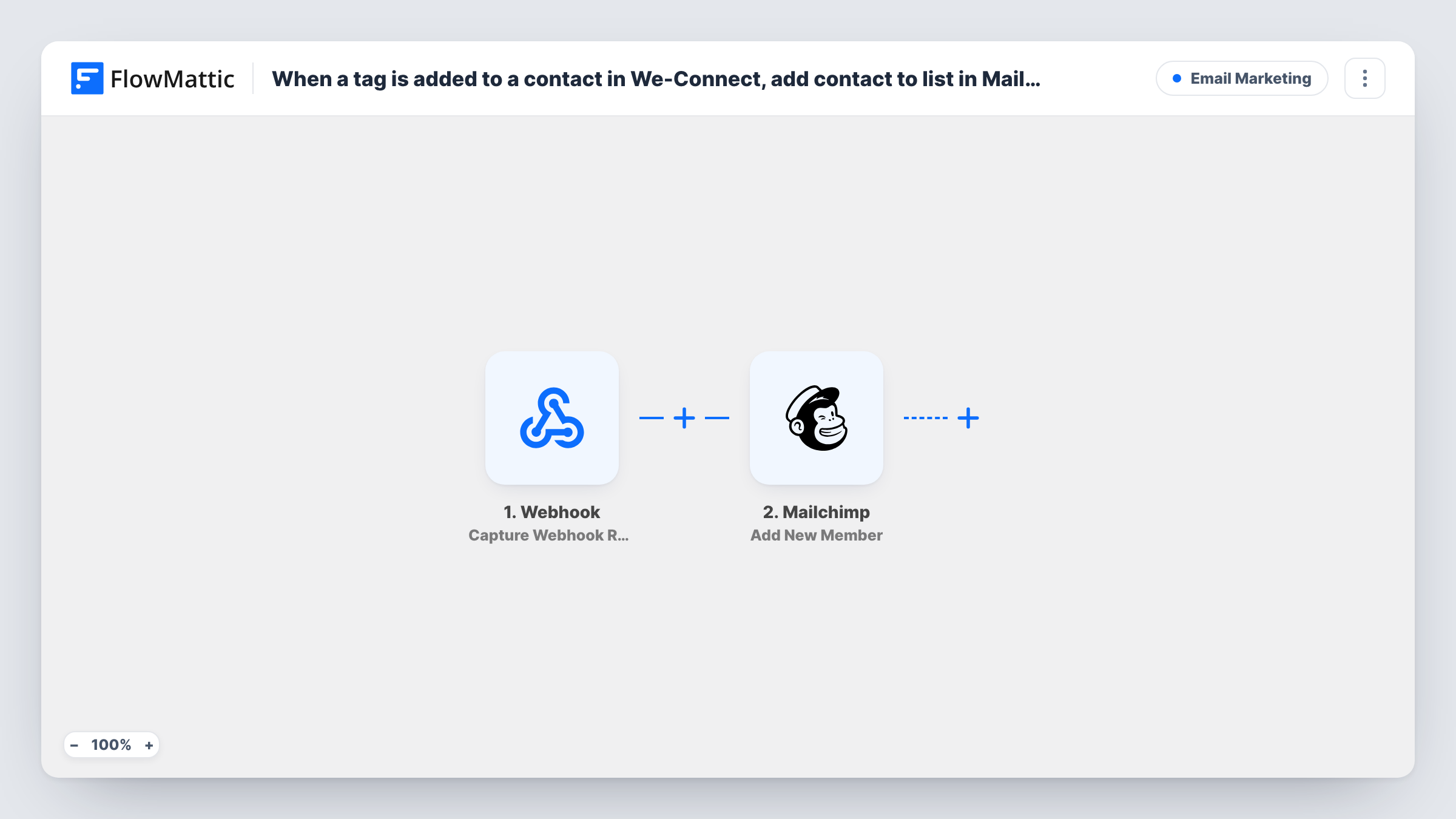
The We-Connect trigger runs each time a tag is added to a contact and passes that contact's details on. The Mailchimp Add New Member step then adds the person to the audience you pick. FlowMattic describes this action as adding a new member or updating them if they already exist, so tagging someone who is already subscribed refreshes their record instead of creating a second one.
The Mailchimp step ships unmapped. After import you connect your account, choose the audience, and map the contact's email address and name from We-Connect. Mailchimp needs an email for every member, and a LinkedIn contact only has one in We-Connect once it has been captured, so check a test run to see what the trigger sends.
Every tag added starts a run, whichever tag it is. If you only want one tag, such as "newsletter", to add people to Mailchimp, add a Filter on the tag name. Each run, with what Mailchimp sent back, appears in Task History.
Warm prospects into a nurture sequence
A consultant tags LinkedIn connections who showed interest and has Mailchimp send them a short case-study series by email.
Event invites for tagged contacts
A B2B marketer tags prospects in We-Connect with the webinar's name and sends the invitation and reminders from a Mailchimp audience.
One list for sales-qualified leads
A sales team tags contacts after a good conversation, so marketing can see every qualified LinkedIn lead in one Mailchimp audience.
How this workflow runs
What happens at each step once the workflow is on, and what you need before you import it.
 We-Connect Tag Added to a Contact
Runs when a tag is added to a contact in We-Connect. The contact's details are passed on; a test run shows whether the email address We-Connect captured is included.
- Mailchimp Add New Member
Adds the contact to your Mailchimp audience, or updates them if they already exist. The step ships unmapped: connect Mailchimp, pick the audience, and map the email and name from We-Connect.
What you need
- FlowMatticCore
- We-Connect AccountAccount
- Mailchimp AccountAccount
After importing, map your own data. To keep the template universal, not every step is pre-filled. Open each step in the builder and connect your accounts and fields (channels, lists, sheets, recipients) before you switch the workflow on.
Make it yours
Changes worth making after you import it.
- Add a Filter between the We-Connect trigger and the Mailchimp step that checks the tag name, so only the tag you use for email marketing adds people to the audience.
- Put a condition that the contact's email is not empty in that same Filter, so contacts We-Connect hasn't captured an address for never reach Mailchimp.
- Map the contact's company or job title into Mailchimp merge fields you have created, so you can segment the audience by who the person is.
Questions about this workflow
Does every We-Connect tag add the contact to Mailchimp?
Yes, as imported. The trigger fires for any tag added to a contact. To use one particular tag, add a Filter on the tag name between the We-Connect trigger and the Mailchimp step.
What if the We-Connect contact has no email address?
Mailchimp can't add a member without one, so it may return an error for that contact. You can read the reply for that run in Task History. A Filter on the email field keeps those contacts out.
What happens if the person is already in my Mailchimp audience?
That person isn't added twice. Add New Member updates their existing record with the values you map.
Can the Mailchimp member get a tag that matches We-Connect?
Not in this template. This workflow stops at adding or updating the person. To tag them in Mailchimp too, add FlowMattic's Mailchimp Add Member Tag action after the Add New Member step and map the same email.
More Email Marketing workflows
Other ready-to-import templates from the same category.







Import this workflow into your WordPress site
Download the JSON, import it from the Workflows screen and connect your accounts. Every run stays on your server, with no per-task fees.
30-day money-back guarantee Unlimited workflows and runs Self-hosted