

When a TeleCMI call is answered, create a lead in Zoho CRM and post a summary in Slack
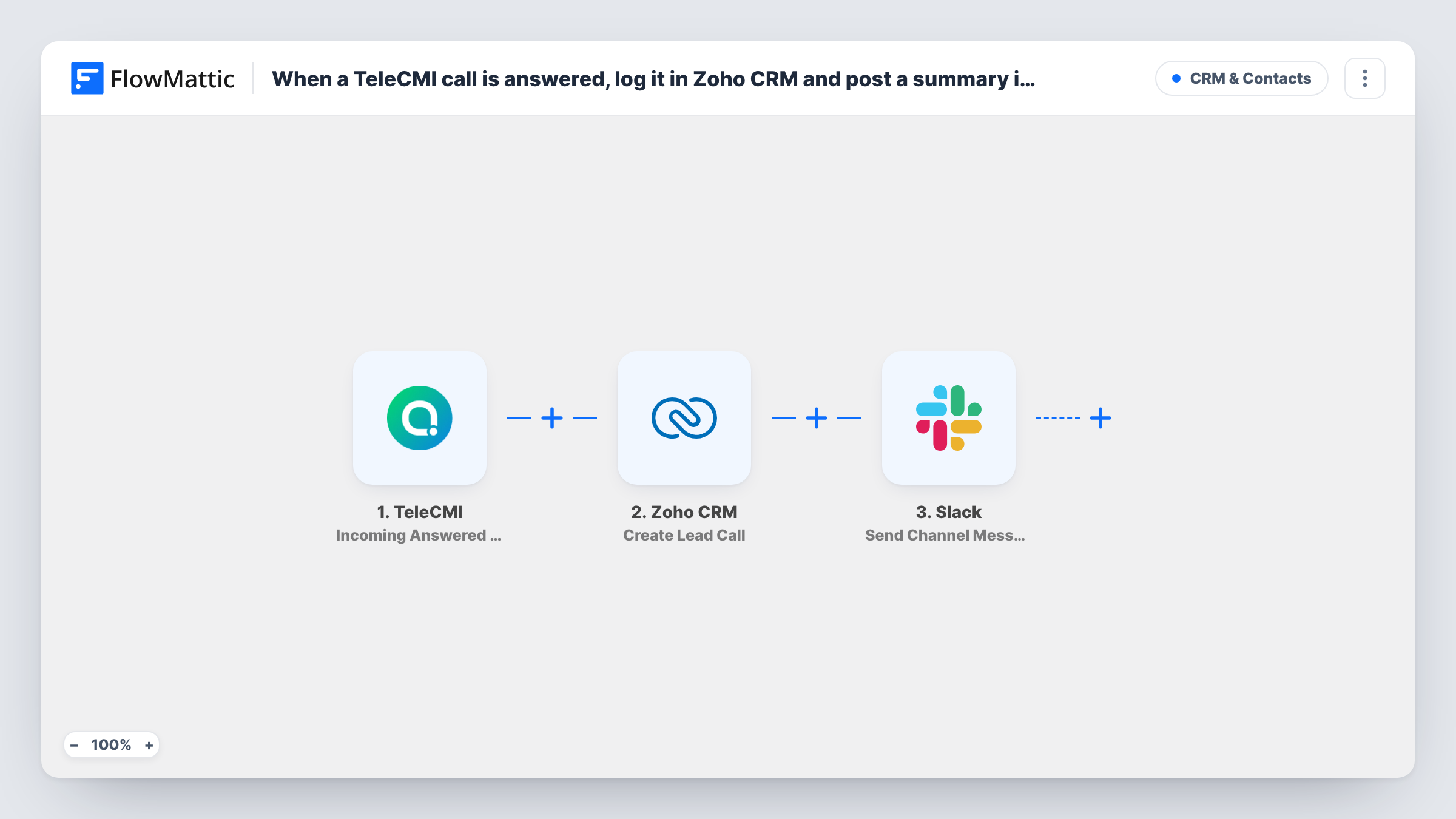
Each answered incoming TeleCMI call creates a lead in Zoho CRM from the call details you map, then posts a call summary to the Slack channel you pick for your team.
 TeleCMI
 Zoho CRM
 Slack
3 steps Setup ~5 min Used on 436 sites Free to import
What this workflow does
Inbound calls are often the warmest leads a business gets, yet the details tend to stay in the phone system's call log. This workflow turns every answered incoming call into a Zoho CRM lead and tells your team about it in Slack, so follow-up doesn't depend on someone typing notes after hanging up.
The TeleCMI trigger fires when an incoming call is answered and sends the call record, such as the caller's number and call details, to FlowMattic. The Zoho CRM step then creates a new lead. It ships unmapped: after import you connect Zoho CRM and map the call values into lead fields. A phone call rarely carries a name, and Zoho CRM's lead layout has required fields (Last Name by default), so plan what goes there, such as the caller's number or a placeholder.
Finally, Slack receives a call alert in the channel your team watches. You write the summary yourself after import and map in values from the call and from the new lead.
Every answered incoming call runs the workflow, including calls from existing customers and repeat callers. Zoho CRM gets a new lead each time, so expect duplicates unless you add a check. Use Task History to review what TeleCMI sent and what Zoho CRM and Slack returned.
Sales line that feeds the CRM
A sales team answers its TeleCMI line all day, and each answered call appears in Zoho CRM as a lead for the rep to qualify later.
Call alerts for a service desk
A home services company posts every answered call to a Slack channel so the scheduler sees who called and can book a visit.
Lead capture for a clinic front desk
A clinic's reception answers enquiry calls through TeleCMI, and new callers become Zoho CRM leads that the follow-up team calls back.
How this workflow runs
What happens at each step once the workflow is on, and what you need before you import it.
 TeleCMI Incoming Answered CDR
Starts when an incoming call to your TeleCMI number is answered. Each answered call is one run, and the call record from TeleCMI becomes available to map into Zoho CRM and Slack.
- Zoho CRM Create Lead
Turns the answered call into a new Zoho CRM lead, one per call. The step ships unmapped: connect Zoho CRM and map the caller's number and other call values into lead fields, covering the fields your lead layout requires.
- Slack Send Channel Message
Sends the call summary to a public Slack channel of your choice. The text is empty in the template, so write the summary and map in call details and values from the new Zoho CRM lead.
What you need
- FlowMatticCore
- TeleCMI AccountAccount
- Zoho CRM AccountAccount
- Slack AccountAccount
After importing, map your own data. To keep the template universal, not every step is pre-filled. Open each step in the builder and connect your accounts and fields (channels, lists, sheets, recipients) before you switch the workflow on.
Make it yours
Changes worth making after you import it.
- Map the caller's number into the lead's phone number and also into the Slack message, so whoever reads the alert can call back without opening Zoho CRM.
- Put Zoho CRM's Search Lead via Phone action and a Filter between the TeleCMI trigger and Create Lead, continuing only when no lead was found. Repeat callers then stop there, so they get no Slack post either.
- To post to a private Slack channel, swap this step for Slack's Send Private Channel Message action; to alert a single rep instead, Send Direct Message does that.
- Use a dedicated Slack channel for call alerts so busy days don't bury other team conversation.
Questions about this workflow
Will every answered TeleCMI call create a new Zoho CRM lead?
Yes. The workflow doesn't check Zoho CRM first, so existing customers and repeat callers each get a new lead. To avoid that, see the tip on adding a phone search before the Create Lead step.
Do missed TeleCMI calls start this workflow?
No. The trigger is Incoming Answered CDR, which fires only for incoming calls that were answered. Missed and outgoing calls are separate events and don't run this template.
What goes in the Slack call summary?
Whatever you write. The Send Channel Message step ships empty, so you compose the text and map in values from the TeleCMI call record and from the lead Zoho CRM created.
What if the caller's name is unknown when the Zoho CRM lead is created?
Map something else into the required name field, such as the phone number or a fixed label, and have your team update the lead after they qualify it.
More CRM & Contacts workflows
Other ready-to-import templates from the same category.



Import this workflow into your WordPress site
Download the JSON, import it from the Workflows screen and connect your accounts. Every run stays on your server, with no per-task fees.
30-day money-back guarantee Unlimited workflows and runs Self-hosted