

When a ticket is created in NeetoChat, add a new row in Google Sheets
Every new ticket created in NeetoChat is added as a row in Google Sheets, giving your support lead a list of tickets to sort, count and share outside the chat tool.
 NeetoChat
 Google Sheets
2 steps Setup ~5 min Used on 917 sites Free to import
What this workflow does
NeetoChat handles your customer conversations, and some of them become tickets. When you want to report on those tickets, share them with someone outside the support team or keep your own record, a spreadsheet is the simplest place. This workflow writes each one to a sheet as it is created.
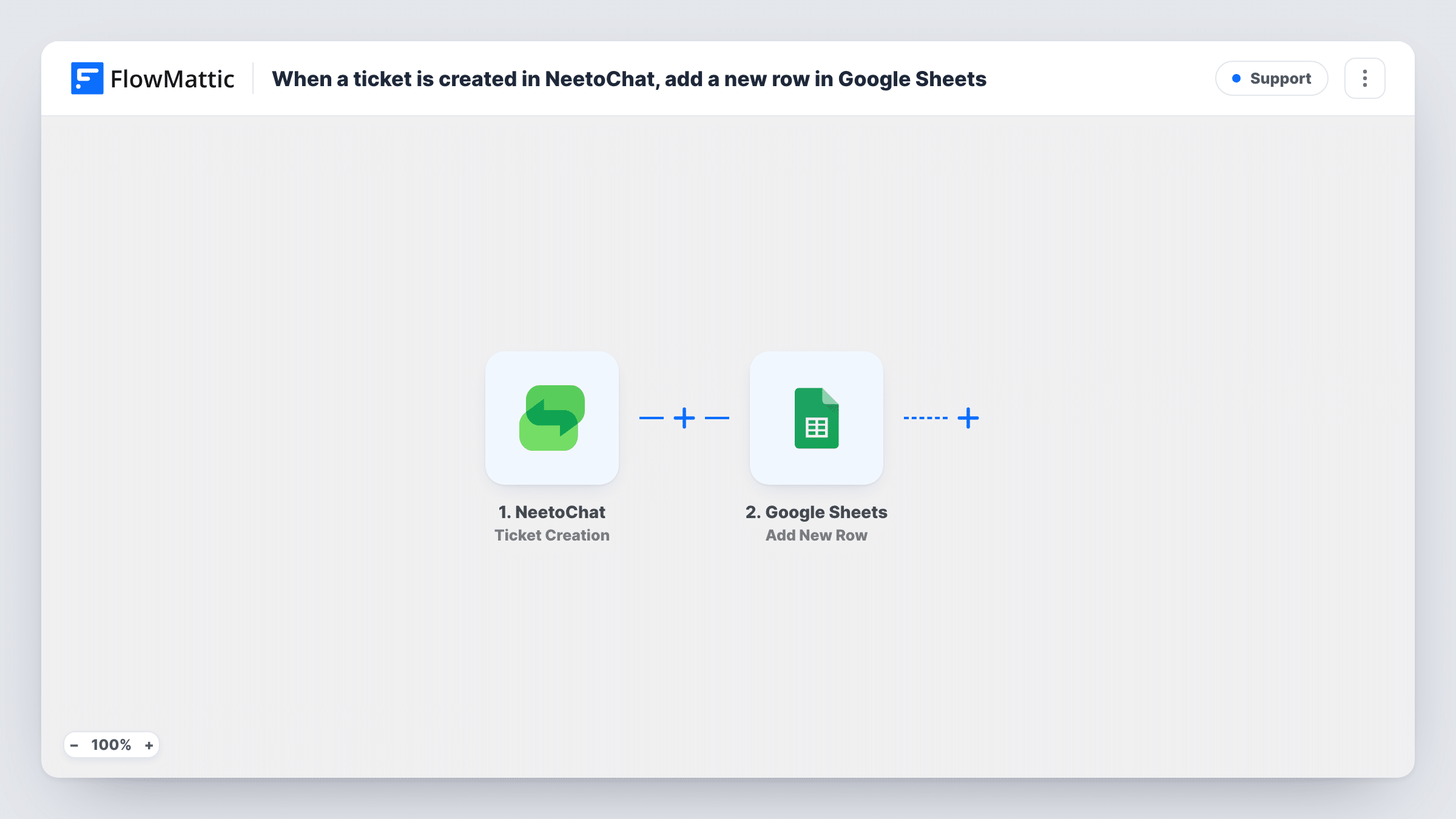
The NeetoChat trigger fires when a new ticket is created. FlowMattic sends the ticket details to Google Sheets, where the Add New Row action writes them into the sheet you pick. You choose which ticket values go in which column.
Each ticket gets its row at the moment NeetoChat creates it, and that is all. Later changes in NeetoChat, such as a new status, do not update the sheet. Task History shows each ticket that was sent and the row that was added.
Weekly support report
A support lead counts the week's tickets by subject in the sheet and shares the totals at the Monday meeting.
Product feedback list
Tickets raised in NeetoChat are visible to the product team in a shared Google Sheet, without giving them a NeetoChat seat.
Keeping a record outside the chat tool
A small business keeps its own spreadsheet copy of every ticket in case it changes tools later.
How this workflow runs
What happens at each step once the workflow is on, and what you need before you import it.
 NeetoChat Ticket Creation
Starts a run whenever a new ticket is created in NeetoChat. The ticket's details are passed on so you can map them to columns.
- Google Sheets Add New Row
Puts each new ticket on its own line in the spreadsheet you select. Connect Google, pick the sheet, and map NeetoChat ticket values to columns such as subject, customer and created date.
What you need
- FlowMatticCore
- NeetoChat AccountAccount
- Google Sheets AccountAccount
After importing, map your own data. To keep the template universal, not every step is pre-filled. Open each step in the builder and connect your accounts and fields (channels, lists, sheets, recipients) before you switch the workflow on.
Make it yours
Changes worth making after you import it.
- Add a Slack Send Channel Message step after the sheet so your team hears about each new NeetoChat ticket too.
- Write the ticket ID into its own column, so you can find a ticket's row later if you build a second workflow to update it.
- Create a ticket in NeetoChat after import so FlowMattic captures real values to map into your columns.
Questions about this workflow
Does the sheet change when a NeetoChat ticket is updated or closed?
No. The row is added once, when the ticket is created. Later changes stay in NeetoChat.
Are NeetoChat tickets from before import added to the sheet?
No. Only tickets created while the workflow is on are written to Google Sheets.
Can NeetoChat tickets go to different sheets by type?
Not as imported. Put a Router after the trigger with a route for each type, each with its own Add New Row step, and use conditions that cannot both match.
Which NeetoChat ticket details can I put in the spreadsheet?
Any value the ticket creation event sends. After the first test ticket, those values are available to map in the Google Sheets step.
More Support workflows
Other ready-to-import templates from the same category.






Import this workflow into your WordPress site
Download the JSON, import it from the Workflows screen and connect your accounts. Every run stays on your server, with no per-task fees.
30-day money-back guarantee Unlimited workflows and runs Self-hosted