

When a TimeRex event is cancelled, tag the user in Groundhogg
When a booking is cancelled in TimeRex, this workflow adds one or more tags to that person in Groundhogg, so your CRM shows who cancelled and your Groundhogg funnels can follow up.
 TimeRex
 Groundhogg
2 steps Setup ~5 min Used on 892 sites Free to import
What this workflow does
A cancelled meeting is useful information. It may mean the person needs a new time, has changed their mind, or wants a nudge later. If your CRM never hears about it, nobody follows up. This workflow marks the person in Groundhogg as soon as TimeRex reports the cancellation.
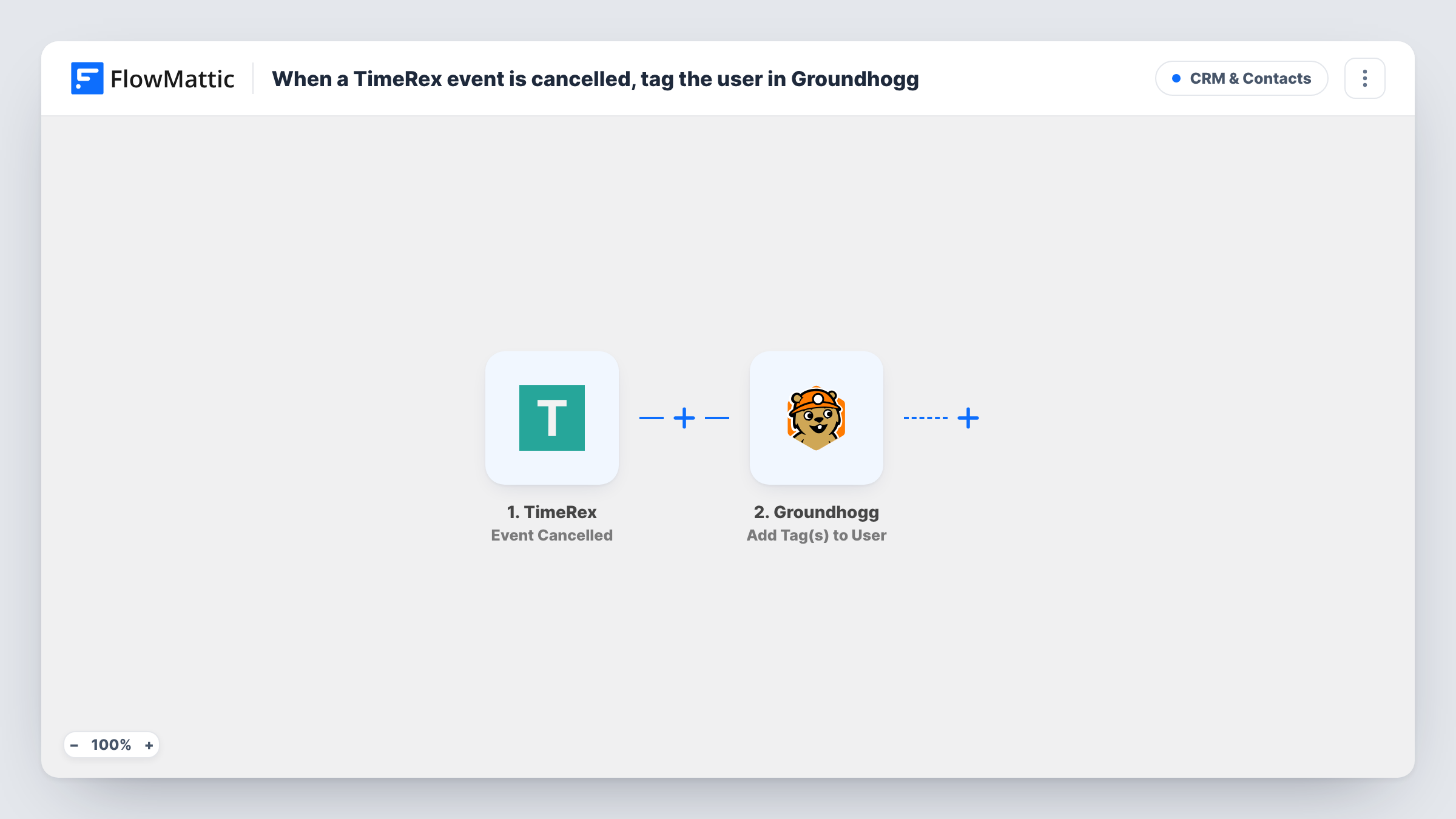
The TimeRex trigger, Event Cancelled, fires when a booking is cancelled. The booking details, such as the guest's email address, are passed to FlowMattic for mapping.
The Groundhogg step adds the tags you choose to the person behind that booking. Map the identifying detail from TimeRex into the step; a test run with a contact you know is the surest way to confirm how the step finds them. No step in this template creates the contact, so plan on the person already being in Groundhogg; that fits sites that add bookers when they first schedule. Once the tag is on the contact, any Groundhogg funnel that starts on that tag can take over, for example to offer a new slot. Task History shows each run and Groundhogg's response.
Rebooking offer for cancelled consultations
A consultant tags people who cancel in TimeRex, and a Groundhogg funnel started by that tag emails them a link to pick a new time.
Spotting unreliable bookings
A sales team tags each cancellation, so contacts with the tag are easy to find in Groundhogg before someone confirms their next call.
Pausing reminder emails
Tag cancellations so a Groundhogg funnel can stop sending meeting reminders to people who no longer plan to attend.
How this workflow runs
What happens at each step once the workflow is on, and what you need before you import it.
 TimeRex Event Cancelled
Fires when a booking made through TimeRex is cancelled. The booking details, including the guest's contact information, are passed on to Groundhogg.
- Groundhogg Add Tag(s) to User
Adds one or more tags to the person in Groundhogg. Choose the tags, map the booking detail that identifies the contact, and test with a known contact first.
What you need
- FlowMatticCore
- TimeRex AccountAccount
- Groundhogg PluginPlugin
After importing, map your own data. To keep the template universal, not every step is pre-filled. Open each step in the builder and connect your accounts and fields (channels, lists, sheets, recipients) before you switch the workflow on.
Make it yours
Changes worth making after you import it.
- Pair this with a TimeRex Event Confirmed workflow that adds bookers to Groundhogg with Create New Contact, so cancelling guests are already there to tag.
- Use a tag name that says what happened, such as meeting cancelled, so it reads clearly in Groundhogg and in any funnel that starts from it.
- If a contact rebooks, a second workflow on TimeRex Event Confirmed with Groundhogg's Remove Tag(s) From User action can take the cancellation tag off again.
Questions about this workflow
What if the person who cancelled is not in Groundhogg?
Nothing in this template creates the contact, so the tag has no one to land on. Task History shows how Groundhogg responded to that run. Add bookers to Groundhogg when they first schedule to avoid this.
Can the Groundhogg tag start a follow-up sequence?
Yes. Groundhogg has a Tag Added trigger in FlowMattic, and Groundhogg funnels can start when a tag is applied, so the tag can set off a follow-up you build there.
Does the workflow change anything in TimeRex?
No. It only listens for cancelled bookings. TimeRex handles the cancellation as it normally would, and the workflow never touches your calendar.
Does Groundhogg need to be on the same WordPress site as FlowMattic?
Yes. Groundhogg is a WordPress plugin, and the tag is added to contacts in the copy running on the site where FlowMattic is installed.
More CRM & Contacts workflows
Other ready-to-import templates from the same category.







Import this workflow into your WordPress site
Download the JSON, import it from the Workflows screen and connect your accounts. Every run stays on your server, with no per-task fees.
30-day money-back guarantee Unlimited workflows and runs Self-hosted