

When a travel form is submitted in Gravity Forms, convert distance from km to miles in Unit Converter, then email the itinerary via Gmail
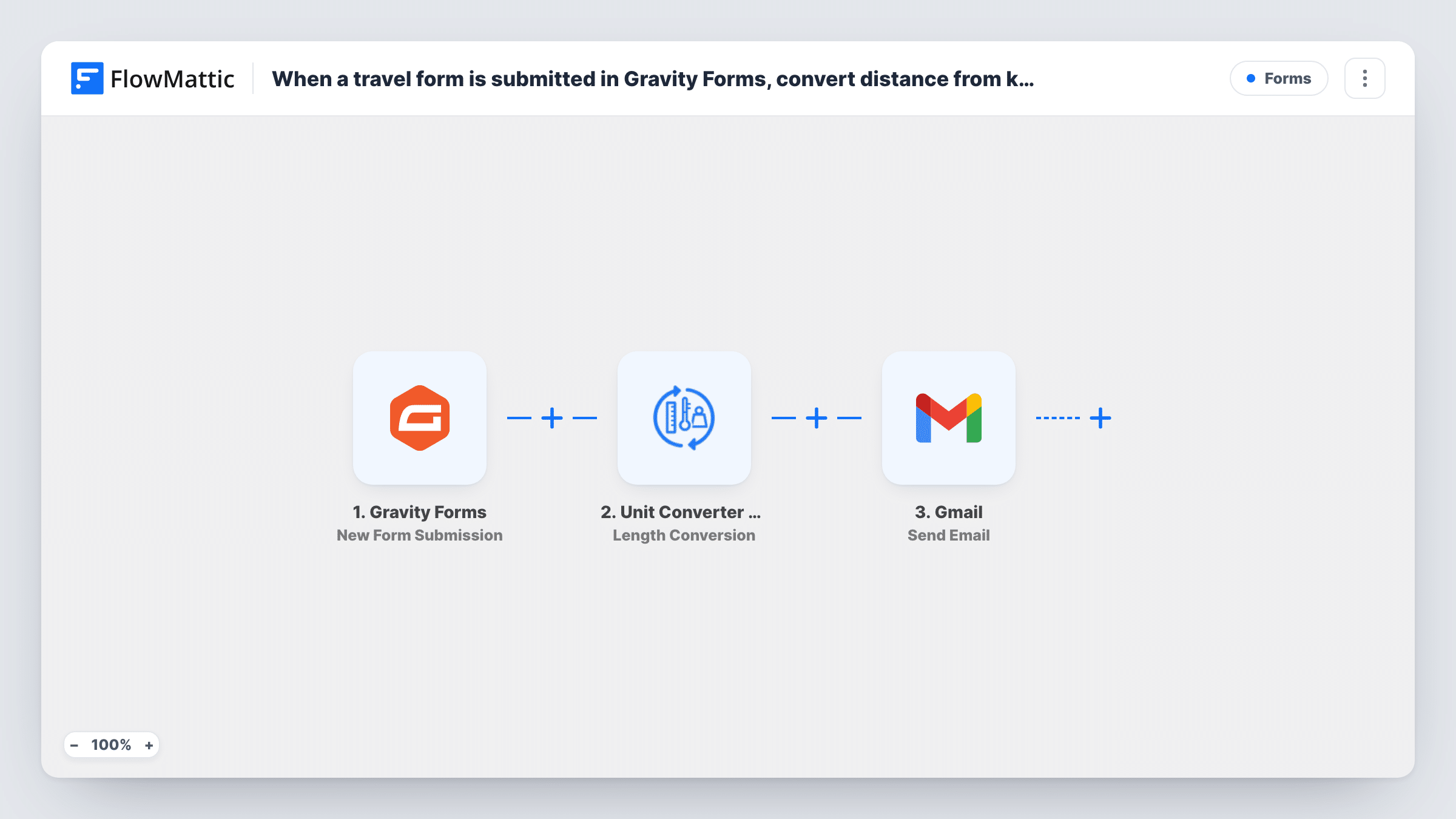
When a traveler submits your Gravity Forms travel form, FlowMattic converts the trip distance from kilometers to miles and sends the itinerary details by Gmail, so the email shows the distance in miles.
 Gravity Forms
 Unit Converter by FlowMattic
 Gmail
3 steps Setup ~5 min Used on 3.1k sites Free to import
What this workflow does
Travel requests often come in with distances in kilometers while your traveler or client thinks in miles. Converting by hand before replying is slow and easy to get wrong. This workflow takes the distance from a Gravity Forms submission, converts it, and emails the itinerary with the figure already in miles.
The Gravity Forms trigger runs when someone submits the form you choose, and every answer becomes data you can map. The Unit Converter step is built into FlowMattic and needs no account. You map the form's distance field into it and set the conversion to go from kilometers to miles. The result is passed on as a value of its own.
The last step sends an email through Gmail. You write the subject and body, mix in the form answers such as dates and destination, and place the converted distance wherever it belongs. Map the traveler's email field as the recipient, or send it to your own team. Each run is listed in Task History, so you can check the converted value and the email that went out.
Road trip quotes for US clients
A tour operator lists routes in kilometers. Clients filling in the request form get an email with the same route length in miles.
Mileage claims from staff trips
Employees enter trip distance in km on a Gravity Forms travel form, and the finance contact receives the itinerary with miles ready for the claim.
Cycling or running event entries
Entrants pick a route, and the confirmation email states its length in miles next to the dates and start point.
How this workflow runs
What happens at each step once the workflow is on, and what you need before you import it.
 Gravity Forms New Form Submission
Runs each time a visitor submits the Gravity Forms form you select. The distance, dates, destination and other answers are passed to the next steps for mapping.
- Unit Converter by FlowMattic Length Conversion
Converts the distance from the form using FlowMattic's built-in Unit Converter. Map the distance field into it and set the conversion from kilometers to miles. The converted value is available to the Gmail step.
- Gmail Send Email
Emails the itinerary through the Gmail account you connect. Map the recipient, write the subject and body with the form answers, and insert the converted distance in miles where you want it to appear.
What you need
- FlowMatticCore
- Gravity Forms PluginPlugin
- Gmail AccountAccount
After importing, map your own data. To keep the template universal, not every step is pre-filled. Open each step in the builder and connect your accounts and fields (channels, lists, sheets, recipients) before you switch the workflow on.
Make it yours
Changes worth making after you import it.
- Use a Number field for distance in Gravity Forms so travelers type a plain figure instead of text such as 120 km.
- Add a Filter after the trigger that continues only when the distance field is not empty, so travelers who skip it don't get an email with a blank figure.
- Submit one test entry after import so FlowMattic captures the form fields and the converted value, then map both into the Gmail step before you turn the workflow on.
Questions about this workflow
Do I need an account for the Unit Converter step?
No. Unit Converter is part of FlowMattic and runs on your WordPress site, so there is nothing to connect. Only Gmail needs an account.
Does it work with any Gravity Forms form, or only a travel form?
Any form you select in the trigger. The template is built around travel, but it suits any form that collects a distance in kilometers.
Can it convert miles to kilometers instead?
Yes. Change the units in the Unit Converter step. The same step covers other length units too, such as meters, feet and yards.
Who receives the itinerary email from Gmail?
The address in the step's recipient setting. Map the form's email field to send it to the traveler, or enter a fixed address to send it to your team.
More Forms workflows
Other ready-to-import templates from the same category.







Import this workflow into your WordPress site
Download the JSON, import it from the Workflows screen and connect your accounts. Every run stays on your server, with no per-task fees.
30-day money-back guarantee Unlimited workflows and runs Self-hosted