

When a VNTANA product is rejected, log it in Google Sheets and alert the team in Slack
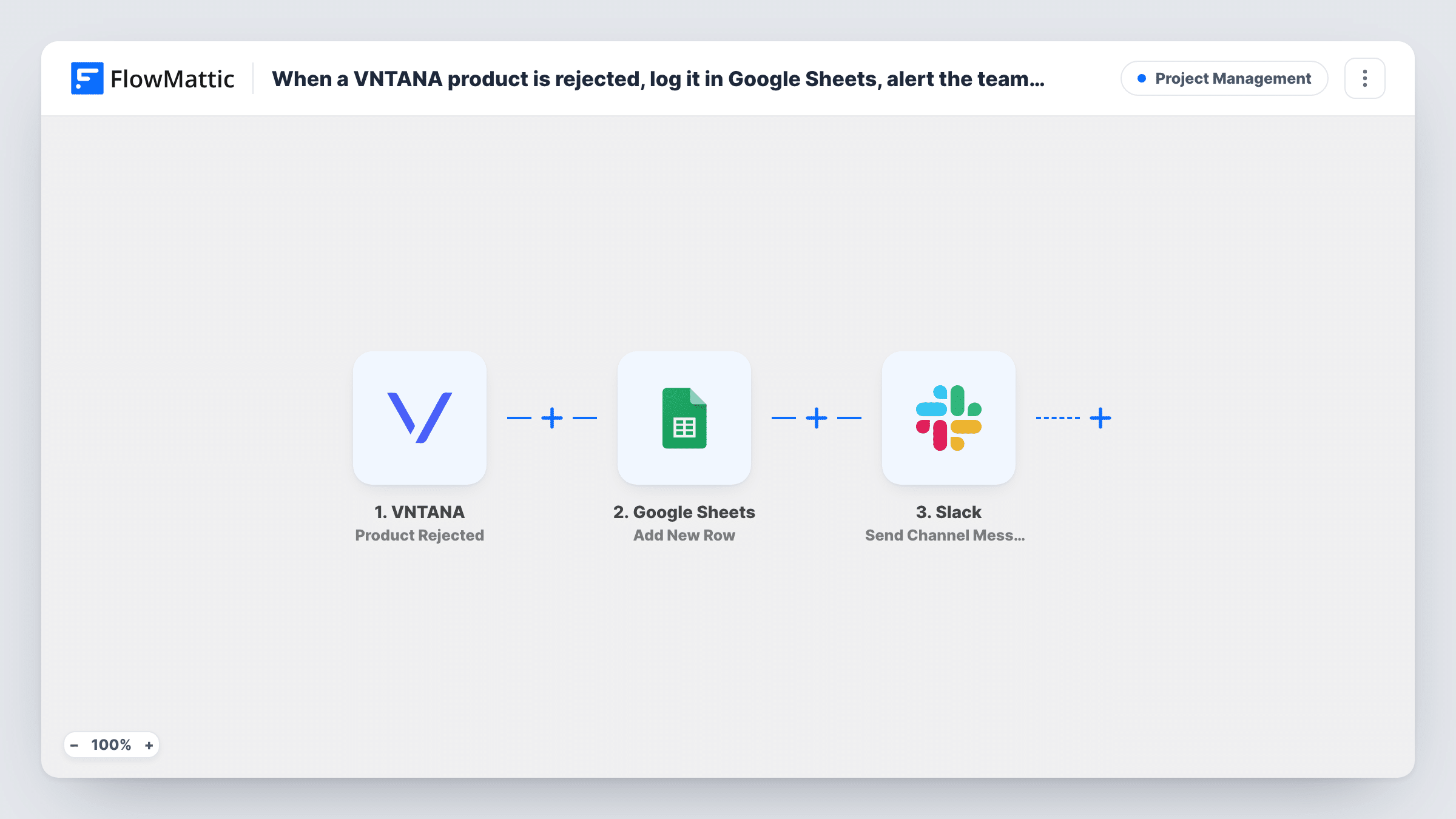
When a product is rejected in VNTANA, FlowMattic adds a row for it to your Google Sheets log and posts a message in a Slack channel, so the 3D team knows which asset needs another pass.
 VNTANA
 Google Sheets
 Slack
Slack3 steps Setup ~5 min Used on 625 sites Productivity Free to import
What this workflow does
A rejected 3D product asset usually means rework: a texture to fix, a model to re-export, a note from the reviewer to follow up. When the rejection only shows inside VNTANA, it waits until someone opens the platform. This workflow turns each rejection into a log entry and a team alert.
The VNTANA trigger fires when a product is rejected and passes that product's data on. The Google Sheets step then adds one row to the spreadsheet you choose. It ships without column mapping, so after import you pick the sheet and map the product fields you want to keep, such as the product name, ID or project, plus anything a test run shows about the rejection.
Last, a Slack step posts a message to one channel. It also ships unmapped: you choose the channel and write the text, mapping in the product details so people know which asset to look at.
Only the Product Rejected event starts this workflow, and each rejection gives one row and one message. The sheet becomes a running list of rejections you can sort, count and mark as fixed in a column of your own.
Rework queue for 3D artists
A studio producing product models for retailers sends every VNTANA rejection to its #3d-rework Slack channel and tracks the fix in the sheet.
Rejection history per project
An e-commerce team reviews the Google Sheet each month to see which projects collect the most rejected assets and why.
Hand-off between reviewer and vendor
A brand that outsources 3D work shares the rejection sheet with its vendor, while the internal team gets the Slack alert.
How this workflow runs
What happens at each step once the workflow is on, and what you need before you import it.
 VNTANA Product Rejected
Starts the workflow when a product is rejected in VNTANA. The product's details are passed on; run a test rejection to see exactly which fields arrive.
- Google Sheets Add New Row
Adds one row per rejected product to the spreadsheet you pick. No columns are mapped in the template, so choose the sheet and match the VNTANA fields to your headers after import.
- Slack Send Channel Message
Posts a message about the rejected product to the Slack channel you select. Write the text and map in the product name or ID so the team can find the asset in VNTANA.
What you need
- FlowMatticCore
- VNTANA AccountAccount
- Google Sheets AccountAccount
- Slack AccountAccount
After importing, map your own data. To keep the template universal, not every step is pre-filled. Open each step in the builder and connect your accounts and fields (channels, lists, sheets, recipients) before you switch the workflow on.
Make it yours
Changes worth making after you import it.
- Add a Status column to the sheet that the workflow leaves blank, and have your team fill it in as each rejected asset is fixed.
- If your rework channel is private, swap the Slack step for the Send Private Channel Message action, or use Send Direct Message to alert one person.
- Map the date of the run into its own column, so you can sort rejections by when they happened and spot slow fixes.
Questions about this workflow
Does this run when a VNTANA product is approved or published?
No. The trigger is Product Rejected only. VNTANA has other FlowMattic triggers, such as Product Approved and Product Published, if you want a separate workflow for those events.
Which VNTANA details go into the Google Sheet?
The ones you map. The Add New Row step ships empty, so trigger a test rejection, check the data in Task History and match the fields you want to your column headers.
Can the Slack alert mention the reviewer's comments?
Only if the rejection data includes them. Look at a test run; if a comment or reason field arrives, map it into the Slack message text and the sheet.
Do I need a new spreadsheet for this?
No. Any sheet works as long as it has a header row for the columns you map. A sheet kept just for rejections is easier to sort and share.
More Project Management workflows
Other ready-to-import templates from the same category.




Import this workflow into your WordPress site
Download the JSON, import it from the Workflows screen and connect your accounts. Every run stays on your server, with no per-task fees.
30-day money-back guarantee Unlimited workflows and runs Self-hosted