

When a Ziflow PDF with comments is exported, save it to Dropbox and alert the team in Slack
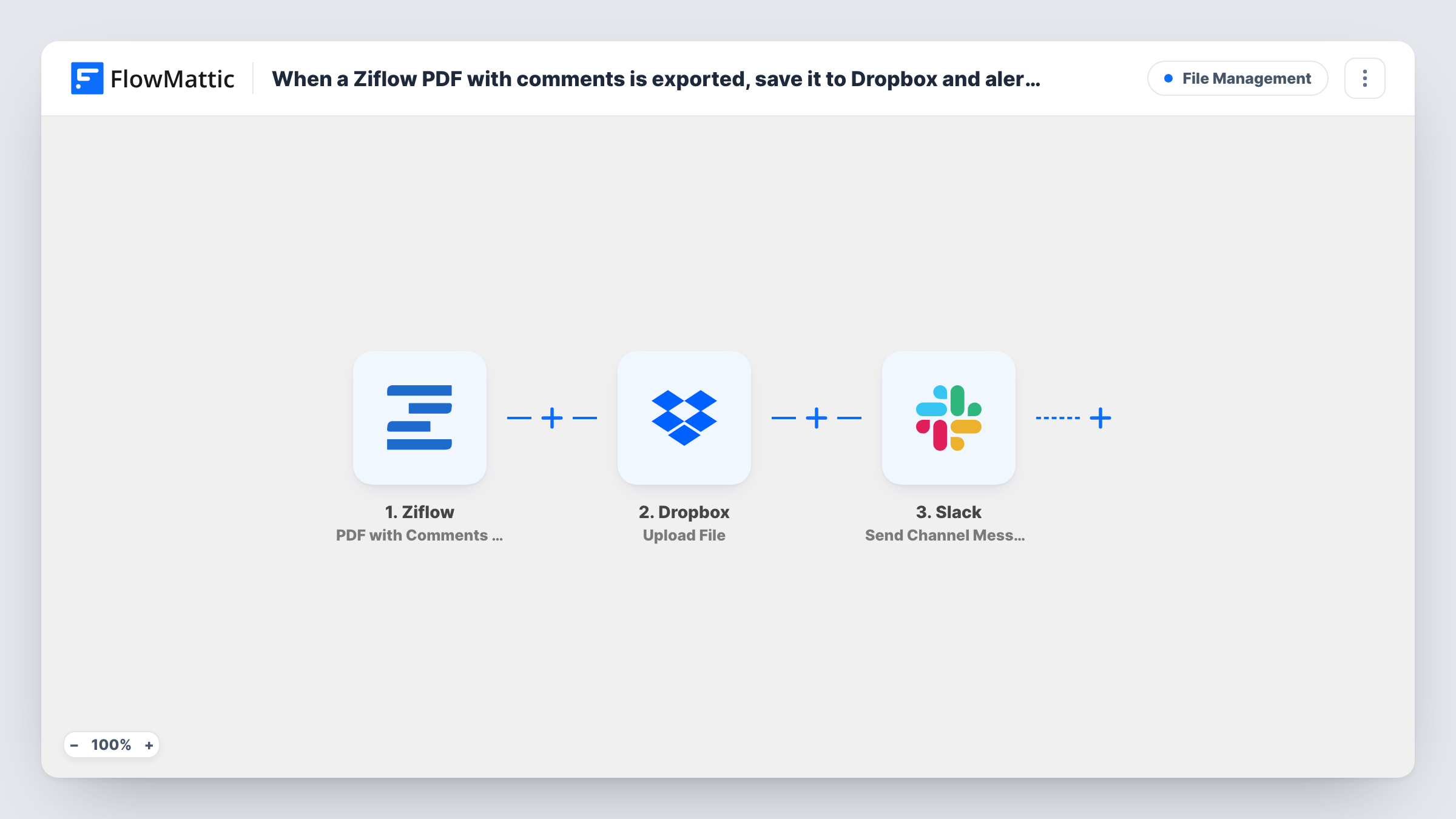
Each time someone exports a PDF with comments from a Ziflow proof, FlowMattic uploads that PDF to Dropbox and posts a message in a Slack channel so the team knows it’s there.
 Ziflow
 Dropbox
 Slack
3 steps Setup ~5 min Used on 989 sites Free to import
What this workflow does
A PDF with all the reviewer comments is often what designers, account managers and clients actually work from after a review round. When it's exported in Ziflow and then passed around by hand, versions go missing. This workflow files each export in Dropbox and lets the team know in Slack.
The Ziflow trigger fires when a PDF with comments is exported. It doesn't fire when a review finishes on its own; someone has to run the export in Ziflow. The export's details, including the proof it belongs to, are passed on.
The Dropbox Upload File step then saves the PDF. It ships unmapped, so after import choose the destination, map the exported file from the trigger and give it a name, such as the proof name with the date.
Last, a Slack step posts a message to the channel you pick. Write the text and map in the proof name and any link you want people to click. Export a test PDF in Ziflow and check Task History to see which file fields the trigger sends before you map the upload.
Feedback archive for a creative agency
An agency keeps every commented PDF from Ziflow in a Dropbox folder per client, so earlier rounds of feedback are easy to find when a campaign comes back.
Designers alerted to new feedback
A design team's #reviews channel gets a Slack post whenever an account manager exports a commented PDF, so designers know there are notes to work through.
Sharing review notes with print vendors
A marketing team exports the commented PDF of a brochure proof, and it lands in a Dropbox folder already shared with the print shop.
How this workflow runs
What happens at each step once the workflow is on, and what you need before you import it.
 Ziflow PDF with Comments Export
Fires when a PDF with comments is exported from a Ziflow proof. Details of the export and the proof are handed to the Dropbox and Slack steps.
- Dropbox Upload File
Uploads the exported PDF to Dropbox. Unmapped as shipped: connect Dropbox, choose where to save it and map the file from the Ziflow trigger, plus a file name.
- Slack Send Channel Message
Posts a note in the Slack channel you select. After import, write the message and map in the proof name or a link from the earlier steps.
What you need
- FlowMatticCore
- Ziflow AccountAccount
- Dropbox AccountAccount
- Slack AccountAccount
After importing, map your own data. To keep the template universal, not every step is pre-filled. Open each step in the builder and connect your accounts and fields (channels, lists, sheets, recipients) before you switch the workflow on.
Make it yours
Changes worth making after you import it.
- Name the uploaded file with the proof name and export date, so repeated exports of the same proof don't clash in the folder.
- Use Slack's Send Private Channel Message action instead if your review channel is private.
- Import a copy with Ziflow's PDF Summary Exports trigger if your team also exports summary PDFs and wants those filed too.
- If one channel serves several clients, put the client or project name at the start of the Slack message so people can scan for theirs.
Questions about this workflow
Does the workflow run when a Ziflow review is completed?
No. The trigger fires when a PDF with comments is exported. FlowMattic's Ziflow integration has a separate Review Completed trigger, which this template doesn't use, so a finished review with no export does nothing here.
Where does the Ziflow PDF go in Dropbox?
To the location you set in the Upload File step after import. The template doesn't choose a folder, so pick one and map a file name before switching the workflow on.
What if the same proof's PDF is exported twice?
Each export starts a run, so Dropbox gets another upload and Slack another message. Including the date or time in the file name keeps both copies.
Do I need to map the PDF file into the Dropbox step myself?
Yes. Run a test export, look at the trigger data in Task History, and map the field that holds the exported file or its link into the Upload File step.
More File Management workflows
Other ready-to-import templates from the same category.



Import this workflow into your WordPress site
Download the JSON, import it from the Workflows screen and connect your accounts. Every run stays on your server, with no per-task fees.
30-day money-back guarantee Unlimited workflows and runs Self-hosted