

Create a HubSpot CRM contact each time an entry is saved in Storyblok
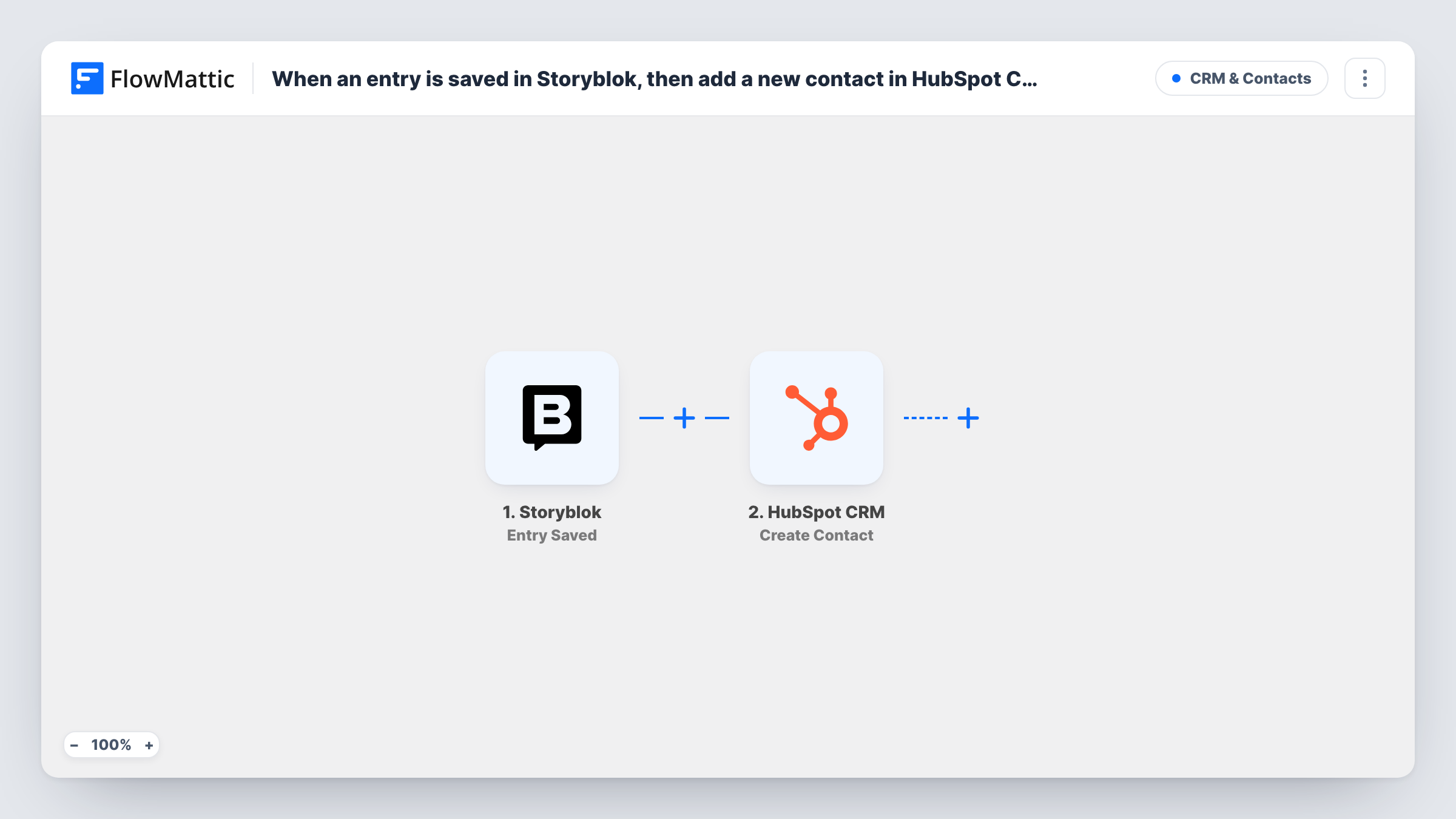
Every time an entry is saved in Storyblok, including saves of an entry that already exists, FlowMattic creates a contact in HubSpot CRM from the Storyblok values you map.
 Storyblok
 HubSpot CRM
2 steps Setup ~5 min Used on 2.4k sites Free to import
What this workflow does
Some teams keep people as content: speaker profiles, author bios, partner listings or team pages built as entries in Storyblok. When those people also belong in your CRM, this workflow sends each saved entry to HubSpot as a contact, so sales or partnership staff can see them without opening the CMS.
The Storyblok trigger is Entry Saved, which FlowMattic describes as firing when an entry is saved. That covers the first save of a new entry and every later save of an entry you edit, so the same entry can start many runs. Check a test run in Task History to see which entry values Storyblok sends.
The HubSpot CRM step turns each saved entry into a new HubSpot contact. It ships unmapped: after import you connect HubSpot and map the Storyblok values, such as an email address and name, into the contact. The step only creates; it never looks for an existing contact to update. HubSpot may refuse a second contact with an email it already has, and Task History shows its response for each run.
If editors save the same entry several times, expect repeat attempts. Keep that in mind before you turn the workflow on for a busy space.
Event speakers into the sales CRM
A conference team builds speaker pages in Storyblok and wants each speaker in HubSpot as a contact for sponsorship follow-ups.
Partner directory synced to HubSpot
A software company lists integration partners as Storyblok entries, and the partnerships manager tracks each partner contact in HubSpot.
Guest authors on a content site
An editorial team keeps author profiles as entries and adds each author's details to HubSpot so they can invite them to future campaigns.
How this workflow runs
What happens at each step once the workflow is on, and what you need before you import it.
 Storyblok Entry Saved
Fires when an entry is saved in your Storyblok space. That includes new entries and later saves of existing ones. The entry data Storyblok sends is passed to the HubSpot step.
- HubSpot CRM Create Contact
Adds a new contact to HubSpot CRM from the entry. The step arrives unmapped, so connect HubSpot and map the Storyblok values for the email and name. HubSpot may reject an email it already holds.
What you need
- FlowMatticCore
- Storyblok AccountAccount
- HubSpot CRM AccountAccount
After importing, map your own data. To keep the template universal, not every step is pre-filled. Open each step in the builder and connect your accounts and fields (channels, lists, sheets, recipients) before you switch the workflow on.
Make it yours
Changes worth making after you import it.
- Put a Filter between the Storyblok trigger and the HubSpot step that continues only when the entry's email value is not empty, so entries without contact details never reach HubSpot.
- If only one content type holds people, add a check for that type in the same Filter between the trigger and the HubSpot step. The field and value are yours to set from a test run.
- Save a test entry once, then open Task History to see which values the Storyblok trigger delivered before you map the contact.
Questions about this workflow
Does saving the same Storyblok entry again create another HubSpot contact?
Each save starts a new run that tries to create a contact. HubSpot may refuse a duplicate email, and Task History shows the response, but plan for repeat attempts on entries you edit often.
Can this update an existing HubSpot contact instead?
Not as imported, since this template only ever adds new contacts. FlowMattic's HubSpot integration also has Get Contact and Update Contact actions if you want to build a lookup and update instead.
Do my Storyblok entries need an email field?
A HubSpot contact is most useful with an email address, so the entries you send should hold one. Check a test run to see which values Storyblok passes along.
More CRM & Contacts workflows
Other ready-to-import templates from the same category.




Import this workflow into your WordPress site
Download the JSON, import it from the Workflows screen and connect your accounts. Every run stays on your server, with no per-task fees.
30-day money-back guarantee Unlimited workflows and runs Self-hosted