

When a Signable envelope is signed and completed, upload the signed document to Google Drive
When every party has signed a Signable envelope and it is completed, FlowMattic uploads the signed document to a Google Drive folder you choose for safekeeping.
 Signable
 Google Drive
2 steps Setup ~5 min Used on 3.1k sites Free to import
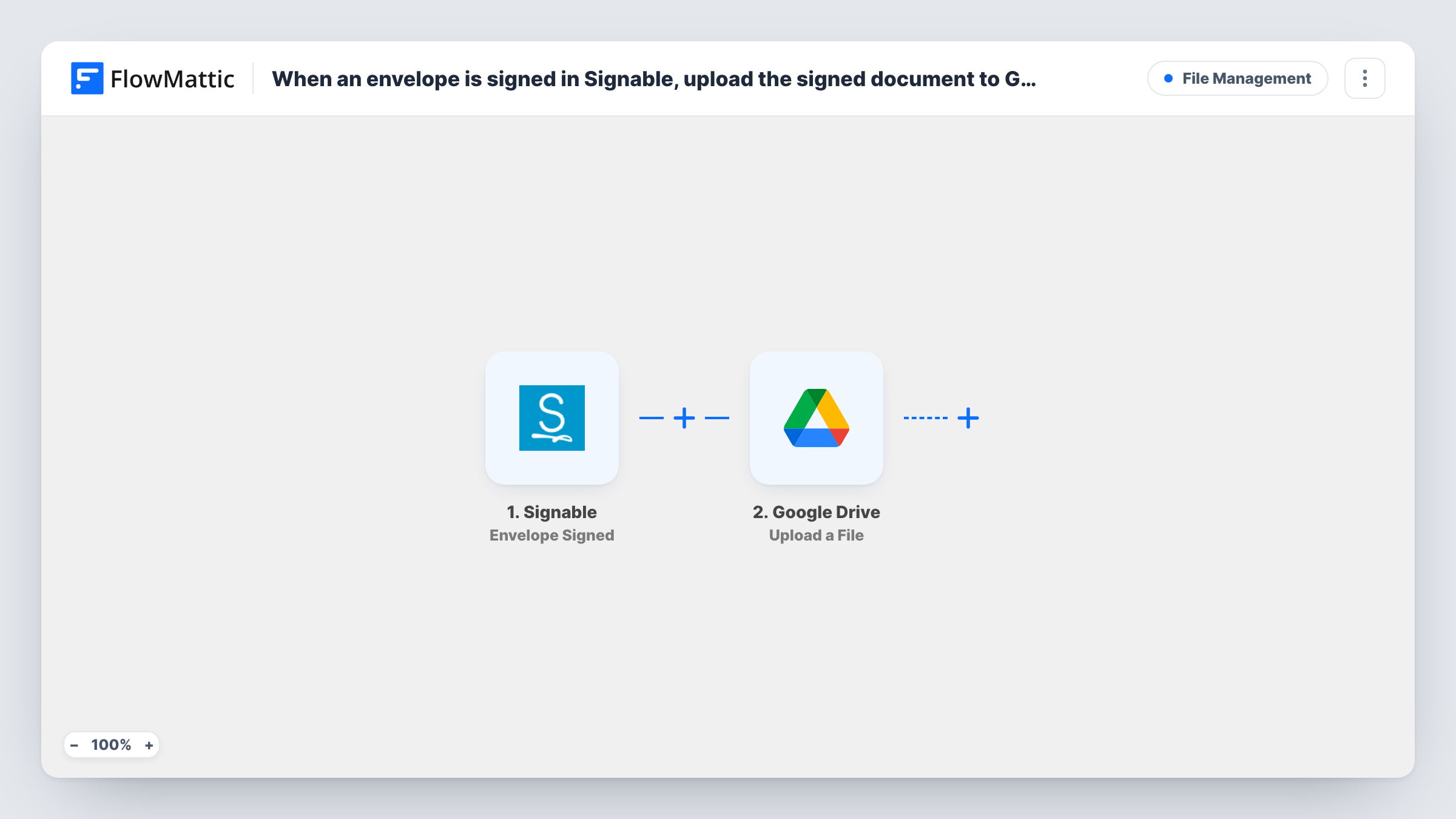
What this workflow does
Signed contracts, consent forms and agreements need to end up somewhere your team can find them. This workflow takes each completed Signable envelope and places the signed document in Google Drive, alongside the rest of your client files.
The Signable trigger is Envelope Signed & Completed. It waits for the whole envelope to finish rather than reacting to each single signature, which Signable's separate Envelope Signed event covers. The envelope's details are passed on when it completes.
The Google Drive Upload a File step then puts a file in the folder you select. It ships unmapped: after import, connect Google, choose the folder and map the signed document from the Signable data. Complete a test envelope before mapping, so FlowMattic shows you what Signable sends and which value links to the signed file.
Each completed envelope makes one run. If an envelope holds several documents, check the test data to see how Signable lists them, and map the one you want. Task History shows the Signable payload and Drive's reply for every run.
Client contracts in one Drive folder
An accountancy firm sends engagement letters through Signable and keeps every completed copy in a shared Google Drive folder for the partners.
Tenancy agreements for letting agents
A letting agent stores each signed tenancy agreement in Drive as soon as landlord and tenant have both signed in Signable.
HR paperwork for new hires
An HR team sends offer letters and policies through Signable, and the completed documents are filed in Drive for the employee record.
How this workflow runs
What happens at each step once the workflow is on, and what you need before you import it.
 Signable Envelope Signed & Completed
Fires when a Signable envelope has been signed by every party and is completed. The envelope details are passed on; a test envelope shows which value points to the signed document.
- Google Drive Upload a File
Places the signed file in the Google Drive folder you pick. The step ships unmapped: connect Google, choose the folder and map the signed document from a test envelope's data.
What you need
- FlowMatticCore
- Signable AccountAccount
- Google Drive AccountAccount
After importing, map your own data. To keep the template universal, not every step is pre-filled. Open each step in the builder and connect your accounts and fields (channels, lists, sheets, recipients) before you switch the workflow on.
Make it yours
Changes worth making after you import it.
- Complete one real test envelope after mapping and open the Drive folder, so you can confirm the signed copy arrived and opens before clients start signing.
- Add Google Drive's Share File step after the upload to share each signed document with a colleague by email.
- To give each completed envelope its own folder, add Google Drive's Create a Folder step between the Signable trigger and the upload, then map that new folder into Upload a File. Every run creates a new folder.
Questions about this workflow
Does this upload a Signable document after each single signature?
No. It uses Envelope Signed & Completed, which waits until the envelope is finished. Signable's Envelope Signed trigger is the one for individual signatures.
Which Google Drive folder gets the signed Signable files?
The folder you select in the Upload a File step after import. The step is empty in the template, so set the folder and map the document first.
Are envelopes completed before I import this uploaded too?
No. Only envelopes that complete while the workflow is active start a run. Download earlier ones from Signable and add them to Drive yourself.
More File Management workflows
Other ready-to-import templates from the same category.






Import this workflow into your WordPress site
Download the JSON, import it from the Workflows screen and connect your accounts. Every run stays on your server, with no per-task fees.
30-day money-back guarantee Unlimited workflows and runs Self-hosted