

When an imeetify appointment is cancelled, log it in Google Sheets and email the host a Gmail alert
When someone cancels an imeetify appointment, the cancellation is added as a row in Google Sheets and Gmail sends the host an email alert about the freed slot.
 imeetify
 Google Sheets
 Gmail
3 steps Setup ~5 min Used on 1.7k sites Free to import
What this workflow does
A cancelled appointment matters to two people: whoever keeps the records and whoever was going to take the meeting. This workflow records every imeetify cancellation in a spreadsheet and tells the host by email, so the slot can be refilled and nobody prepares for a call that won't happen.
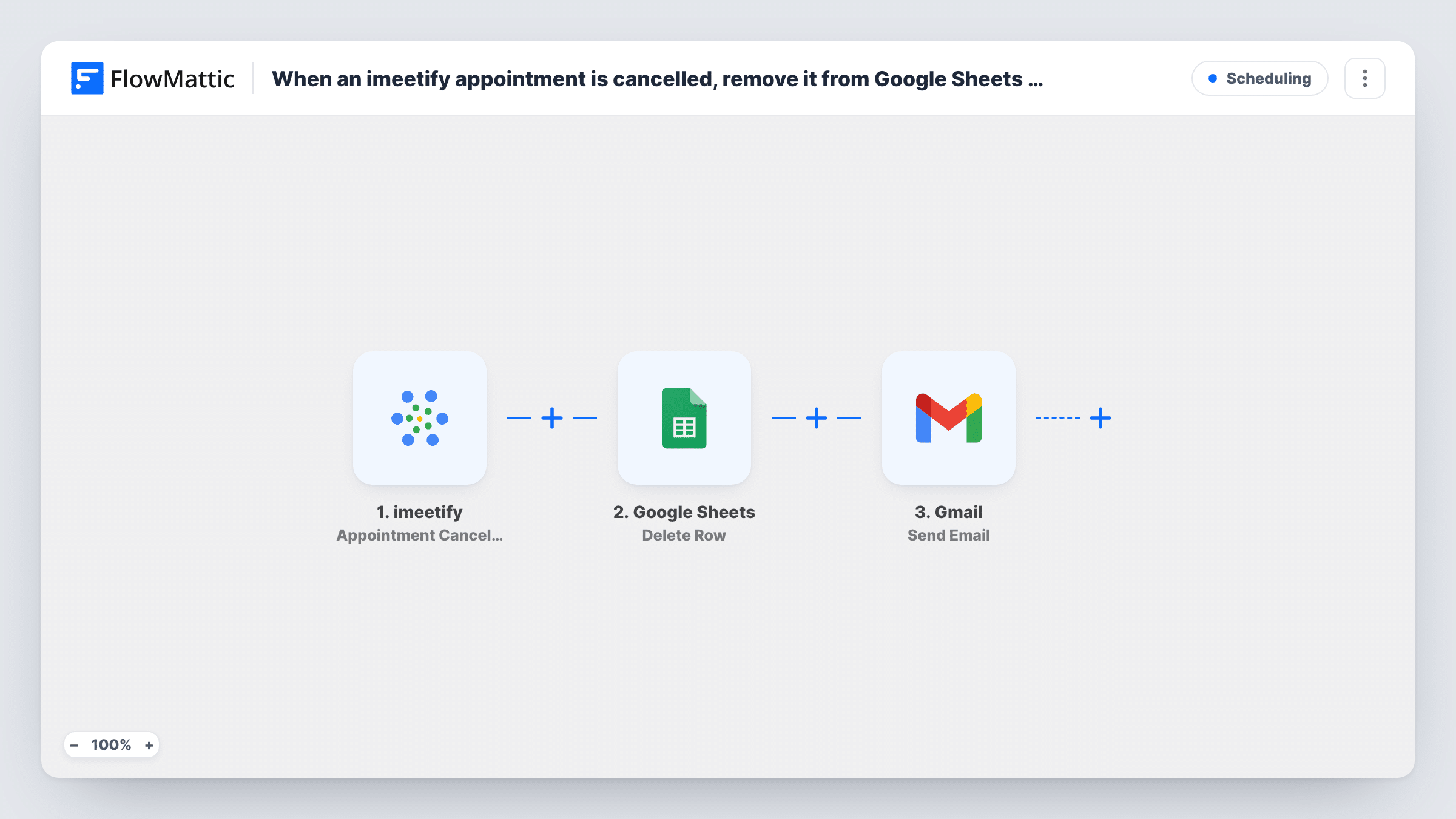
The imeetify trigger starts a run when an appointment is cancelled, and FlowMattic passes the appointment details on. The Google Sheets step adds one new row per cancellation. Rows are only added, never removed, so the sheet becomes a running history of cancelled bookings.
The last step uses Gmail to send the alert. Neither the sheet step nor the email step comes mapped. After import you pick the spreadsheet and sheet and match imeetify fields to your columns, then connect Gmail, type in the host's address and write the subject and message, mapping in details such as the client's name and the appointment time.
If several people take bookings, the template still sends every alert to the one address you enter. Make a test cancellation and check Task History to see the data imeetify sent and what Google Sheets and Gmail returned.
Cancellation history for a busy practice
A therapy practice keeps every cancelled imeetify session in one sheet and reviews it monthly to spot clients who cancel often.
Freed slots offered to a waitlist
A consultant gets a Gmail alert the moment a call is cancelled and messages someone on the waitlist to take the open time.
Office manager kept informed
A small agency routes every cancellation email to the office manager, who updates the day's plan, while the sheet keeps the record for billing.
How this workflow runs
What happens at each step once the workflow is on, and what you need before you import it.
 imeetify Appointment Cancellation
Starts the workflow whenever an appointment is cancelled in imeetify. The appointment and client details from the cancelled booking are passed to the next two steps.
- Google Sheets Add New Row
Adds a new row to your chosen spreadsheet for each cancellation. The template sets no column values, so pick the sheet and map fields such as the client name, email and appointment time to your headers.
- Gmail Send Email
Sends an email alert from your Gmail account. The template leaves it empty, so enter the host's email address, a subject and the message, and map in the cancellation details you want them to see.
What you need
- FlowMatticCore
- imeetify AccountAccount
- Google Sheets AccountAccount
- Gmail AccountAccount
After importing, map your own data. To keep the template universal, not every step is pre-filled. Open each step in the builder and connect your accounts and fields (channels, lists, sheets, recipients) before you switch the workflow on.
Make it yours
Changes worth making after you import it.
- If a test run shows an appointment ID in the imeetify data, map it into its own column, so each cancellation can be matched to the original booking.
- Put the client's name and the original appointment time in the Gmail subject line, so the host can read the alert at a glance without opening it.
- If cancellations go to different hosts, add a Router between the Google Sheets step and the Gmail step. Move the Gmail step into one route, give every other host's route its own Gmail copy, and use conditions that can't both match.
Questions about this workflow
Does this remove the appointment from Google Sheets?
No. The Google Sheets step adds a new row for each cancellation. If you also log confirmed bookings in another sheet, those rows stay as they are.
Who receives the Gmail alert from the imeetify cancellation?
Whoever you enter in the Send Email step. The template leaves the recipient blank, so type the host's address or map an email field from the cancellation data.
Can I log confirmed imeetify appointments too?
Yes, though confirmations need a workflow of their own. imeetify has a separate Appointment Confirmation trigger, which you can point at the same spreadsheet on another sheet tab.
What does the alert email say?
Whatever you write. The subject and body are empty in the template, so compose the message after import and map in the client and appointment details.
More Scheduling workflows
Other ready-to-import templates from the same category.






Import this workflow into your WordPress site
Download the JSON, import it from the Workflows screen and connect your accounts. Every run stays on your server, with no per-task fees.
30-day money-back guarantee Unlimited workflows and runs Self-hosted