

When an Insites lead is submitted, log it in Google Sheets, create an ActiveCampaign contact, then notify Slack
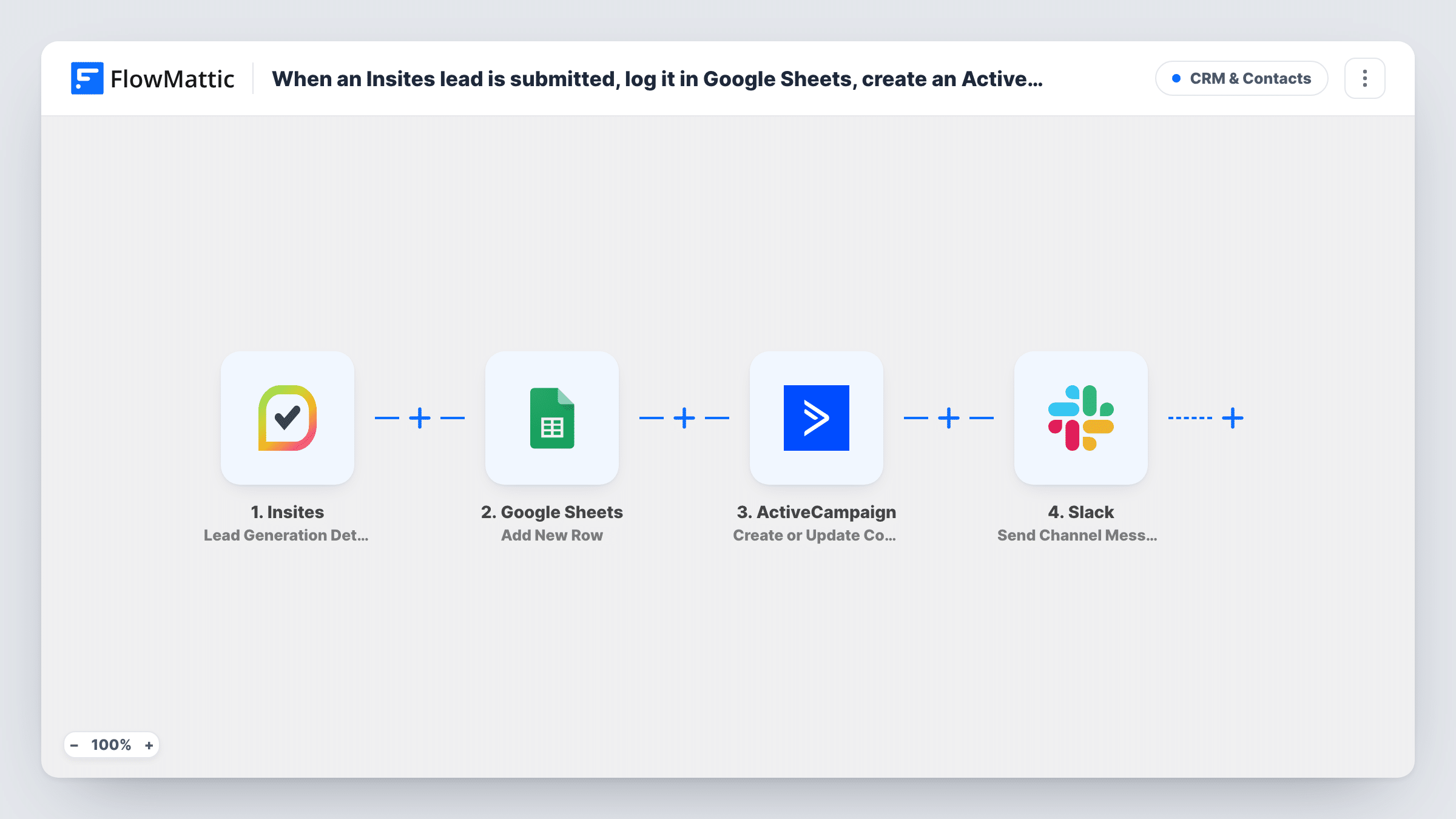
When an Insites lead generation audit completes, FlowMattic logs the lead in Google Sheets, creates or updates them as an ActiveCampaign contact, and posts a heads-up to your Slack channel.
 Insites
 Google Sheets
 ActiveCampaign
 Slack
4 steps Setup ~8 min Used on 3.1k sites Free to import
What this workflow does
Agencies use Insites lead generation to offer visitors a free website audit in exchange for their details. Each of those prospects is warm, and the sooner sales sees the audit, the better the follow-up. This workflow puts every one in a spreadsheet, in your email CRM and in front of the team in one go.
The Insites trigger fires when a lead generation audit completes, which happens after a prospect submits their details. The lead and audit details are passed on. The Google Sheets step then adds a new row with the values you map, giving you a running list of every audit lead.
Next, the ActiveCampaign step creates a new contact, or updates the existing contact if that person is already there, so repeat prospects don't become duplicates. A Slack message to the channel you choose closes the run.
The Sheets, ActiveCampaign and Slack steps all arrive without mapping. After import you pick the spreadsheet and match columns, map the email and name into ActiveCampaign, and write the Slack message with the lead's details and website. Run a test audit and check Task History to see what Insites sent and what each step returned.
Agency prospecting from audits
A web agency embeds Insites' audit form on its site. Each completed audit becomes a row for the sales tracker, an ActiveCampaign contact for nurture emails and a Slack ping for the account team.
SEO consultants following up fast
An SEO consultant reads the Slack alert, opens the prospect's website from the message and calls while the audit is fresh in their mind.
Monthly lead reports
A marketing manager uses the Google Sheet to count audit leads by month and compare them with the deals that came from them.
How this workflow runs
What happens at each step once the workflow is on, and what you need before you import it.
 Insites Lead Generation Details Submitted
Fires when an Insites lead generation audit completes after a prospect submits their details. The lead's contact details and audit information are passed on to the next three steps.
- Google Sheets Add New Row
Adds one row per lead to the spreadsheet you select. Nothing is mapped yet: after import, choose the sheet and match the Insites values to your column headers.
- ActiveCampaign Create or Update Contact
Creates the prospect as a new ActiveCampaign contact, or updates the existing one. The template leaves it unmapped, so map at least the email address and name from Insites.
- Slack Send Channel Message
Tells your team about the new audit lead in a Slack channel. Choose the channel and write the message after import, mapping in the prospect's name, email and website.
What you need
- FlowMatticCore
- Insites AccountAccount
- Google Sheets AccountAccount
- ActiveCampaign AccountAccount
- Slack AccountAccount
After importing, map your own data. To keep the template universal, not every step is pre-filled. Open each step in the builder and connect your accounts and fields (channels, lists, sheets, recipients) before you switch the workflow on.
Make it yours
Changes worth making after you import it.
- Add an ActiveCampaign Add/Remove Tag From Contact step after the contact step to tag audit leads, then start an ActiveCampaign automation from that tag.
- Put the prospect's website and the audit link, if Insites sends one, in the Slack message so whoever picks it up can review the audit straight away.
- Add a date column to the sheet and map the run's date into it, so you can sort audit leads by when they arrived.
Questions about this workflow
When exactly does the Insites trigger fire?
FlowMattic describes this trigger as firing when a lead generation audit completes. Run a test audit and look at the trigger data in Task History to see which lead and audit details arrive.
What if the Insites lead is already an ActiveCampaign contact?
Create or Update Contact updates the existing contact instead of adding a second one. The fields you map from Insites refresh that contact's details.
Does every audit lead get a Google Sheets row even if they submit twice?
Yes. Each completed audit starts a run and adds a new row. ActiveCampaign keeps one contact, but the sheet shows every submission.
More CRM & Contacts workflows
Other ready-to-import templates from the same category.







Import this workflow into your WordPress site
Download the JSON, import it from the Workflows screen and connect your accounts. Every run stays on your server, with no per-task fees.
30-day money-back guarantee Unlimited workflows and runs Self-hosted