

When an Upnify client is reactivated, log it in Google Sheets and notify the rep in Slack
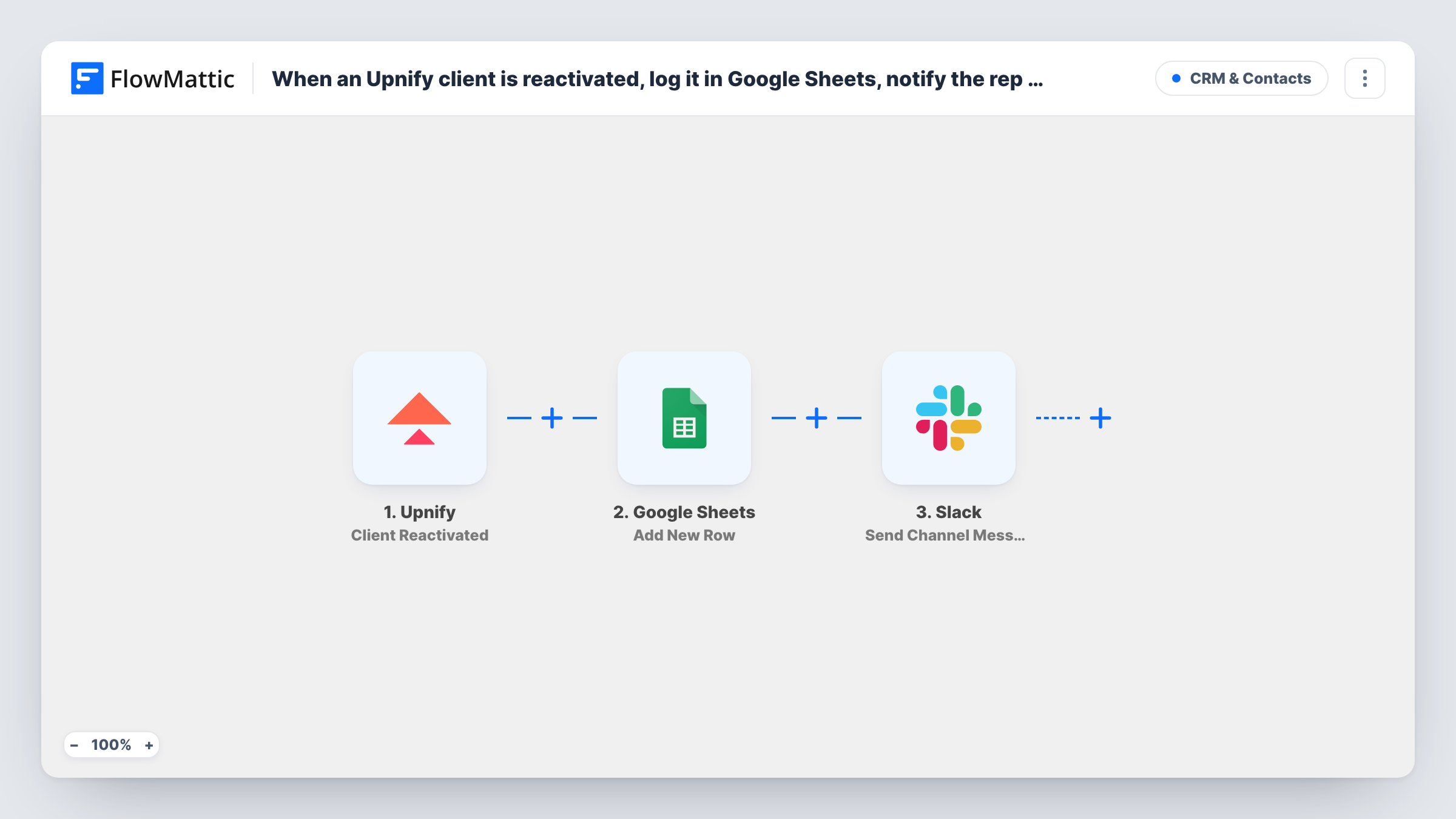
Each time a client is reactivated in Upnify, the workflow adds a row about it to your Google Sheets log and posts a message in the Slack channel your sales reps watch.
 Upnify
 Google Sheets
 Slack
3 steps Setup ~5 min Used on 1.0k sites Free to import
What this workflow does
A client coming back to life in your CRM is worth a second look: someone has decided the account is active again, and the rep who owns it should know. This workflow turns that Upnify event into a written record and a Slack post, so returning clients don't sit unnoticed in the pipeline.
The Upnify trigger fires when a client is reactivated and hands the client's data to the next steps. The Google Sheets step then adds one new row to a sheet you choose. It ships unmapped, so after import you pick the spreadsheet and decide which client details fill which columns, such as the client name, the owner and the date.
A message about the comeback then goes to a Slack channel of your choosing. It is also left for you to set up: choose the channel, write the text and map in the client details from the trigger. The rep sees the message as a member of that channel; the step doesn't message one person privately.
Every reactivation starts its own run, so a client who is reactivated twice gets two rows and two posts. Run one test reactivation in Upnify and open Task History to see which fields the trigger sends before you finish the mapping.
Win-back tracking for a sales manager
A sales manager keeps a sheet of every reactivated Upnify client and reviews it at the end of the month to see which accounts came back and who owns them.
Heads-up in the team's sales channel
When a dormant client is switched back to active, the #sales channel gets a post with the client's name, so the account owner can call them the same day.
Commission and renewal records
An agency logs reactivated clients with their owner in Google Sheets, giving the finance team a list to check against renewals.
How this workflow runs
What happens at each step once the workflow is on, and what you need before you import it.
 Upnify Client Reactivated
Fires whenever a client is reactivated in Upnify. The client's record data is passed on so you can map it into the sheet row and the Slack message.
- Google Sheets Add New Row
Writes one row per reactivated client into the spreadsheet you select. The column mapping is left empty: connect your Google account, choose the sheet and map the Upnify client fields into your columns.
- Slack Send Channel Message
Announces the reactivated client in a Slack channel of your choice. Write the text after import and map the client details from the Upnify trigger, for example the name and the assigned rep.
What you need
- FlowMatticCore
- Upnify AccountAccount
- Google Sheets AccountAccount
- Slack AccountAccount
After importing, map your own data. To keep the template universal, not every step is pre-filled. Open each step in the builder and connect your accounts and fields (channels, lists, sheets, recipients) before you switch the workflow on.
Make it yours
Changes worth making after you import it.
- To reach only the account owner, swap the Slack step for the Send Direct Message action and choose the rep there, instead of posting in a shared channel.
- For a private sales channel, use Slack's Send Private Channel Message action, since Send Channel Message is meant for a regular #channel.
- Add a date column to the sheet and map the reactivation time into it, so you can sort comebacks by month.
- If several reps share one channel, map the rep's name from Upnify into the message text so each post says whose client it is.
Questions about this workflow
Does the Slack message go to the rep personally?
Not as imported. Send Channel Message posts in the channel you choose, where the rep sees it if they're a member. Use Slack's Send Direct Message action instead if each rep should get a private message.
Which Upnify client fields can I put in the Google Sheet?
Any field the Client Reactivated trigger sends. Trigger a test reactivation in Upnify, then check the data in Task History and map the fields you want into the Add New Row step.
Will new Upnify clients start this workflow too?
No. The trigger only fires for reactivated clients. FlowMattic's Upnify integration has a separate New client trigger if you want a similar flow for brand-new accounts.
What if the same client is reactivated more than once?
Each reactivation is a new run, so the sheet gets another row and Slack gets another post. The history of comebacks stays visible in the sheet.
More CRM & Contacts workflows
Other ready-to-import templates from the same category.





Import this workflow into your WordPress site
Download the JSON, import it from the Workflows screen and connect your accounts. Every run stays on your server, with no per-task fees.
30-day money-back guarantee Unlimited workflows and runs Self-hosted