

When ClickPost reports a shipment update, find the order in Sheets, post to Slack, update the row
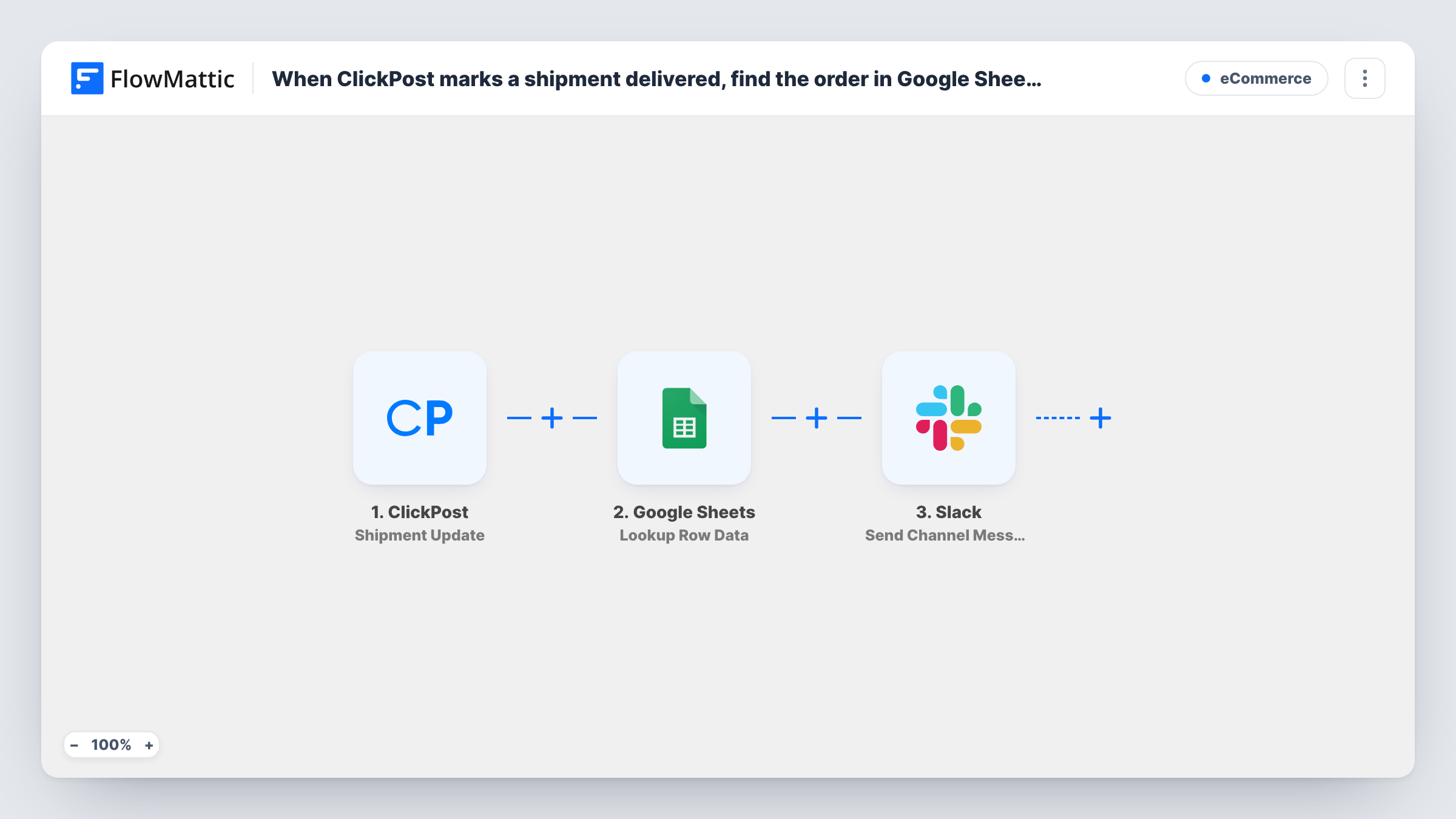
Each ClickPost shipment update looks up the matching order row in Google Sheets, posts the update to a Slack channel, then writes the new status back into that same row.
 ClickPost
 Google Sheets
 Slack
Slack4 steps Setup ~8 min Used on 3.2k sites Free to import
What this workflow does
Teams that run orders from a shared spreadsheet need two things when a parcel moves: the sheet should show the new status, and someone should hear about it. This workflow handles both from one ClickPost event, using the row it finds to keep the message and the sheet in step.
The ClickPost Shipment Update trigger fires each time ClickPost has news about one of your parcels. The Google Sheets Lookup Row Data step then searches your order sheet for a value from ClickPost, such as the tracking number, and returns the matching row's data and row number.
The Slack Send Channel Message step posts the update to the channel you choose, where you can mix ClickPost fields with columns from the found row, like the customer name. Finally, Update Row writes to the row the lookup found: the template already maps the row number from the first lookup result, so you only choose the columns to change, such as status. The lookup, Slack and update steps otherwise ship unmapped.
The sheet needs a column that holds a value ClickPost also sends. Each ClickPost update starts a run, so busy shipments post several Slack messages. Test with a known order and check Task History.
Ops channel for courier updates
A home goods store posts every ClickPost status change to #shipping, naming the customer from the order sheet, while the sheet's status column stays current.
Sheet-based order desk
A small team that manages orders in Google Sheets sees each parcel's latest status in its row without copying it from ClickPost.
Spotting delivery problems
A support lead watches the Slack channel for failed delivery updates and opens the order row to contact the customer.
How this workflow runs
What happens at each step once the workflow is on, and what you need before you import it.
 ClickPost Shipment Update
Starts a run whenever ClickPost reports an update to a shipment. The shipment data, such as tracking number and status, is passed to the lookup, Slack and update steps.
- Google Sheets Lookup Row Data
Searches your order sheet for the row that matches this shipment. After import, pick your spreadsheet and set the lookup to search for a ClickPost value, such as the tracking number.
- Slack Send Channel Message
Posts a message about the shipment update to the Slack channel you pick. Write the text after import, combining ClickPost fields with columns from the found row.
- Google Sheets Update Row
Writes the new shipment details into the row the lookup found. The row number is already mapped from the first lookup result; choose the spreadsheet and the columns to update, such as status.
What you need
- FlowMatticCore
- ClickPost AccountAccount
- Google Sheets AccountAccount
- Slack AccountAccount
After importing, map your own data. To keep the template universal, not every step is pre-filled. Open each step in the builder and connect your accounts and fields (channels, lists, sheets, recipients) before you switch the workflow on.
Make it yours
Changes worth making after you import it.
- Keep tracking numbers unique in the sheet, because the update uses the first matching row the lookup returns.
- To post only certain statuses, such as failed deliveries, put a Filter between the Lookup Row Data step and the Slack step. Note that the Filter also stops the Update Row step for those runs, so the sheet keeps its old status.
- Add a "last updated" column and map a timestamp from ClickPost into it in the Update Row step, so you can see how fresh each row's status is.
- Post to a dedicated shipping channel rather than a general one, since every ClickPost update sends a message.
Questions about this workflow
Which Google Sheets row does the update change?
The one the lookup found. The Update Row step uses the row number from the first result of Lookup Row Data, so the row that matched the ClickPost value is the one rewritten.
What if no row in the sheet matches the ClickPost shipment?
The lookup has no row to return, so the update has no row number to use. Google Sheets may return an error for that step, and the run in Task History shows it.
Will Slack get a message for every ClickPost update?
Yes, as imported. Each shipment update starts a run and posts a message. Add a Filter on the status between the lookup and Slack steps if you want fewer posts.
Does the order sheet need a special layout for ClickPost?
It needs one column with a value ClickPost sends, such as the tracking number, for the lookup, plus the status columns you want updated. Other columns can stay as they are.
More E-Commerce workflows
Other ready-to-import templates from the same category.






Import this workflow into your WordPress site
Download the JSON, import it from the Workflows screen and connect your accounts. Every run stays on your server, with no per-task fees.
30-day money-back guarantee Unlimited workflows and runs Self-hosted