

When Document Received in Airparser, add a row in Google Sheets
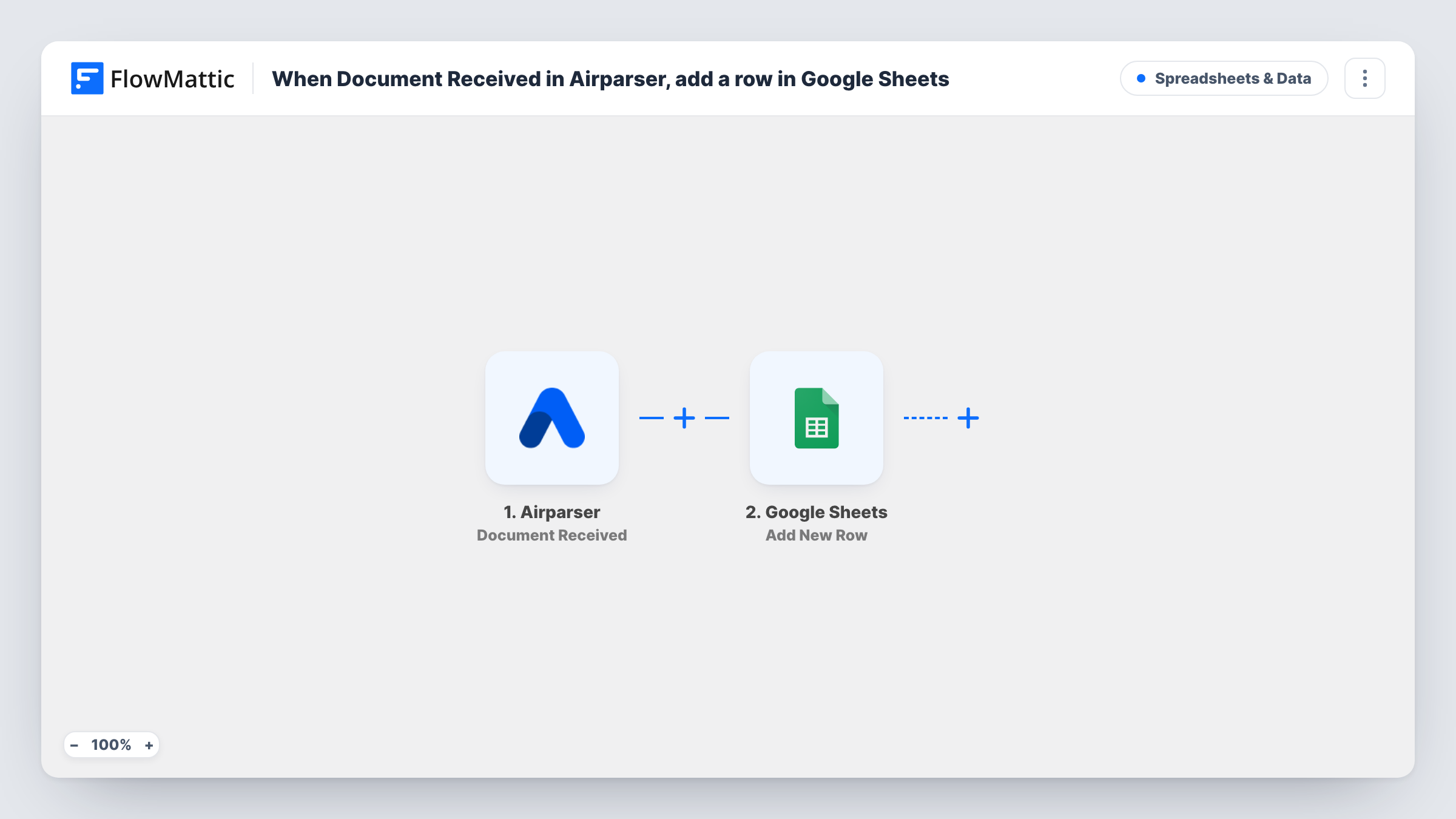
Each time a new email document arrives in your Airparser inbox, this workflow adds a row to Google Sheets with the data you map, so you have a running log of what came in.
 Airparser
 Google Sheets
2 steps Setup ~5 min Used on 953 sites Free to import
What this workflow does
Airparser gives you inboxes that receive emails and documents for data extraction. When many arrive each day, a spreadsheet log helps you see what came in, when, and from whom, without opening Airparser. This workflow writes one row per received document.
The Airparser trigger is Document Received, which fires when a new email document is received. That is the moment of arrival, not the end of parsing, so check a test run to see which details are already in the data at that point. FlowMattic then passes them to Google Sheets, where Add New Row writes a row to the spreadsheet and sheet you choose.
If what you want in the sheet is the extracted data itself, Airparser's Document Parsed trigger fires after a document is parsed; you can swap it in after import. Every run is shown in Task History with the values written.
Intake log for an invoices inbox
Suppliers email invoices to your Airparser inbox, and each arrival adds a row so the accounts team can tick off what has come in.
Order email tracking
Order confirmations forwarded to Airparser are logged in a sheet as they arrive, giving you a count per day.
Checking the parser is receiving mail
A sheet row for every received document shows at a glance whether forwarding to Airparser is still working.
How this workflow runs
What happens at each step once the workflow is on, and what you need before you import it.
 Airparser Document Received
Fires when a new email document is received in Airparser, before you can rely on parsed results. The data sent at that point becomes available to map. Connect Airparser on import.
- Google Sheets Add New Row
Writes one new row to the Google Sheets spreadsheet you choose. Map the Airparser data to your columns, for example the sender or date if a test run shows them, and connect your Google account.
What you need
- FlowMatticCore
- Airparser AccountAccount
- Google Sheets AccountAccount
After importing, map your own data. To keep the template universal, not every step is pre-filled. Open each step in the builder and connect your accounts and fields (channels, lists, sheets, recipients) before you switch the workflow on.
Make it yours
Changes worth making after you import it.
- If you need the extracted fields in the sheet, swap the trigger for Airparser's Document Parsed and remap the columns from its data.
- Pair it with a second workflow on Airparser's Document Parsed Failed trigger, which fires when parsing fails, so you hear about documents that need a manual look.
- Send one test email to your Airparser inbox after import so FlowMattic captures the trigger data, then map your columns.
Questions about this workflow
Does the Airparser row include the parsed data?
Not reliably. Document Received fires when the document arrives. Use the Document Parsed trigger if the row should hold extracted values.
Is every document in the Airparser inbox logged?
Every new email document received after you turn the workflow on adds one row. Documents already in the inbox are not added.
Do I need to set up the Google Sheets columns first?
Yes. Add a header row with the columns you want, then pick the spreadsheet and sheet in the step and map each column.
Can Airparser documents go to more than one sheet?
Add a second Google Sheets step after the first, pointed at the other spreadsheet, and map it the same way.
More Spreadsheets & Data workflows
Other ready-to-import templates from the same category.





Import this workflow into your WordPress site
Download the JSON, import it from the Workflows screen and connect your accounts. Every run stays on your server, with no per-task fees.
30-day money-back guarantee Unlimited workflows and runs Self-hosted