

When form submission received in Elementor Pro form, toggle the state of the scheduled link in SavvyCal
Each Elementor Pro form submission switches one of your SavvyCal scheduling links between active and disabled, so a form on your site can open or close a booking link without logging in to SavvyCal.
 Elementor
 SavvyCal
2 steps Setup ~5 min Used on 1.6k sites Free to import
What this workflow does
Sometimes a booking link should only be open at certain moments: after an application is approved, while a promotion runs, or when a staff member says they are available. Logging in to SavvyCal each time is easy to forget. This workflow lets an Elementor Pro form flip the link's state for you.
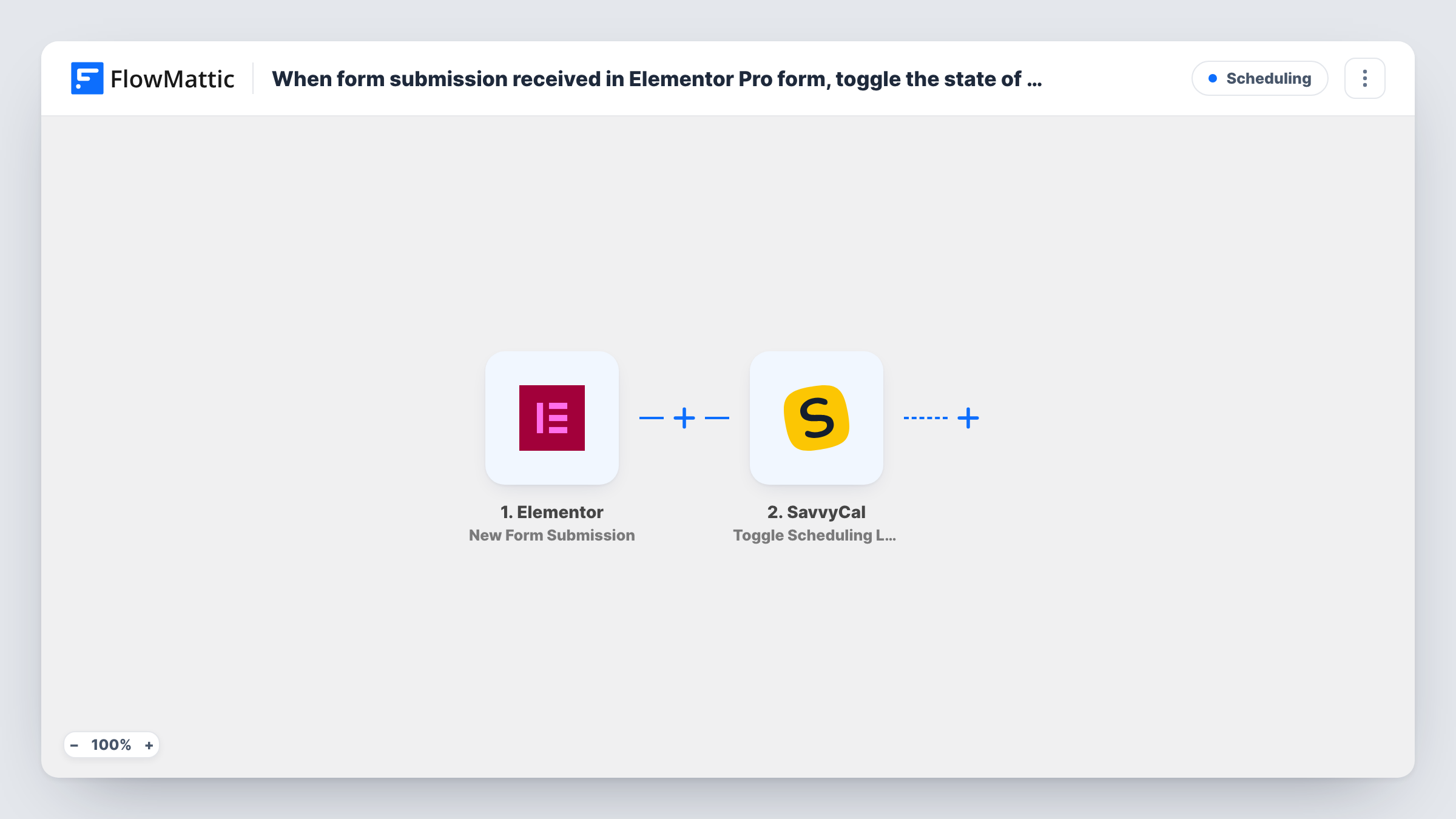
The Elementor trigger fires when someone submits a form built with Elementor Pro. FlowMattic then runs Toggle Scheduling Link in SavvyCal, which toggles a scheduling link between active and disabled. You choose the link in the step after import.
A toggle flips the current state. One submission disables an active link, and the next submission turns it back on. That makes the form act like a switch, so it suits a private admin form more than a public one. Check the result in SavvyCal after a test submission, and see Task History for each run.
Staff availability switch
A small internal Elementor form on a staff page lets a team member pause or reopen their SavvyCal booking link with one submission.
Opening a link during a launch
Your marketing lead submits a form when a campaign starts and again when it ends, switching the campaign's SavvyCal link on and off.
Holiday cover
A manager submits a form before leave to disable their booking link and again on return to restore it.
How this workflow runs
What happens at each step once the workflow is on, and what you need before you import it.
 Elementor New Form Submission
Starts whenever someone sends an Elementor Pro form on your site. The form's fields are passed on, though the toggle step needs little more than the run itself.
- SavvyCal Toggle Scheduling Link
Switches the chosen SavvyCal scheduling link between active and disabled. Connect your SavvyCal account and select the link; each run flips whatever state it is in at that moment.
What you need
- FlowMatticCore
- Elementor PluginPlugin
- SavvyCal AccountAccount
After importing, map your own data. To keep the template universal, not every step is pre-filled. Open each step in the builder and connect your accounts and fields (channels, lists, sheets, recipients) before you switch the workflow on.
Make it yours
Changes worth making after you import it.
- Put the form on a page only your team can reach, since any submission flips the link, including spam or repeat entries.
- Add a Filter after the trigger that continues only when a password or confirmation field has the value you expect, so stray submissions don't toggle the link.
- Add a second step that posts to your team chat after the toggle, so everyone knows the booking link changed state.
Questions about this workflow
Does each Elementor submission turn the SavvyCal link on or off?
It flips it. If the link is active, a submission disables it; if it's disabled, the next submission makes it active again.
Can I choose a different SavvyCal link per submission?
Check in a test run whether the step accepts a mapped link value. If it does, a form field can pick the link; otherwise the step uses the one link you set.
Is Elementor Pro required to toggle the SavvyCal link?
Yes. Elementor's form widget, which this trigger listens to, is part of Elementor Pro, so it must be active on the WordPress site running FlowMattic.
Will a public form let visitors close my SavvyCal link?
Yes, any submission runs the toggle. Keep the form private or add a Filter on a field only your team knows.
More Scheduling workflows
Other ready-to-import templates from the same category.






Import this workflow into your WordPress site
Download the JSON, import it from the Workflows screen and connect your accounts. Every run stays on your server, with no per-task fees.
30-day money-back guarantee Unlimited workflows and runs Self-hosted