

When an employee is added in Zoho People, send a Gmail welcome email with an onboarding checklist
When HR adds an employee in Zoho People, FlowMattic sends that person a welcome email from your Gmail account with the onboarding checklist you write into the message.
 Zoho People
 Gmail
2 steps Setup ~5 min Used on 2.1k sites Free to import
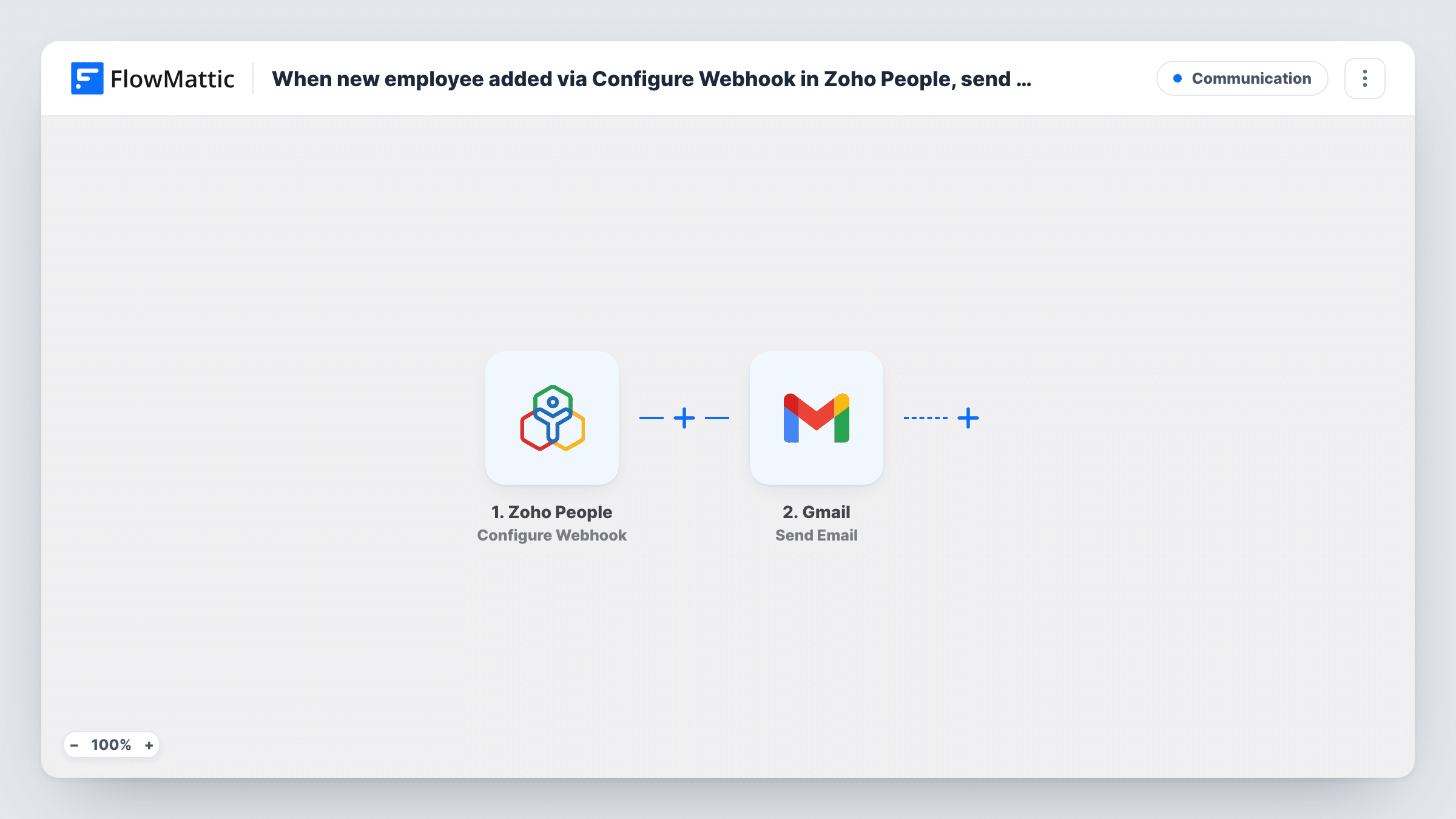
What this workflow does
The first email a new hire gets sets the tone for their start, and it usually says the same things every time: welcome, here's what to do in week one, here's who to ask. Writing it by hand for each starter is repetitive and easy to forget on a busy day. This workflow sends that welcome from Gmail as soon as the employee record exists in Zoho People.
The Zoho People trigger receives a webhook from a workflow rule you set up in Zoho People. The trigger can carry events from any Zoho People form, such as Employee, Leave and Attendance, so set the rule on the Employee form to call the webhook when an employee is added. Then only new employee records reach FlowMattic.
The Gmail Send Email step sends the message from your connected mailbox. It ships unmapped: after import, map the employee's email from the Zoho People data into the recipient, and write the subject and body. The onboarding checklist is text you type into the body, such as setting up accounts, reading the handbook and booking a first meeting with their manager.
Add a test employee and check Task History to confirm the email address arrived and Gmail sent the message.
First-week checklist for new hires
A growing startup sends every new employee a Gmail message listing their first-week tasks, from laptop setup to the team introduction call.
Consistent welcome across offices
A company with HR staff in several locations makes sure each new employee gets the same welcome text, wherever their record is added in Zoho People.
Pre-start information for retail staff
A retail chain adds seasonal staff in Zoho People ahead of their first shift and sends them the dress code, store address and who to report to.
How this workflow runs
What happens at each step once the workflow is on, and what you need before you import it.
 Zoho People Configure Webhook
Receives the webhook your Zoho People rule sends. Set the rule on the Employee form for new employees, because the trigger also accepts Leave, Attendance and other form events.
- Gmail Send Email
Emails the new starter through the Gmail mailbox you connect. Map the employee's email as the recipient, write the subject, and type the onboarding checklist into the body, adding their first name from Zoho People.
What you need
- FlowMatticCore
- Zoho People AccountAccount
- Gmail AccountAccount
After importing, map your own data. To keep the template universal, not every step is pre-filled. Open each step in the builder and connect your accounts and fields (channels, lists, sheets, recipients) before you switch the workflow on.
Make it yours
Changes worth making after you import it.
- Include the new employee's first name and start date from the Zoho People record in the email, so the message feels personal.
- Connect a shared HR Gmail account rather than a personal one, so replies from new starters reach the whole team.
- Keep links to your handbook and IT setup guide in the checklist, so the email works as a reference the employee can come back to.
- Make sure the Zoho People webhook includes the employee's email address; without it, Gmail has no recipient.
Questions about this workflow
Will Zoho People leave requests also trigger the welcome email?
Only if your Zoho People rule sends them. Set the webhook rule on the Employee form for added employees alone, and leave and attendance events won't reach this workflow.
Where do I write the onboarding checklist for the Gmail email?
In the body of the Send Email step. It's plain text you write after import, and you can mix in fields from the Zoho People record such as the person's name.
Can I attach the employee handbook to the welcome email?
Link to it in the body instead. If you need a file attached, consider FlowMattic's own Email step, which can attach files stored on your WordPress site.
Is the welcome email sent from my own Gmail address?
Yes. The Send Email step uses the Gmail account you connect in FlowMattic, so the message comes from that mailbox.
More Communication workflows
Other ready-to-import templates from the same category.




Import this workflow into your WordPress site
Download the JSON, import it from the Workflows screen and connect your accounts. Every run stays on your server, with no per-task fees.
30-day money-back guarantee Unlimited workflows and runs Self-hosted