

When new form submission is received in Beaver Builder, create a new user in WordPress, and add a new subscriber in Sendinblue
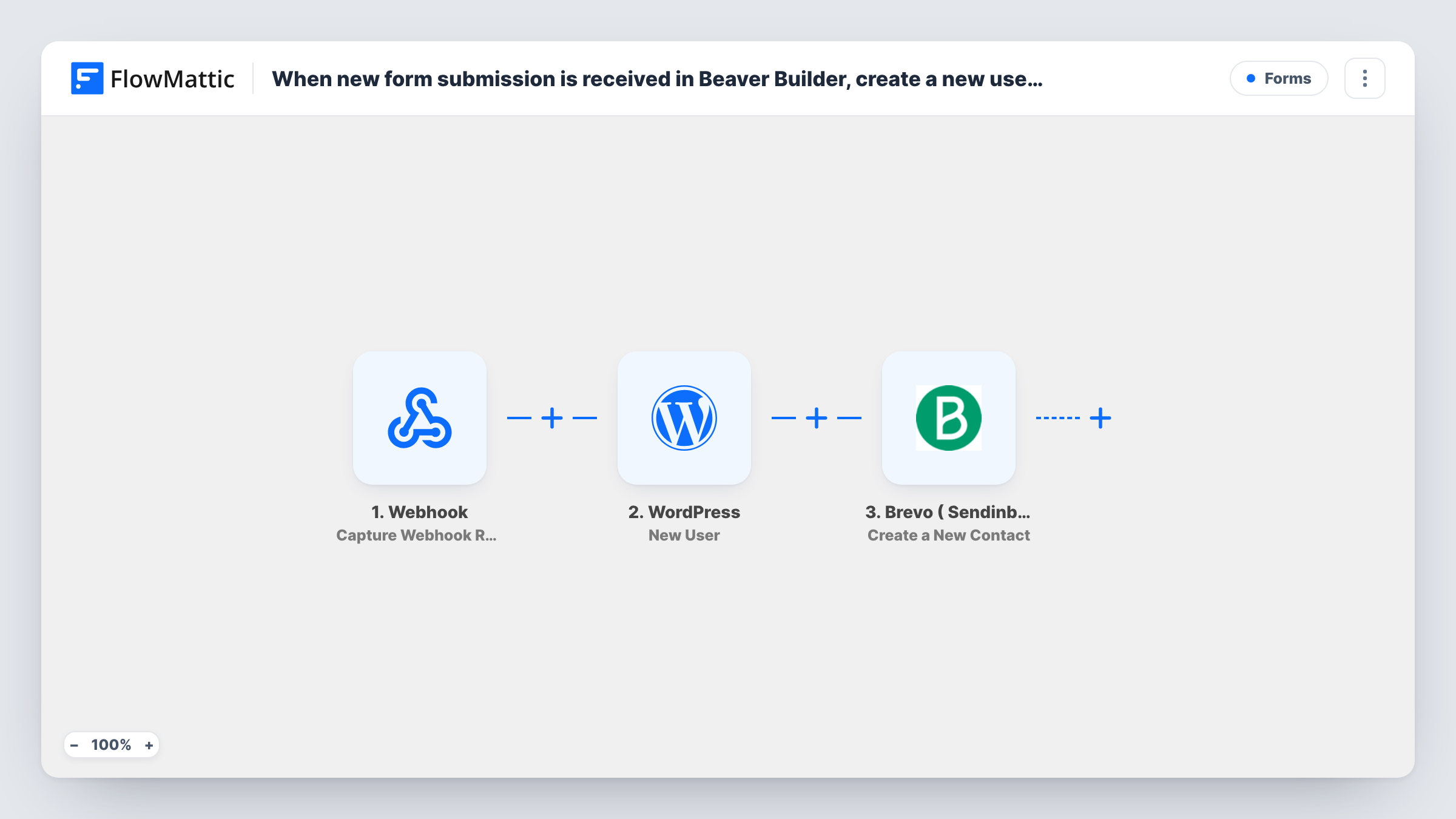
Each Beaver Builder contact form submission creates a WordPress user from the details entered, then adds the same person to Brevo (Sendinblue) as a contact, so sign-ups get a site account and join your list.
 Beaver Builder Forms
 WordPress
 Brevo ( Sendinblue )
3 steps Setup ~5 min Used on 2.4k sites Free to import
What this workflow does
If you use a Beaver Builder contact form as a simple sign-up form, every entry still needs two jobs done: a login created on WordPress and the person added to your mailing list. This workflow does both from the one submission, so you don't copy names and emails between screens.
The Beaver Builder Forms trigger fires when a contact form submission is received and passes the form's fields on. The WordPress New User step then creates an account from those fields. If the email already belongs to an account, WordPress doesn't add a second one; Task History shows the user ID that came back.
The last step adds the person to Brevo ( Sendinblue ) with Create a New Contact. Both action steps arrive without field mapping. After import, map the form's email and name fields into the New User step, then connect Brevo and map the email, name and any list you want the contact on.
Every submission runs both steps, so this suits a form whose purpose is signing up. If the form is also used for general enquiries, add a Filter as described in the tips. Submit a test entry and check Task History for what WordPress and Brevo returned.
Free member sign-up on a Beaver Builder page
A community site builds its join page with Beaver Builder and wants each sign-up to get a WordPress login and land on the Brevo list used for member news.
Workshop registrations with a site account
A trainer collects registrations through a Beaver Builder form; each attendee gets an account to reach the materials page and joins the Brevo list for reminders.
Client portal access from an enquiry form
An agency's onboarding form creates a WordPress account for each new client and adds them to a Brevo list for project updates.
How this workflow runs
What happens at each step once the workflow is on, and what you need before you import it.
 Beaver Builder Forms New Contact Form Submission
Starts a run when a Beaver Builder contact form submission is received. The values entered in the form, such as name and email, are passed to the WordPress and Brevo steps.
- WordPress New User
Creates a WordPress user from the form details. The step ships unmapped, so map the submitted email and name. For an email that is already registered, WordPress keeps the existing account and returns its ID instead of making another.
- Brevo ( Sendinblue ) Create a New Contact
Sends the submitter to Brevo (Sendinblue), where the step creates their contact record. It ships empty: connect your Brevo account and map the email and name from the form, plus a list if you keep sign-ups on one.
What you need
- FlowMatticCore
- Beaver Builder Forms PluginPlugin
- Brevo ( Sendinblue ) AccountAccount
After importing, map your own data. To keep the template universal, not every step is pre-filled. Open each step in the builder and connect your accounts and fields (channels, lists, sheets, recipients) before you switch the workflow on.
Make it yours
Changes worth making after you import it.
- If the same Beaver Builder form also handles general questions, put a Filter between the trigger and the New User step on a field only sign-ups fill in. Entries it stops create no user and no Brevo contact. The field is an example to set.
- Add a consent checkbox to the form and check it in a Filter between the New User step and the Brevo step, so only people who agreed are added to your list while everyone still gets an account.
- Send the new user a welcome email with an Email step after the Brevo step, including a link to set their password or log in.
Questions about this workflow
What if someone submits the Beaver Builder form with an email that already has an account?
WordPress doesn't make a duplicate account for an existing email. The New User step returns the ID of the existing user, which you can see in Task History, and the run moves on to Brevo.
What does Brevo do with an email it already has?
That's Brevo's decision for the Create a New Contact request. Try a test with an email that's already in Brevo and look at the response in Task History.
Does every Beaver Builder form on my site trigger this?
Send a test from the form you plan to use and confirm the run in Task History. If other Beaver Builder forms start runs too, put a Filter on a field only that form has between the trigger and the New User step.
Which Brevo list does the contact join?
No list is chosen as imported. Map it in the Create a New Contact step after import if you want new sign-ups on a specific Brevo list.
More Forms workflows
Other ready-to-import templates from the same category.





Import this workflow into your WordPress site
Download the JSON, import it from the Workflows screen and connect your accounts. Every run stays on your server, with no per-task fees.
30-day money-back guarantee Unlimited workflows and runs Self-hosted