

When new form submission is received in MakeForms, upload the files to Google Drive
When a MakeForms response arrives, this workflow uploads the file from that submission to a Google Drive folder you choose, so uploaded documents end up in your Drive instead of staying inside the form tool.
 MakeForms
 Google Drive
2 steps Setup ~5 min Used on 2.5k sites Free to import
What this workflow does
Forms that ask for a CV, a receipt or a signed document leave those files inside the form tool, where only people with a login can find them. Downloading each one and saving it to the right Drive folder takes time and is easy to skip. This workflow does the upload as each response comes in.
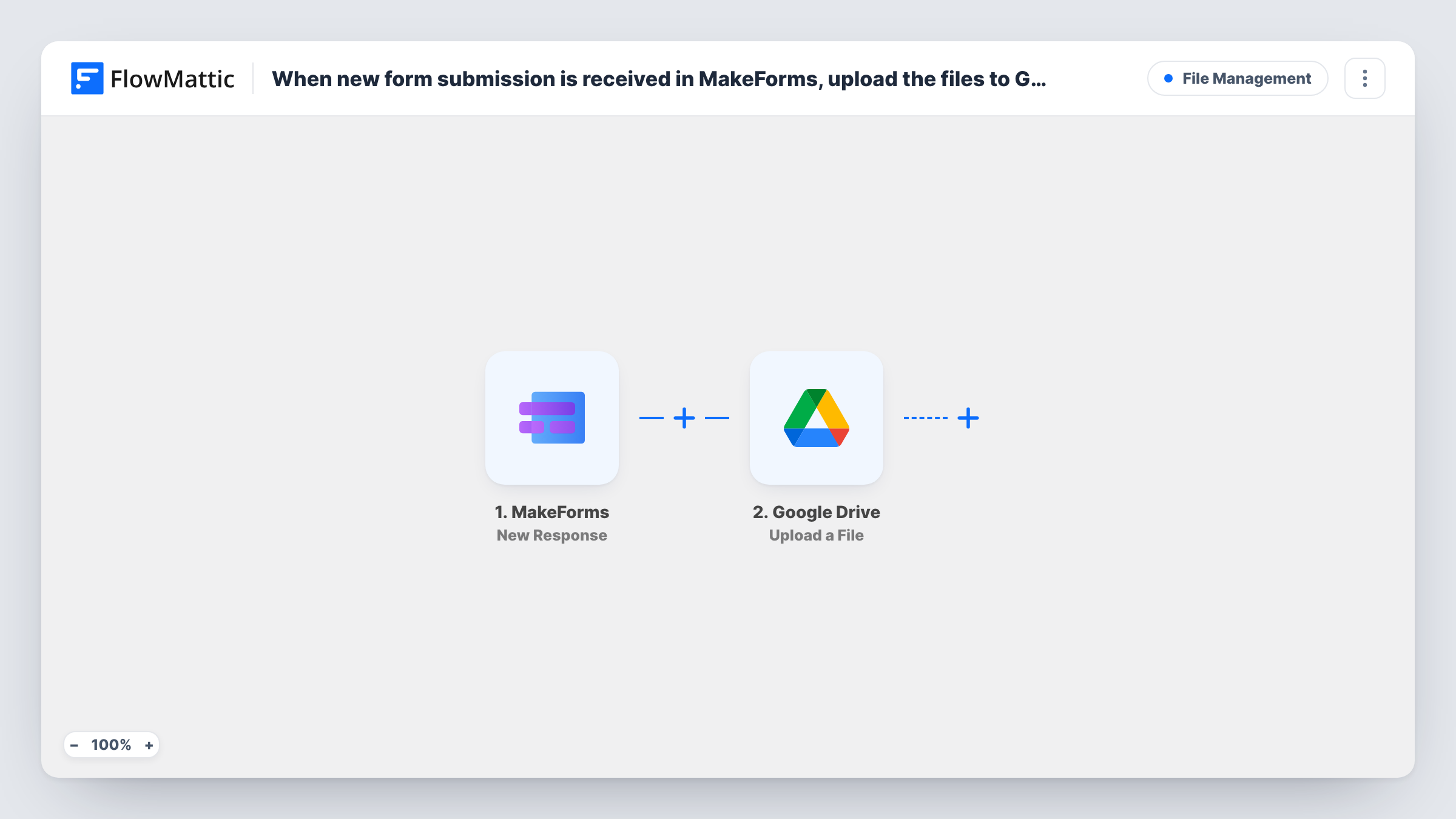
The MakeForms trigger fires when a form submission is received and captures the response, including any file upload field. The Google Drive step, Upload a File, then saves a file to the Drive folder you select. You map the file from the MakeForms response into that step.
One Upload a File step saves one file per run. If your form has two upload fields, add a second Google Drive step for the other one. Responses that come in without a file still start a run, and the upload step has nothing to save for them, so Task History shows that step's result.
Job applications with a CV upload
Candidates attach a CV to a MakeForms application form, and each CV lands in a hiring folder in Drive that the whole panel can open.
Expense receipts from staff
Employees submit a receipt photo through a form, and finance finds every receipt in one shared Drive folder.
Client onboarding documents
New clients upload a signed agreement or ID document, and it is stored in Drive alongside the rest of your client files.
How this workflow runs
What happens at each step once the workflow is on, and what you need before you import it.
 MakeForms New Response
Fires when MakeForms receives a new form response. The answers, including the file upload field, become available to the Google Drive step.
- Google Drive Upload a File
Saves the submitted file into a Drive folder of your choice. Connect your Google account, pick the folder and map the uploaded file from the MakeForms response.
What you need
- FlowMatticCore
- MakeForms AccountAccount
- Google Drive AccountAccount
After importing, map your own data. To keep the template universal, not every step is pre-filled. Open each step in the builder and connect your accounts and fields (channels, lists, sheets, recipients) before you switch the workflow on.
Make it yours
Changes worth making after you import it.
- Submit a test response with a file attached right after import. FlowMattic then captures the upload field, and you can see what to map into the Drive step.
- For a form with more than one upload field, add another Google Drive Upload a File step and map the second file there.
- Add a Filter after the trigger that continues only when the file field is not empty, so responses without an attachment end the run before the upload.
Questions about this workflow
Does this save every file when a MakeForms response has several?
The Drive step uploads the one file you map. Add another Upload a File step for each extra upload field.
Which Google Drive folder do the MakeForms files go to?
The folder you select in the Upload a File step after connecting your Google account. Every run uploads to that same folder.
Are the form answers saved to Drive too?
No. Only the file is uploaded. Add a Google Sheets step if you also want a record of the answers.
What happens when a MakeForms response has no attachment?
The run still starts, but the upload step has no file to save. Add a Filter on the file field to stop those runs early.
More File Management workflows
Other ready-to-import templates from the same category.




Import this workflow into your WordPress site
Download the JSON, import it from the Workflows screen and connect your accounts. Every run stays on your server, with no per-task fees.
30-day money-back guarantee Unlimited workflows and runs Self-hosted