

When new meeting notes are available in Read AI, send an email in Gmail
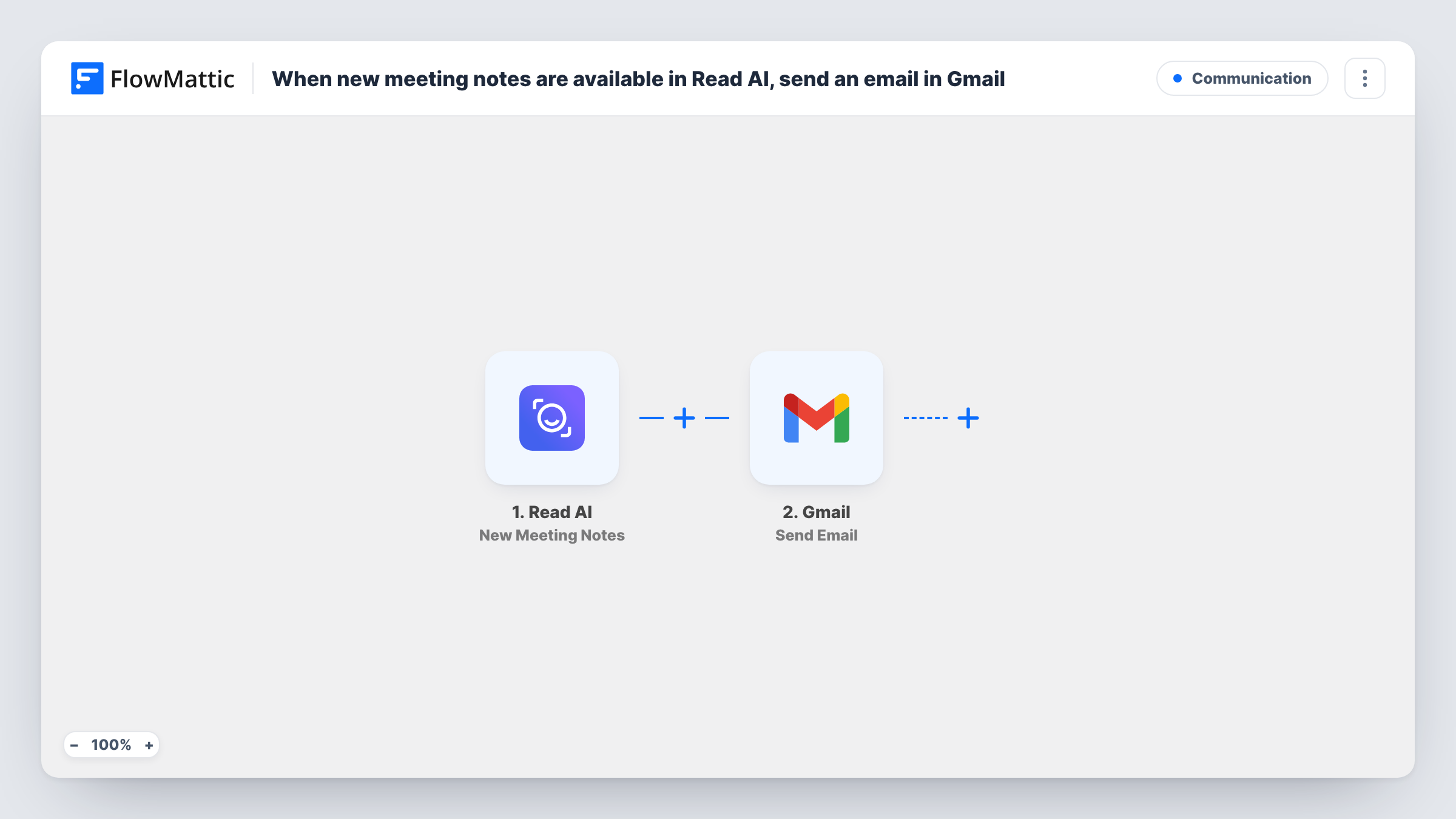
When Read AI has notes ready for a new meeting, this workflow sends an email from your Gmail account with the details you map, such as the summary and action items.
 Read AI
 Gmail
2 steps Setup ~5 min Used on 488 sites Free to import
What this workflow does
Meeting notes help only if the right people read them. Read AI writes a summary and action items after a call, but someone still has to send them to the people who need them. This workflow emails them out from Gmail as soon as Read AI has them.
The Read AI trigger fires when notes, such as a summary and action items, are available for a new meeting. FlowMattic passes those notes to Gmail, and the Send Email action sends a message from your connected account. You choose the recipients, write the subject and decide which parts of the notes go into the body.
Every new meeting with notes sends one email, so the recipients you set get a recap of each meeting Read AI covers. If that is too many, the tips show how to narrow it. Task History records each run with the data Read AI provided.
Recap for your manager
Send the summary and action items from each meeting to your manager, who doesn't attend but wants to know what was decided.
Notes into a shared team inbox
Email every meeting recap to a team address, so anyone who missed a call can catch up from their inbox.
Client call follow-ups
Send the action items to yourself after each client call, ready to forward or edit into your follow-up email.
How this workflow runs
What happens at each step once the workflow is on, and what you need before you import it.
 Read AI New Meeting Notes
Runs once Read AI finishes the notes for a meeting, including its summary and action items. Everything Read AI provides is handed to the Gmail step for mapping.
- Gmail Send Email
Emails the recap from the Gmail account you link. Set who receives it, write the subject, and map the Read AI summary and action items into the body.
What you need
- FlowMatticCore
- Read AI AccountAccount
- Gmail AccountAccount
After importing, map your own data. To keep the template universal, not every step is pre-filled. Open each step in the builder and connect your accounts and fields (channels, lists, sheets, recipients) before you switch the workflow on.
Make it yours
Changes worth making after you import it.
- Add a Filter after the trigger so only some meetings send a recap, for example ones whose title contains a client name, if Read AI includes the title.
- Use a Router with a Gmail step on each route to send internal meetings to one list and client meetings to another.
- After import, finish a short test meeting with Read AI, then check Task History to see the note fields before you map them into the email.
Questions about this workflow
Who receives the Read AI meeting recap?
Whoever you set as recipients in the Gmail step. As imported it goes to the same addresses for every meeting. Map attendee emails instead if Read AI includes them in the notes data.
Does every Read AI meeting send an email?
Yes, as imported. Each new meeting with notes runs the workflow once. Add a Filter after the trigger to choose which meetings send a recap.
Will the email be sent from my own Gmail address?
Yes. The message goes out from the Gmail account you connect in the Gmail step, and replies return to that inbox.
More Communication workflows
Other ready-to-import templates from the same category.





Import this workflow into your WordPress site
Download the JSON, import it from the Workflows screen and connect your accounts. Every run stays on your server, with no per-task fees.
30-day money-back guarantee Unlimited workflows and runs Self-hosted