

When New Submission in Getform, Create Contact in HubSpot, Send Welcome Email via Gmail
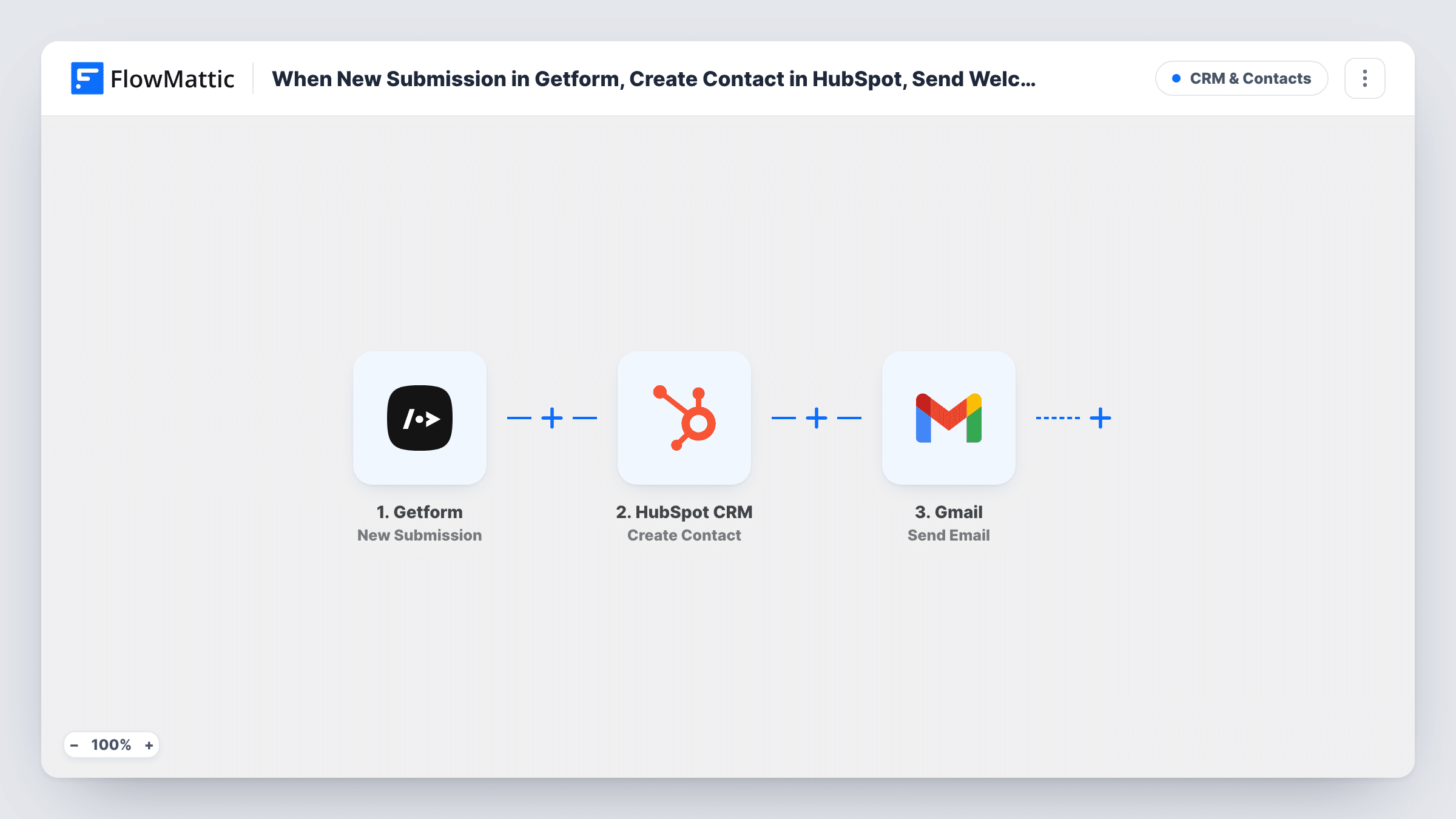
A new Getform submission creates a contact in HubSpot CRM, then Gmail sends that person a welcome email from your own account, so each new lead is both recorded and greeted.
 Getform
 HubSpot CRM
 Gmail
3 steps Setup ~5 min Used on 3.3k sites Free to import
What this workflow does
When a lead fills in a form, two things usually need doing: log them in your CRM and send a first reply. Done by hand, the reply often waits until someone checks the inbox. This workflow handles both each time Getform receives a submission.
The Getform trigger fires on each new submission. FlowMattic sends the mapped fields to HubSpot CRM, which creates a new contact. Next, the Gmail step sends an email from your connected Google account to the address in the submission. You write the subject and body, and you can drop in form answers such as the person's first name.
The steps run in order for every submission, and Task History shows what HubSpot and Gmail returned for each one, which helps when a contact seems to be missing.
Free consultation requests
A visitor books a call through a Getform form on your site. They are added to HubSpot for your sales pipeline and get a Gmail welcome explaining what happens next.
Newsletter sign-ups on a static site
Your static site posts its sign-up form to Getform. New subscribers become HubSpot contacts and receive a personal welcome from your Gmail address.
Partner or reseller applications
Applicants fill in a Getform form. HubSpot records them as contacts, and Gmail sends a note confirming the application arrived.
How this workflow runs
What happens at each step once the workflow is on, and what you need before you import it.
 Getform New Submission
Fires when Getform receives a new submission on your connected form. The submitted fields are then ready to map in the HubSpot and Gmail steps.
- HubSpot CRM Create Contact
Creates a new contact in HubSpot CRM using the fields you map, such as email, first name and last name. You link HubSpot to FlowMattic when you import the template.
- Gmail Send Email
Sends an email through your Gmail account to the submitter. Map the form's email field as the recipient and write a subject and body, adding form answers where you want them.
What you need
- FlowMatticCore
- Getform AccountAccount
- HubSpot CRM AccountAccount
- Gmail AccountAccount
After importing, map your own data. To keep the template universal, not every step is pre-filled. Open each step in the builder and connect your accounts and fields (channels, lists, sheets, recipients) before you switch the workflow on.
Make it yours
Changes worth making after you import it.
- Add a Filter between the Getform trigger and the HubSpot step that continues only when the email field is not empty. Both HubSpot and Gmail need an address to work with.
- Add a Delay before the Gmail step if you would rather the welcome arrive a little after the form is sent than within moments.
- Send a test email to yourself first by mapping your own address, then switch the recipient back to the form's email field before going live.
Questions about this workflow
What if the Getform submitter is already a HubSpot contact?
The step uses Create Contact, which only creates. If the email is already in your HubSpot portal, HubSpot may reject it; the reply appears in Task History for that submission.
Which inbox sends the Getform lead's welcome message?
It comes from the Gmail account you connect in FlowMattic, so replies go straight to that inbox.
Can I change the welcome email for different Getform forms?
Yes. Import the workflow once per form and write a different subject and body in each copy's Gmail step.
Does Getform keep the submission after it is sent to HubSpot?
Yes. The workflow only reads the new submission, and Getform stores it as usual.
More CRM & Contacts workflows
Other ready-to-import templates from the same category.






Import this workflow into your WordPress site
Download the JSON, import it from the Workflows screen and connect your accounts. Every run stays on your server, with no per-task fees.
30-day money-back guarantee Unlimited workflows and runs Self-hosted