

When new submission is received in Typeform, create a new WordPress user and send user details to Pabbly Connect
A new Typeform submission creates a user account on your WordPress site, then sends the user’s details to Pabbly Connect so your other automations there can pick them up.
 Typeform
 WordPress
 Pabbly Connect
3 steps Setup ~5 min Used on 1.8k sites Free to import
What this workflow does
Typeform is a pleasant way to collect sign-ups, but it does not create accounts on your site. If those respondents need to log in to WordPress, someone has to add them by hand, and any other tool you run through Pabbly Connect needs the same details again. This workflow handles both after each submission.
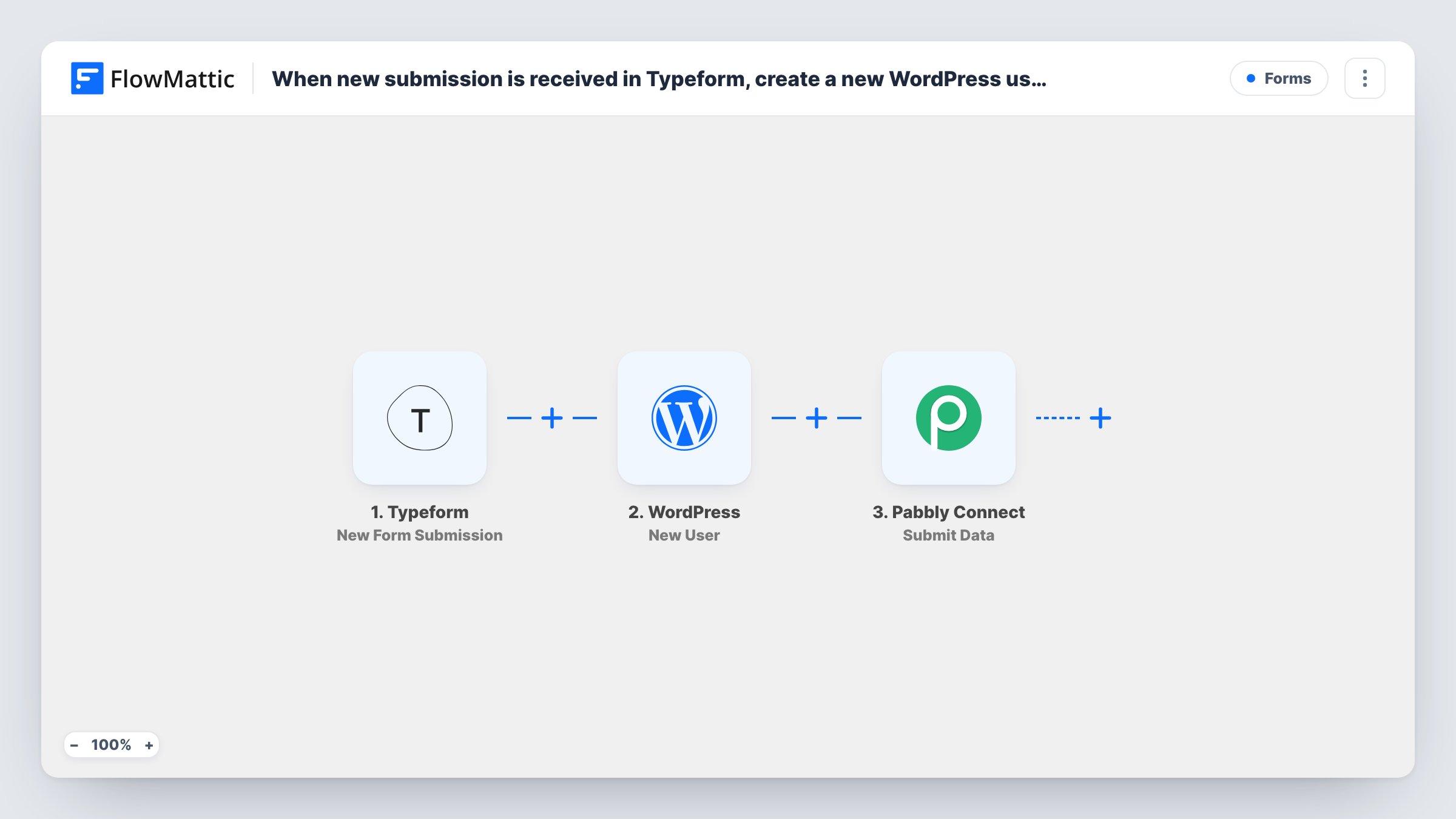
The Typeform trigger runs on New Form Submission and gives FlowMattic the respondent's answers. Next, the New User action in WordPress creates an account on the site where FlowMattic is installed, using the email and name you map from the form.
The last step, Submit Data, sends data to Pabbly Connect. You choose what to include: Typeform answers, details of the new WordPress user, or both. From there, the workflow you build in Pabbly Connect takes over.
Membership applications
Applicants fill in a Typeform. Each becomes a WordPress user who can log in, and Pabbly Connect passes the same details to the tools your team uses.
Course enrolment forms
Students register through Typeform and get a WordPress account for your course area, while Pabbly Connect sends their details on to your other systems.
Moving to FlowMattic step by step
You already run automations in Pabbly Connect. Account creation happens in FlowMattic on your own site, and the existing Pabbly Connect workflows keep running.
How this workflow runs
What happens at each step once the workflow is on, and what you need before you import it.
 Typeform New Form Submission
Starts the workflow when someone completes your Typeform. Each answer is available to map into the WordPress and Pabbly Connect steps.
- WordPress New User
Creates a WordPress user on your site from the Typeform answers. Map the respondent's email and name into the step, then confirm with a test that the account appears under Users.
- Pabbly Connect Submit Data
Sends the data you map to Pabbly Connect. Include the Typeform answers and the details returned by the WordPress step, then check that the data arrives in Pabbly Connect.
What you need
- FlowMatticCore
- Typeform AccountAccount
- Pabbly Connect AccountAccount
After importing, map your own data. To keep the template universal, not every step is pre-filled. Open each step in the builder and connect your accounts and fields (channels, lists, sheets, recipients) before you switch the workflow on.
Make it yours
Changes worth making after you import it.
- Add a Filter between the Typeform trigger and the WordPress step that continues only when the Typeform email answer is not empty, since WordPress needs an email to create the user.
- Make the email question required in your Typeform, so every respondent provides an address for the new account.
- Send a test submission after import and look at what the WordPress step returns, then map those user details into Pabbly Connect so your downstream workflow knows which account was made.
Questions about this workflow
What if the Typeform respondent already has a WordPress account?
No second account is made for an email WordPress already holds. The New User step returns that existing user's ID, and that is the ID Pabbly Connect receives. If the username you map is taken by a different account, WordPress may refuse it, and the run's Task History entry shows the reply.
Do I need a Pabbly Connect workflow ready before importing?
Yes. The Submit Data step hands data to Pabbly Connect, so build the receiving workflow there first, then send a test submission and check that the data arrives.
Which WordPress site gets the new Typeform users?
Your own site, the one running FlowMattic. The New User action creates the account there, not on another WordPress install.
More Forms workflows
Other ready-to-import templates from the same category.



Import this workflow into your WordPress site
Download the JSON, import it from the Workflows screen and connect your accounts. Every run stays on your server, with no per-task fees.
30-day money-back guarantee Unlimited workflows and runs Self-hosted