

When user completes a lesson in Tutor LMS, add tag to the contact in Autonami
Each time a student completes a Tutor LMS lesson, FlowMattic adds the tags you choose to that student’s contact in FunnelKit Automations (Autonami), so your email automations can react to course progress.
 Tutor LMS
 Autonami
2 steps Setup ~5 min Used on 1.5k sites Free to import
What this workflow does
Course progress is useful marketing data. A student halfway through might need encouragement, and one who finished a key lesson might be ready for the next course. That progress lives in Tutor LMS, while your emails run in FunnelKit Automations. This workflow connects the two with tags.
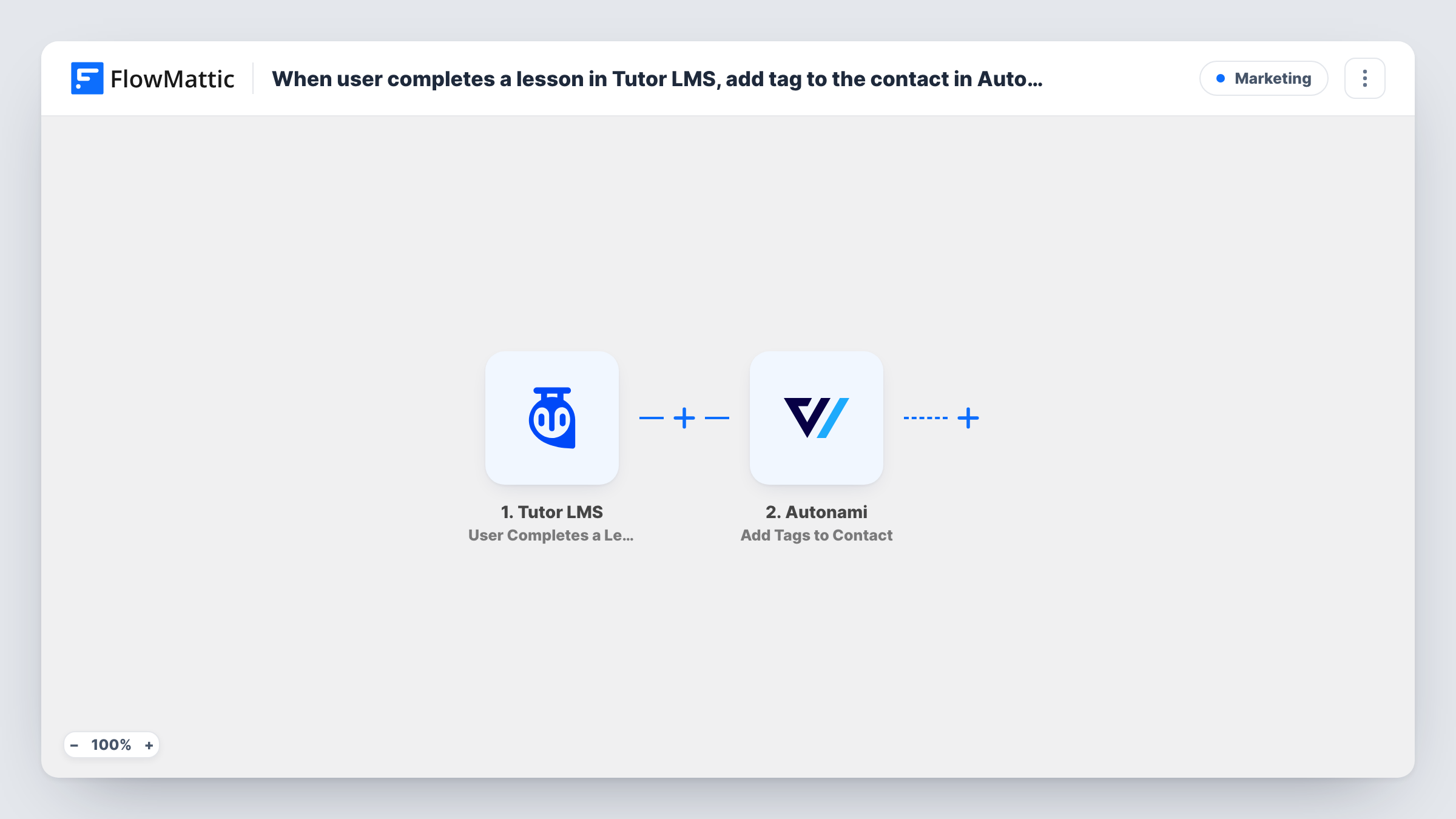
The Tutor LMS trigger, User Completes a Lesson, fires when a user completes a lesson in a course. FlowMattic passes the student and lesson data to Autonami, where Add Tags to Contact applies the tags you pick to the matching contact. Map the student's email or other identifier from the Tutor LMS data so the right contact is tagged.
The step is meant for students who already exist as FunnelKit Automations contacts. Test with one you know is a contact, then with one who isn't, and read Autonami's response in Task History. Every lesson in every course fires the trigger unless you add a Filter.
Upsell after a milestone lesson
When a student finishes the lesson that introduces your advanced course, a tag starts a FunnelKit automation that tells them about it.
Spotting engaged students
Tag each lesson completion with a course tag, so you can segment active learners in FunnelKit and send them community invites.
Drip encouragement for long courses
A tag on a mid-course lesson starts a short email series with tips for the harder modules ahead.
How this workflow runs
What happens at each step once the workflow is on, and what you need before you import it.
 Tutor LMS User Completes a Lesson
Fires when a user completes a lesson in a Tutor LMS course on your site. The student's details and the lesson and course data are passed on.
- Autonami Add Tags to Contact
Adds the tags you choose to the student's contact in FunnelKit Automations (Autonami). Map the student's identifier from Tutor LMS and pick the tags, then test with an existing contact.
What you need
- FlowMatticCore
- Tutor LMS PluginPlugin
- FunnelKit Automations ( Autonami ) PluginPlugin
After importing, map your own data. To keep the template universal, not every step is pre-filled. Open each step in the builder and connect your accounts and fields (channels, lists, sheets, recipients) before you switch the workflow on.
Make it yours
Changes worth making after you import it.
- Add a Filter after the trigger that continues only for one lesson, using the lesson title or ID from a test run, so the tag means that milestone and not any lesson.
- Use one tag per course, such as "Progress: SEO Basics", so a single FunnelKit automation per course can watch for it.
- Need every student in FunnelKit? Add a workflow on Tutor LMS's User Enrolls in Course trigger that creates the contact, so they exist before their first lesson is done.
Questions about this workflow
Do students need to be FunnelKit Automations contacts already?
Plan on it. Add Tags to Contact is built to tag a contact that is already there. For a student who isn't, check Task History to see what Autonami returned, and create contacts at enrolment as the tips describe.
Does every Tutor LMS lesson completion add the tag?
Yes, as imported. Any completed lesson in any course runs the workflow. Add a Filter for a particular lesson or course.
Do Tutor LMS and FunnelKit Automations need to be on the same site?
Yes. Both are WordPress plugins, and both must be installed on the site where FlowMattic runs.
More Marketing workflows
Other ready-to-import templates from the same category.








Import this workflow into your WordPress site
Download the JSON, import it from the Workflows screen and connect your accounts. Every run stays on your server, with no per-task fees.
30-day money-back guarantee Unlimited workflows and runs Self-hosted