

When webhook data received with base64 encoded image, upload the image to WordPress and return the image URL in webhook response
A developer template: a FlowMattic webhook receives a base64-encoded image, a PHP function you supply saves it to WordPress, and the webhook replies to the caller with the image URL that function returns.
 Webhook
 PHP Functions by FlowMattic
 Webhook Response
3 steps Setup ~5 min Used on 3.0k sites Free to import
What this workflow does
Some apps and scripts can send an image only as a base64 string, yet what you need back is a normal URL you can use in a post, an email or another system. This workflow gives you a small endpoint on your own WordPress site for that job, built from three FlowMattic modules.
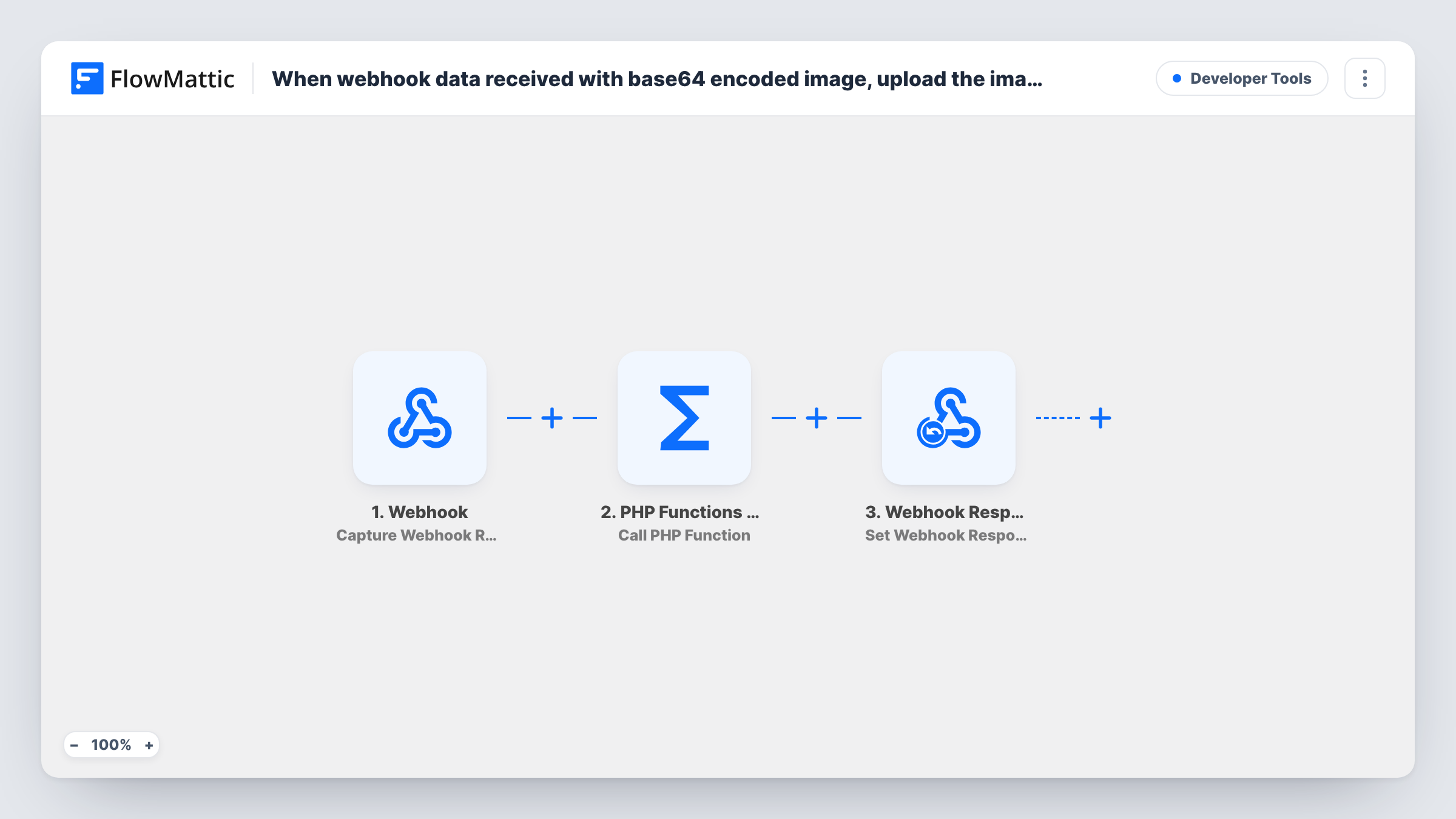
The Webhook trigger provides the endpoint address. The caller posts the base64 data to it, and FlowMattic captures the payload. The PHP Functions by FlowMattic step then calls a PHP function on your site and passes it the data you map. Last, the Webhook Response step sets the response sent back to the caller, built from what the PHP step returned.
Be clear about one point: the template does not include the decoding or upload code. The PHP step ships empty. You need a PHP function of your own, added to your site through your theme or a code snippets plugin, that decodes the string, saves the image to the media library and returns its URL. Once that exists, set the PHP step to call it and map its result into the response.
Hosting images from a mobile app
A mobile app sends photos as base64. Your function stores each one in WordPress and the app receives a URL to display or share.
AI image output to a usable link
A script receives an image from an AI service as base64, posts it to the webhook, and gets back a media library URL for a blog post.
Signature capture from a form tool
A form tool that exports signatures as base64 sends them to the endpoint, and the returned URL is stored with the form record.
How this workflow runs
What happens at each step once the workflow is on, and what you need before you import it.
 Webhook Capture Webhook Response
Gives you a webhook URL. When a caller posts data to it, including the base64 image string, a run starts and the payload fields become available to map.
- PHP Functions by FlowMattic Call PHP Function
Calls a PHP function on your WordPress site with data from the webhook. The template leaves it unset; point it at your own function that decodes the image, saves it and returns the URL.
- Webhook Response Set Webhook Response
Sets the response FlowMattic sends back to the caller. Map the URL returned by the PHP step into it, so the app that posted the image receives the link.
What you need
- FlowMatticCore
After importing, map your own data. To keep the template universal, not every step is pre-filled. Open each step in the builder and connect your accounts and fields (channels, lists, sheets, recipients) before you switch the workflow on.
Make it yours
Changes worth making after you import it.
- Turn on the Webhook trigger's "Require authentication on incoming requests" setting, so only callers who send your key can make your site store images.
- Have your PHP function check the file type before saving and return an error message when the data isn't an image. Map that message into the webhook response too.
- Post a small test image from any HTTP client after import, then look at Task History to confirm what each step received and returned.
Questions about this workflow
Does this template include the PHP code to upload the base64 image to WordPress?
No. The PHP Functions step is empty. You write or add a function on your site that decodes the string, saves the file to the media library and returns the URL, then select it in the step.
Can anyone who finds the webhook URL upload images to my site?
It can, until you protect the endpoint. Use the Webhook trigger's "Require authentication on incoming requests" setting so only callers with the key start a run.
What does the caller get back from the webhook?
Whatever you map into the Set Webhook Response step, such as the image URL your PHP function returns. Have the function return a clear error value when it can't save an image, and map that too, so the caller can tell success from failure.
Where are the decoded images stored?
Wherever your PHP function saves them. If it uses the WordPress media library, they appear there like any other upload.
More Developer Tools workflows
Other ready-to-import templates from the same category.





Import this workflow into your WordPress site
Download the JSON, import it from the Workflows screen and connect your accounts. Every run stays on your server, with no per-task fees.
30-day money-back guarantee Unlimited workflows and runs Self-hosted