

When a webhook response is received, check if it contains a word, and create a new post in WordPress
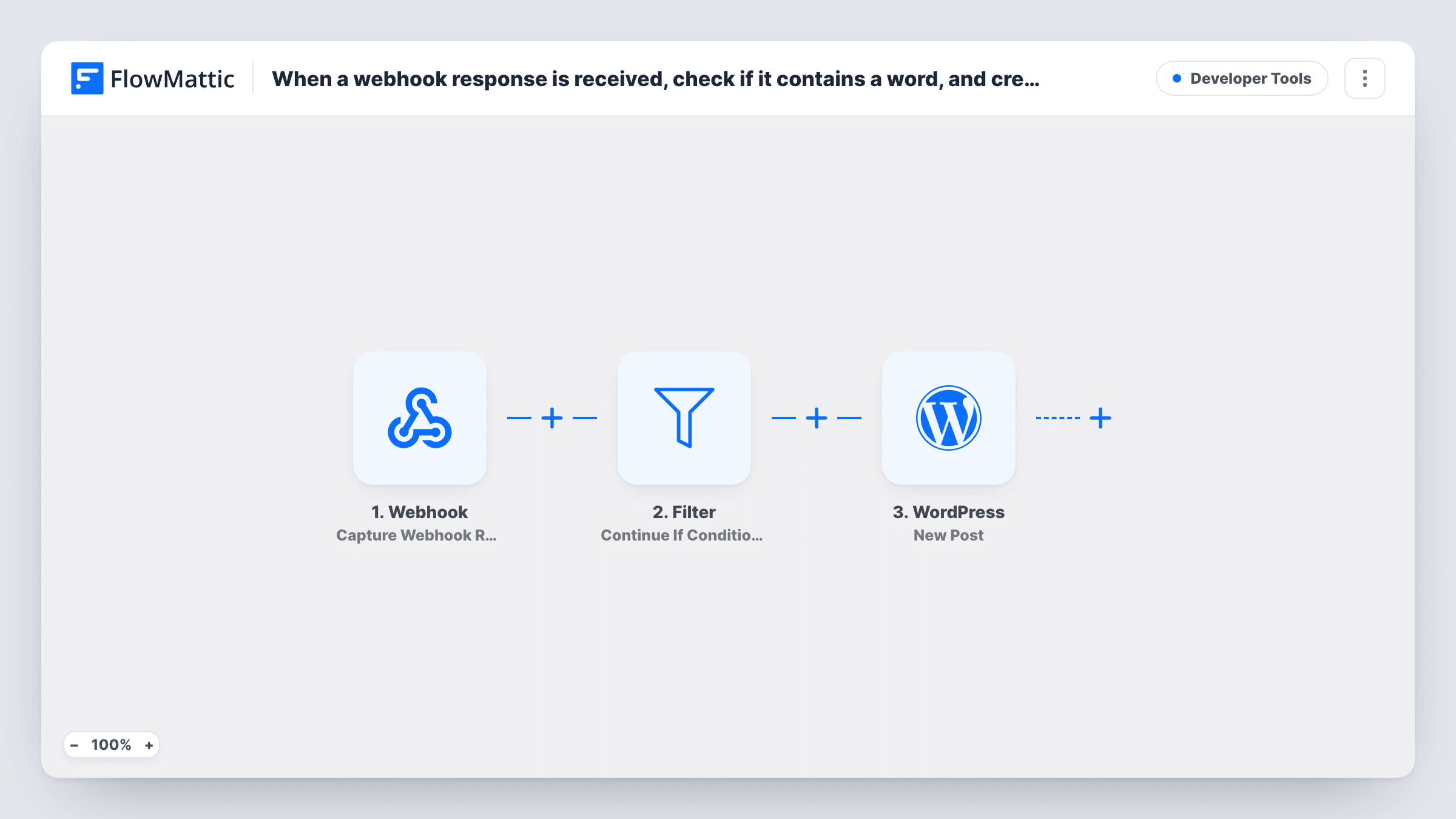
Receive data at a FlowMattic webhook URL, check whether it contains a word you choose with a Filter, and create a WordPress post from the payload when it does. You set the word after import.
 Webhook
 Filter
 WordPress
3 steps Setup ~5 min Used on 1.7k sites Free to import
What this workflow does
Plenty of tools can send a webhook, from form builders to monitoring services and your own scripts. Turning every payload into a post would fill your site with noise, so this workflow puts a Filter in front of the post. A post is created only when the incoming data contains the word you care about.
The Webhook trigger gives you a URL that receives data from any sender. The Filter step, Continue If Condition Meet, then compares a field from that payload against your rule, such as a title or message field that contains a keyword. When the condition is met, the WordPress step creates a new post on your site from the data you map into it.
The Filter ships without a condition. As imported, it matches nothing, so every run stops at the Filter and no post is created until you add the contains rule with your word. Task History records each run and shows where it ended.
Publishing release notes from a deploy tool
Your build system posts a webhook on each deploy. Only payloads whose message contains a word like release become a WordPress post.
Turning tagged updates into site posts
An external app sends many updates to the webhook, but only those containing a keyword you pick, such as announce, reach your blog.
Collecting submissions from a custom form
A form on another site posts to the webhook, and entries that mention your chosen topic are created as posts you can review.
How this workflow runs
What happens at each step once the workflow is on, and what you need before you import it.
 Webhook Capture Webhook Response
Creates a webhook address for this workflow. Any app or script that sends data to it starts a run, and the fields in the payload become available to the next steps.
- Filter Continue If
Checks the incoming data against a condition you add after import, such as a field containing your keyword. If it passes, the run continues. With no condition set, every run stops here.
- WordPress New Post
Creates a new WordPress post on your site. Map fields from the webhook payload into the post, then do a test run to see how the post looks.
What you need
- FlowMatticCore
After importing, map your own data. To keep the template universal, not every step is pre-filled. Open each step in the builder and connect your accounts and fields (channels, lists, sheets, recipients) before you switch the workflow on.
Make it yours
Changes worth making after you import it.
- Before you turn the workflow on, open the Filter and add a contains condition on the payload field you care about, with your word as the value.
- Turn on the Webhook trigger's Require authentication on incoming requests setting so only senders with your authentication key, or a valid signature, can start a run.
- Send one sample payload to the webhook URL after import so FlowMattic captures its structure. Then pick the field for the Filter and map fields into the post.
Questions about this workflow
Why isn't my webhook data creating any WordPress posts?
The Filter in this template has no condition until you add one, and an empty Filter stops every run. Add your contains rule, then send a new payload to test.
Can someone else send data to my webhook URL and create a post?
Anyone with the URL can send data to it unless authentication is on. Enable Require authentication on incoming requests in the Webhook trigger to accept only senders that pass your key or signature check.
Can the Filter check for more than one word?
Yes. Add another condition to the Filter, for example a second contains rule on the same field, then test with payloads that hold each word.
What sends data to the FlowMattic webhook?
Any app, service or script that can make an HTTP request to the URL. You set the sender up yourself, so the payload holds whatever it sends.
More Developer Tools workflows
Other ready-to-import templates from the same category.





Import this workflow into your WordPress site
Download the JSON, import it from the Workflows screen and connect your accounts. Every run stays on your server, with no per-task fees.
30-day money-back guarantee Unlimited workflows and runs Self-hosted