

When webhook response received from Instantpage.dev, send WhatsApp template message to the contact
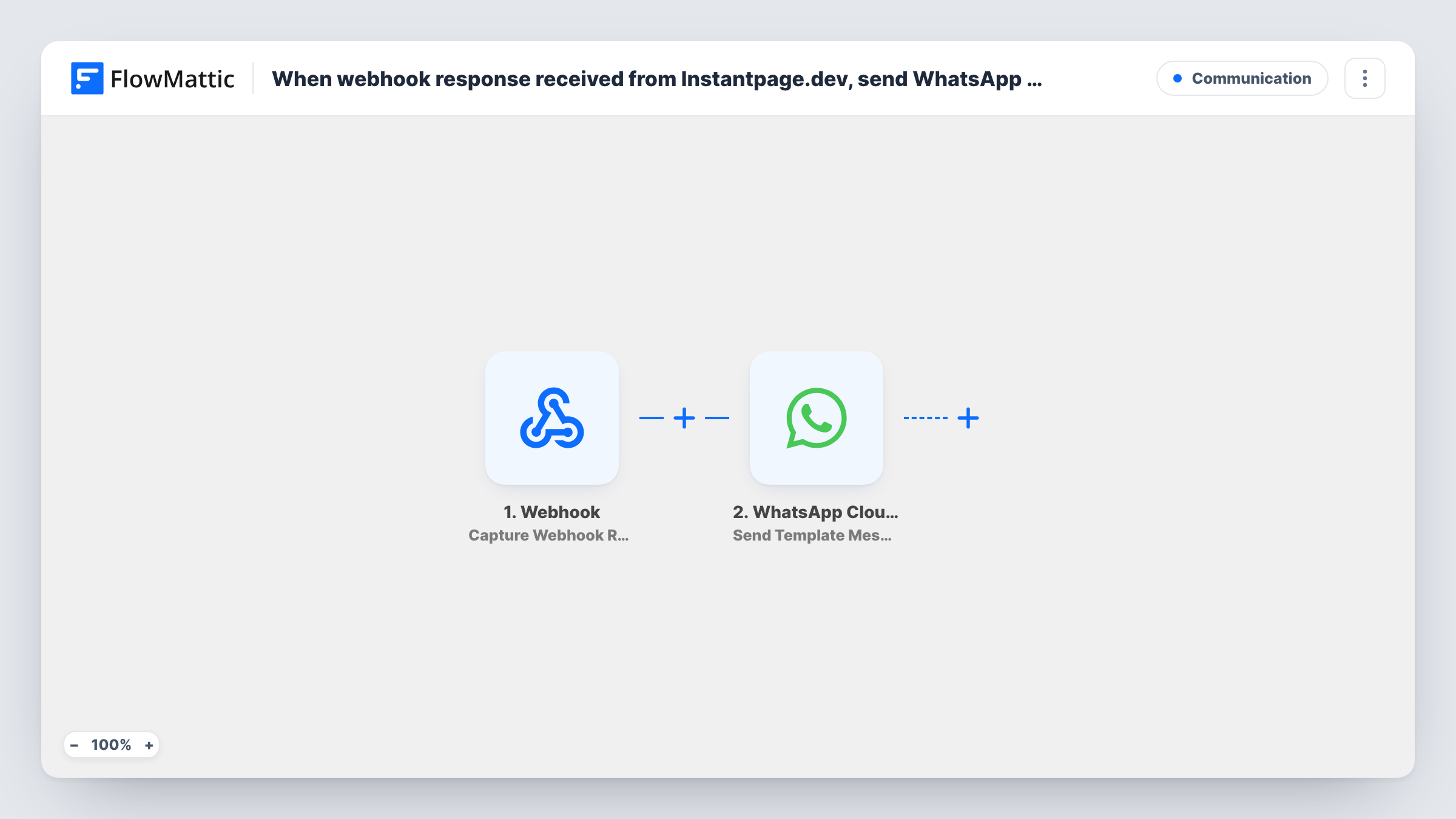
When Instantpage.dev posts data to your FlowMattic webhook URL, this workflow sends the contact in that data an approved WhatsApp template message through the WhatsApp Cloud API.
 Webhook
 WhatsApp Cloud API
2 steps Setup ~5 min Used on 2.6k sites Free to import
What this workflow does
Someone who just reached you through Instantpage.dev is easiest to reach while the contact is fresh. Typing a WhatsApp message by hand for each one is slow, and it stops when you are away from your desk. This workflow sends a WhatsApp template message automatically whenever Instantpage.dev passes FlowMattic a contact.
Instantpage.dev data enters through a Webhook trigger in FlowMattic. FlowMattic gives you a webhook URL, and you set Instantpage.dev to post its data there. FlowMattic's own Instantpage.dev trigger is also a webhook receiver, so this generic one does the same job. Every value in the posted data, including the contact's phone number, becomes available to map.
The second step uses the WhatsApp Cloud API to send a template message to that number. Template messages are pre-approved in your WhatsApp Business account, which is what lets you message people who have not written to you first. Each delivery attempt is logged in Task History, along with any error WhatsApp returns.
Welcome message after a page sign-up
A visitor leaves their details through Instantpage.dev, and a short approved template greets them on WhatsApp with what happens next.
Confirming a callback request
When a contact asks to be called back, the template confirms you received the request, so they know to expect your call.
Pointing a new contact to your next step
Use an approved template that tells the contact where to book or what to read next, sent as soon as Instantpage.dev passes on their details.
How this workflow runs
What happens at each step once the workflow is on, and what you need before you import it.
 Webhook Capture Webhook Response
Gives you a unique webhook URL to paste into Instantpage.dev. Each time Instantpage.dev posts data to it, the workflow runs and every posted value becomes data you can map in the next step.
- WhatsApp Cloud API Send Template Message
Uses your WhatsApp Cloud API account to deliver a pre-approved template to the contact. Map the contact's number from the webhook data into the step, set up the template, and confirm the result with a test run.
What you need
- FlowMatticCore
- WhatsApp Cloud API AccountAccount
After importing, map your own data. To keep the template universal, not every step is pre-filled. Open each step in the builder and connect your accounts and fields (channels, lists, sheets, recipients) before you switch the workflow on.
Make it yours
Changes worth making after you import it.
- Post a test from Instantpage.dev before mapping anything. FlowMattic records the data it receives, so you can see the exact name of the phone field.
- WhatsApp expects phone numbers in international format with the country code. Check a test post: if Instantpage.dev sends local numbers, collect the number with its country code on your page.
- Add a Filter after the webhook that continues only when the phone value is not empty, so posts without a number do not end in a failed WhatsApp send.
Questions about this workflow
Do I need an approved WhatsApp template before importing?
Yes. The step sends a template message, so the template must already exist and be approved in your WhatsApp Business account. Create and submit it there first.
Why does this use a generic Webhook instead of an Instantpage.dev trigger?
FlowMattic's Instantpage.dev trigger is itself a webhook receiver. The generic Webhook step works the same way: you give Instantpage.dev the URL and it posts the contact data there.
What if Instantpage.dev sends data without a phone number?
The workflow still runs and the WhatsApp step tries to send. With no valid number, WhatsApp returns an error, which you can see on that step in Task History. A Filter on the phone field prevents those runs.
Can I send a plain text WhatsApp message instead of a template?
Free-form WhatsApp text only reaches someone who has messaged your business number in the last 24 hours. New contacts from Instantpage.dev usually have not, so a template message is the reliable choice here.
More Communication workflows
Other ready-to-import templates from the same category.




Import this workflow into your WordPress site
Download the JSON, import it from the Workflows screen and connect your accounts. Every run stays on your server, with no per-task fees.
30-day money-back guarantee Unlimited workflows and runs Self-hosted