

Welcome new LearnDash students and check in a few days later
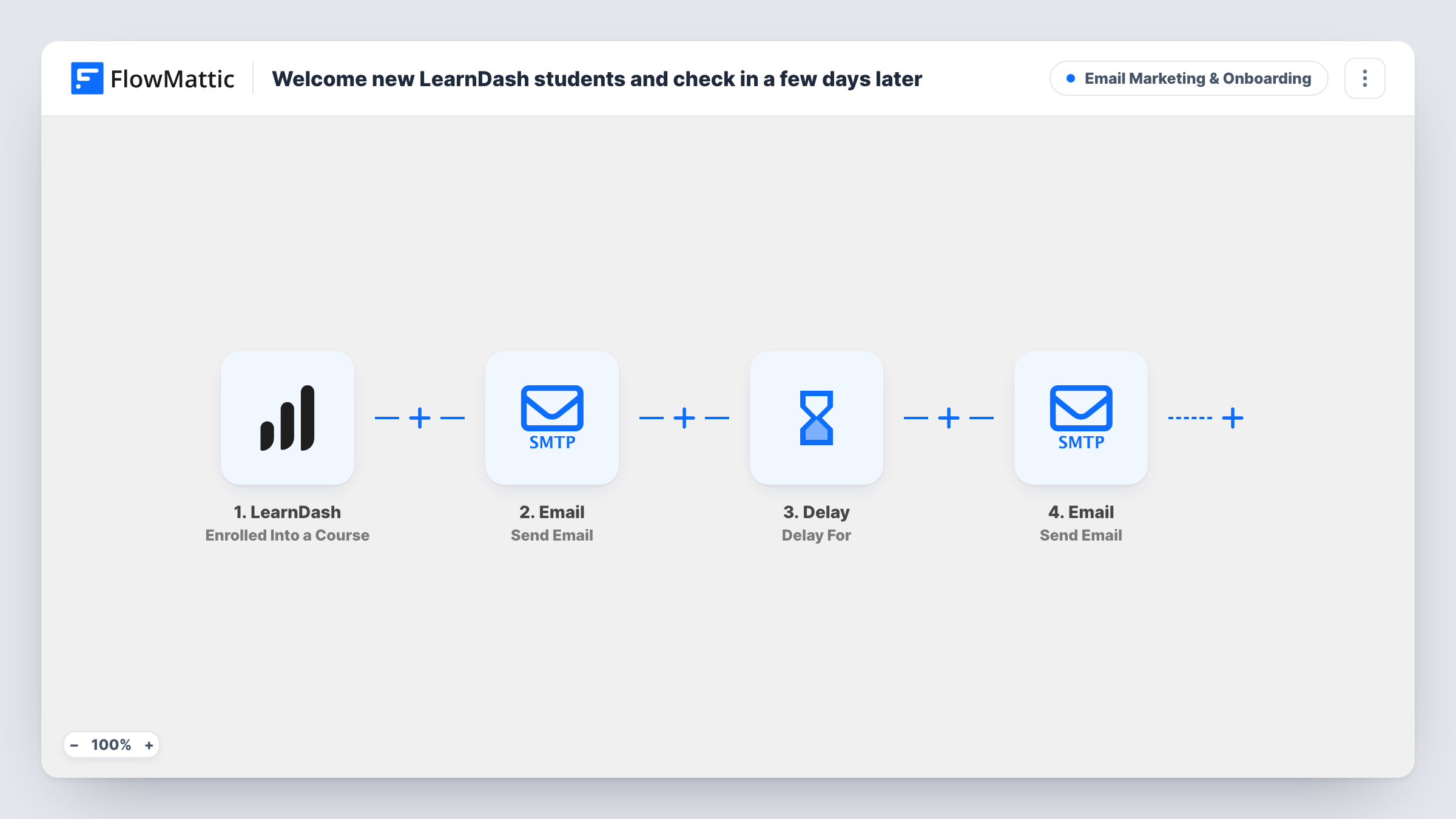
When a student enrolls in a LearnDash course, they get a welcome email naming the course, then a Delay waits three days before a second email checks how the course is going.
 LearnDash
 Email
Email
 Delay
Delay4 steps Setup ~8 min Used on 2.8k sites Marketing Free to import
What this workflow does
The first few days after enrolling decide whether a student starts a course or forgets it. A short welcome and a friendly nudge a few days later help more of them get going, and writing those by hand for every enrolment doesn't scale. This workflow sends both for you.
The LearnDash trigger fires when a user is enrolled into a course. FlowMattic sends a welcome email to the student's address with the course title in the subject, greeting them by display name and pointing them at the first lesson. A Delay then holds the run for three days. After that, a second email asks how the course is going and encourages them to keep at it.
The check-in goes out whether or not the student has started, because the workflow doesn't look at their progress. Both emails are sent through the SMTP account you connect to FlowMattic's Email module, so they come from your own address.
Self-paced online course
Students buy and start whenever they like. The welcome points them to Lesson 1, and the day-three check-in catches those who enrolled and then got busy.
Staff training on a company LMS
New hires are enrolled in onboarding courses by HR. Each gets a welcome naming the course and a reminder three days later to keep working through it.
Free mini-course as a lead magnet
Visitors enroll in a free LearnDash course. The two emails keep your name in front of them during the days they are deciding whether to buy more.
How this workflow runs
What happens at each step once the workflow is on, and what you need before you import it.
 LearnDash Enrolled Into a Course
Fires when a user is enrolled into a LearnDash course. The student's email, display name and the course title are passed to both emails.
 Email Send Email
Emails the student a welcome with the course title in the subject, greeting them by display name and telling them to start with Lesson 1.
- Delay Delay For
Pauses this run for 3 days before the next step. Each enrolment waits on its own timer, so students who join on different days get their check-in on different days.
- Email Send Email
Emails the same student a check-in that names the course in the subject and encourages them to keep going.
What you need
- FlowMatticCore
- LearnDash PluginPlugin
After importing, map your own data. To keep the template universal, not every step is pre-filled. Open each step in the builder and connect your accounts and fields (channels, lists, sheets, recipients) before you switch the workflow on.
Make it yours
Changes worth making after you import it.
- Add a link to the course in both emails. Map the course URL if the trigger gives you one, or paste the link, so the student can click straight back in.
- Change the Delay to suit the course length. A short course might need a check-in after one day, while a long programme could wait a week.
- Add a Filter after the trigger on the course title if only some of your LearnDash courses should send these emails.
Questions about this workflow
Does the LearnDash check-in email skip students who already started the course?
No. The workflow doesn't check progress, so every enrolled student gets the second email after three days. Adjust the wording so it reads well for someone who has already started.
Does it fire when I enroll a student by hand in LearnDash?
It fires on enrolment into a course. Enroll a test user from the admin and check Task History to confirm the way you enroll people triggers it.
Will a student enrolled in two courses get two sets of emails?
Yes. Each enrolment starts its own run, so a student who joins two courses gets a welcome and a check-in for each one, named after that course.
More Email Marketing & Onboarding workflows
Other ready-to-import templates from the same category.




Import this workflow into your WordPress site
Download the JSON, import it from the Workflows screen and connect your accounts. Every run stays on your server, with no per-task fees.
30-day money-back guarantee Unlimited workflows and runs Self-hosted