

Onboard new FluentCRM contacts with a paced email sequence
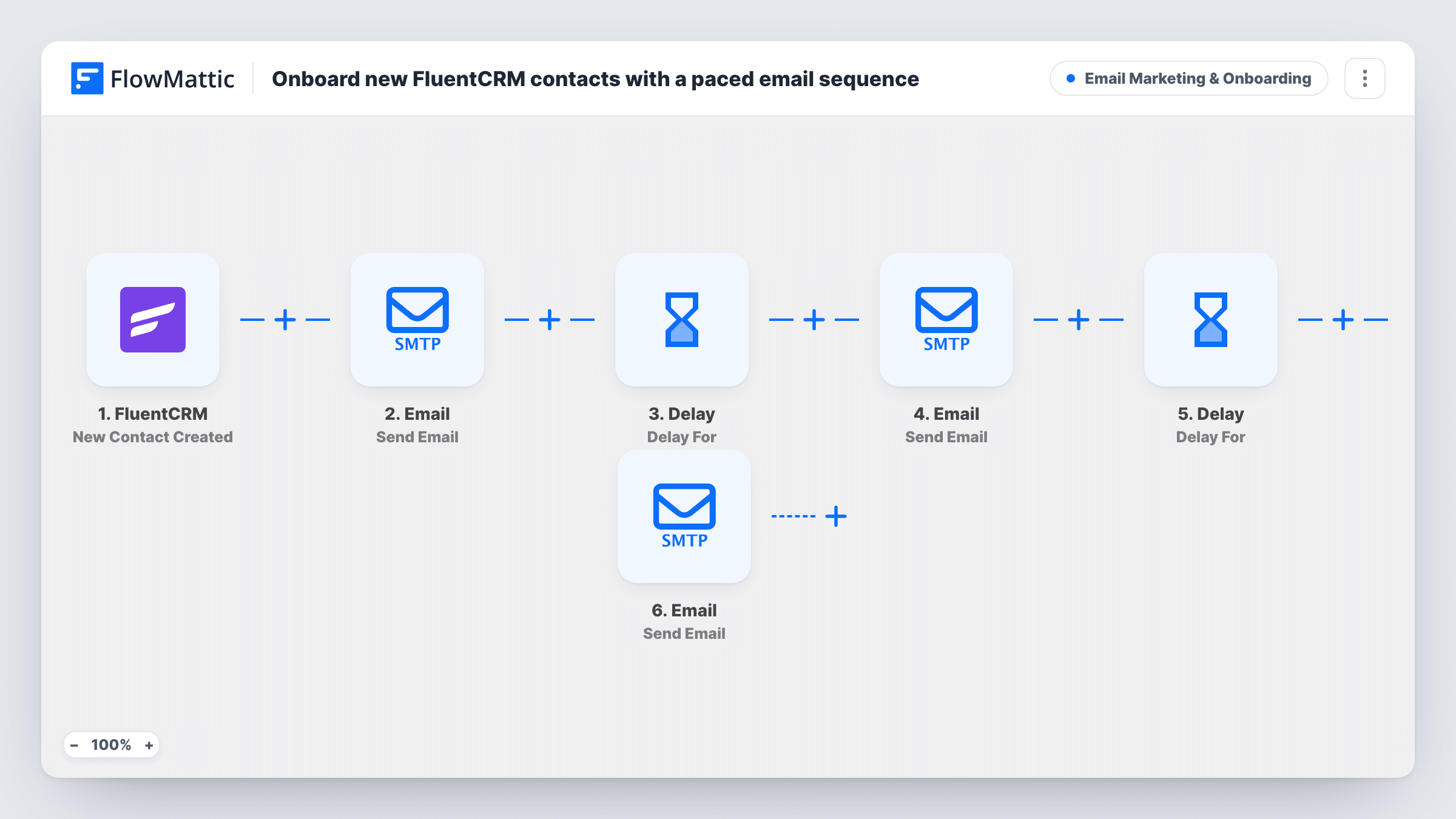
When a contact is created in FluentCRM, this workflow sends a welcome email right away, a second email one day later and a third two days after that, giving every new contact the same three-part onboarding.
 FluentCRM
 Email
Email
 Delay
Delay6 steps Setup ~12 min Used on 1.3k sites Marketing Free to import
What this workflow does
New sign-ups need a few nudges to get started, and sending them by hand does not scale past a handful of people a week. This workflow gives each new FluentCRM contact a short, timed series of three emails, built from FlowMattic steps you can read and edit in one place.
The FluentCRM trigger runs when a contact is created. An email goes to that contact's address at once, with a subject that greets them by first name. A Delay step then holds the run for one day before the second email, titled "Step 2 of 3". A second Delay waits two more days, and the third email asks them to finish setting up. All three go out through the Email module in FlowMattic, using the sending details you connect.
The email bodies in the template are one-line placeholders. Replace them with your real onboarding steps before you turn the workflow on. Because the emails are sent by FlowMattic, not by a FluentCRM campaign, the flow does not check the contact's subscription status or tags; every new contact receives all three.
Software trial sign-ups
People who start a trial are added to FluentCRM. Over the next three days they get a welcome, a pointer to the next feature to try, and a reminder to finish setup.
Online course enrolments
Each new student contact gets a welcome, then a note on how to find the first lesson, then a nudge to complete their profile.
Membership site onboarding
New members created as FluentCRM contacts receive three short emails explaining where things are, spaced so they aren't all read on day one.
How this workflow runs
What happens at each step once the workflow is on, and what you need before you import it.
 FluentCRM New Contact Created
Starts the sequence whenever a new contact is created in FluentCRM. The contact's email and first name are used by the three email steps.
 Email Send Email
Sends the welcome email to the new contact's address straight away. The subject greets them by first name. Replace the placeholder body with your first onboarding step.
- Delay Delay For
Pauses this contact's run for one day before the second email. Change the value or unit if you want a longer or shorter gap.
- Email Send Email
Sends the second email, subject "Step 2 of 3", to the same address. Write the body around the next action you want the contact to take.
- Delay Delay For
Holds the run for two more days, so the final email arrives three days after the contact was created.
- Email Send Email
Sends the third and last email, subject "You're almost there", asking the contact to complete setup. Edit the body to link to the page where they finish.
What you need
- FlowMatticCore
- FluentCRM PluginPlugin
After importing, map your own data. To keep the template universal, not every step is pre-filled. Open each step in the builder and connect your accounts and fields (channels, lists, sheets, recipients) before you switch the workflow on.
Make it yours
Changes worth making after you import it.
- Add a Filter after the trigger that continues only when the contact's status is subscribed, so people who have not opted in don't receive the sequence.
- Put a Filter before each later email if you can check progress, for example a tag that shows setup is done, so finished users skip the remaining reminders.
- Send a test by creating a contact with your own address, and shorten both Delay steps to a few minutes while you check the wording.
Questions about this workflow
Do the FluentCRM onboarding emails respect unsubscribes?
Not as imported. The emails are sent by FlowMattic's Email step, which does not look at FluentCRM subscription status. Add a Filter on the contact's status if that matters to you.
Can I add a fourth email to the sequence?
Yes. Add another Delay and another Send Email step after the third email, and map the contact's email from the FluentCRM trigger into the new step.
What happens to contacts already in FluentCRM?
Nothing. The trigger reacts to contacts created after the workflow is on, so existing contacts do not get the sequence.
Does the sequence stop if the contact is deleted from FluentCRM?
The run does not check the contact again after the trigger, so the remaining emails still go to the address captured when the contact was created.
More Email Marketing & Onboarding workflows
Other ready-to-import templates from the same category.



Import this workflow into your WordPress site
Download the JSON, import it from the Workflows screen and connect your accounts. Every run stays on your server, with no per-task fees.
30-day money-back guarantee Unlimited workflows and runs Self-hosted