

Sync new MailerLite subscribers into FluentCRM
When someone subscribes in MailerLite, this workflow creates or updates a matching FluentCRM contact on your WordPress site, carrying over their email address, first name and last name.
 MailerLite
 FluentCRM
2 steps Setup ~5 min Used on 3.0k sites Marketing Free to import
What this workflow does
Plenty of sites collect subscribers in MailerLite but run the rest of their customer work from WordPress. FluentCRM sits on your own site, so having subscribers there puts them next to the other contacts you already keep there. Copying them across by hand gets out of date within days.
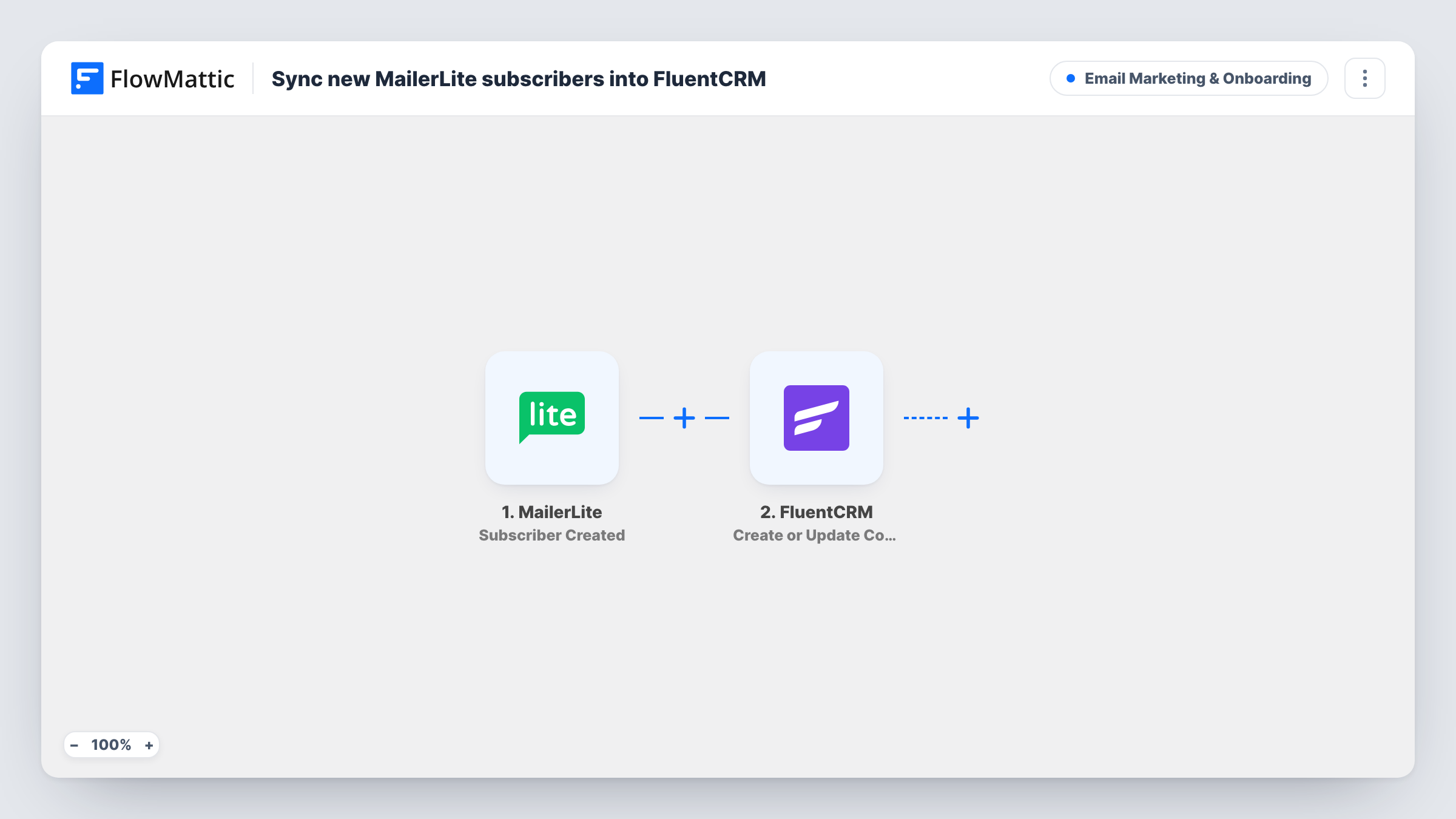
The MailerLite trigger fires when a new subscriber is created in your MailerLite account. FlowMattic then runs Create or Update Contact in FluentCRM. The subscriber's email becomes the contact email, the name goes into first name, and the last name goes into last name. If a contact with that email already exists in FluentCRM, it is updated instead of duplicated.
The flow runs one way only. Changes you make in FluentCRM are not sent back to MailerLite, and the workflow only reacts to new subscribers. Unsubscribes and profile edits in MailerLite don't start it.
Newsletter on MailerLite, store on WordPress
Your sign-up forms live in MailerLite, but your WooCommerce customers are in FluentCRM. New subscribers join them there, so you see both groups in one CRM.
Moving email marketing into WordPress
You plan to switch from MailerLite to FluentCRM. While both run, each new MailerLite subscriber is also created in FluentCRM, so the list you move to is current.
Landing page sign-ups for a course
A MailerLite landing page collects interest in a course. Each sign-up appears in FluentCRM, where you keep your student records.
How this workflow runs
What happens at each step once the workflow is on, and what you need before you import it.
 MailerLite Subscriber Created
Starts the workflow when a new subscriber is created in MailerLite. Their email, name and last name are passed to FluentCRM. Connect your MailerLite account on import.
- FluentCRM Create or Update Contact
Creates a FluentCRM contact from the subscriber's email, first name and last name. If the email already belongs to a contact, that contact is updated rather than added again.
What you need
- FlowMatticCore
- MailerLite AccountAccount
- FluentCRM PluginPlugin
After importing, map your own data. To keep the template universal, not every step is pre-filled. Open each step in the builder and connect your accounts and fields (channels, lists, sheets, recipients) before you switch the workflow on.
Make it yours
Changes worth making after you import it.
- Add a test subscriber in MailerLite after import, then check Task History to see the data MailerLite sent and confirm the name fields map the way you expect.
- Put a Filter after the trigger if only some subscribers belong in FluentCRM, for example those whose email ends in a particular domain.
Questions about this workflow
Does this sync FluentCRM contacts back to MailerLite?
No. Data moves from MailerLite to FluentCRM only, and nothing in this template writes to MailerLite.
What happens if the MailerLite subscriber is already a FluentCRM contact?
The step uses Create or Update Contact, so the existing contact is updated with the email, first name and last name from MailerLite rather than duplicated.
Are my existing MailerLite subscribers copied?
No. Only subscribers created after the workflow is switched on start a run. Older subscribers need a separate import.
Is an unsubscribe in MailerLite passed to FluentCRM?
No. The trigger is Subscriber Created, so unsubscribes and profile changes in MailerLite don't run this workflow.
More Email Marketing & Onboarding workflows
Other ready-to-import templates from the same category.







Import this workflow into your WordPress site
Download the JSON, import it from the Workflows screen and connect your accounts. Every run stays on your server, with no per-task fees.
30-day money-back guarantee Unlimited workflows and runs Self-hosted