

Send new WordPress comments to Slack for quick moderation
Each new comment on your WordPress site is posted to a Slack channel with the commenter’s name, the post title and the comment text, so you can read it and decide whether to approve, reply or delete.
 WordPress
 Slack
2 steps Setup ~5 min Used on 1.9k sites Ops Free to import
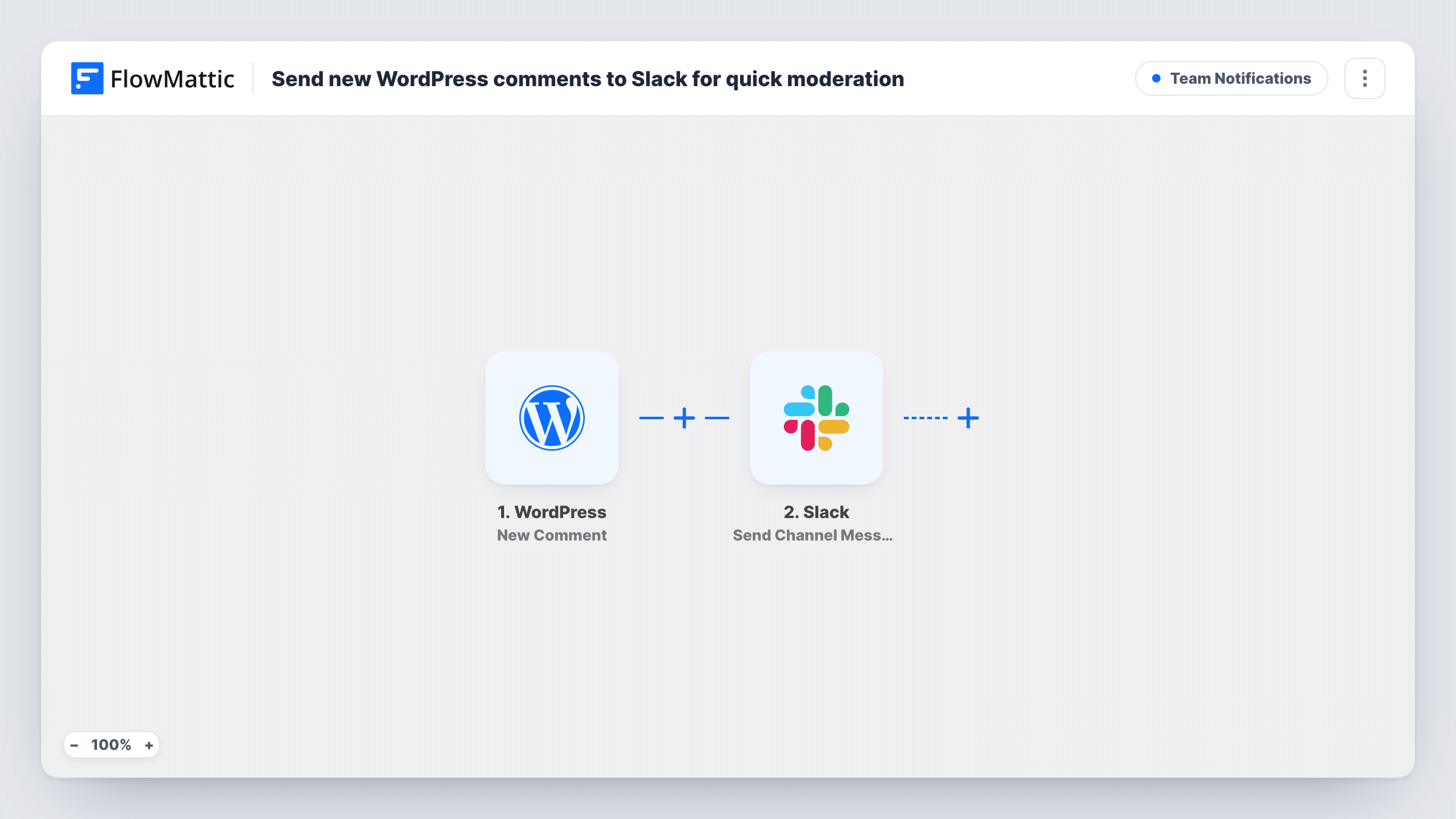
What this workflow does
Comments arrive at odd hours, and the WordPress dashboard is not where most teams spend their day. A question can go unanswered or a spam comment can sit on a post until someone happens to log in. This workflow brings each comment into Slack so it gets seen.
The WordPress trigger fires on the New Comment event on your site. FlowMattic then runs the Send Channel Message action in Slack. The message names the comment author and the post title in quotes, then shows the comment text as a Slack quote block on the line below.
The workflow doesn't approve, reply to or delete anything. You still moderate in WordPress, but you can decide from the Slack message whether it needs your attention. There is no Filter, so every comment that fires the trigger is posted. Leave a test comment after import and check Task History to see which comments start a run on your site.
Editorial team on a news blog
Editors see reader comments in their Slack channel and pick the ones that need a reply or a correction to the article.
Product blog with customer questions
Customers ask questions under your release notes. The Slack post shows the question and the post it was left on, so support can answer it.
Solo blogger moderating from a phone
You keep Slack on your phone. Each comment appears there with its text, so you know which ones to approve when you next log in.
How this workflow runs
What happens at each step once the workflow is on, and what you need before you import it.
 WordPress New Comment
Starts the workflow on the WordPress New Comment event. The comment author, the comment content and the title of the post it was left on are passed to Slack.
- Slack Send Channel Message
Posts a Slack channel message: New comment by the author on the post title in quotes, then the comment text as a quote. Connect Slack on import and leave a test comment to confirm the channel it appears in.
What you need
- FlowMatticCore
- Slack AccountAccount
After importing, map your own data. To keep the template universal, not every step is pre-filled. Open each step in the builder and connect your accounts and fields (channels, lists, sheets, recipients) before you switch the workflow on.
Make it yours
Changes worth making after you import it.
- Put a Filter between the New Comment trigger and the Slack step that skips comments whose author matches your own name, so your replies to readers don't post to Slack.
- Add other comment data from the trigger to the Slack message, such as a link to the post, once a test run shows which fields are available.
- If you run several sites, import the workflow on each and add the site name to the message text so the team can tell them apart.
- The Slack message maps a post title that New Comment doesn't send, so that part arrives blank. Add WordPress Get Post by ID between the trigger and the Slack step, using the comment's post ID, and map the title from it.
Questions about this workflow
Can I approve or delete a WordPress comment from Slack?
No. The workflow only posts a message to Slack. Moderation still happens in the WordPress comments screen.
What does the Slack message show for each WordPress comment?
The comment author, the title of the post in quotes and the full comment text in a quote block underneath.
Are spam or pending WordPress comments posted to Slack?
The template has no Filter on comment status. Leave a test comment that WordPress holds for moderation and check Task History to see whether it starts a run.
Do I need a comments plugin for this?
No. The New Comment trigger works with the comments built into WordPress. You only connect a Slack account.
More Team Notifications workflows
Other ready-to-import templates from the same category.






Import this workflow into your WordPress site
Download the JSON, import it from the Workflows screen and connect your accounts. Every run stays on your server, with no per-task fees.
30-day money-back guarantee Unlimited workflows and runs Self-hosted