

Turn new Google Sheets rows into FluentCRM contacts
When a new row appears in your Google Sheets spreadsheet, FluentCRM creates a contact from its email, first name and last name, or updates the contact if that email is already in your CRM.
 Google Sheets
 FluentCRM
2 steps Setup ~5 min Used on 2.8k sites Data Ops Free to import
What this workflow does
Plenty of contact lists start life in a spreadsheet: names from an event, a list a colleague keeps, rows filled by another tool. Getting them into FluentCRM usually means exporting a CSV and importing it again each time the sheet grows. This workflow sends each new row across as it is added.
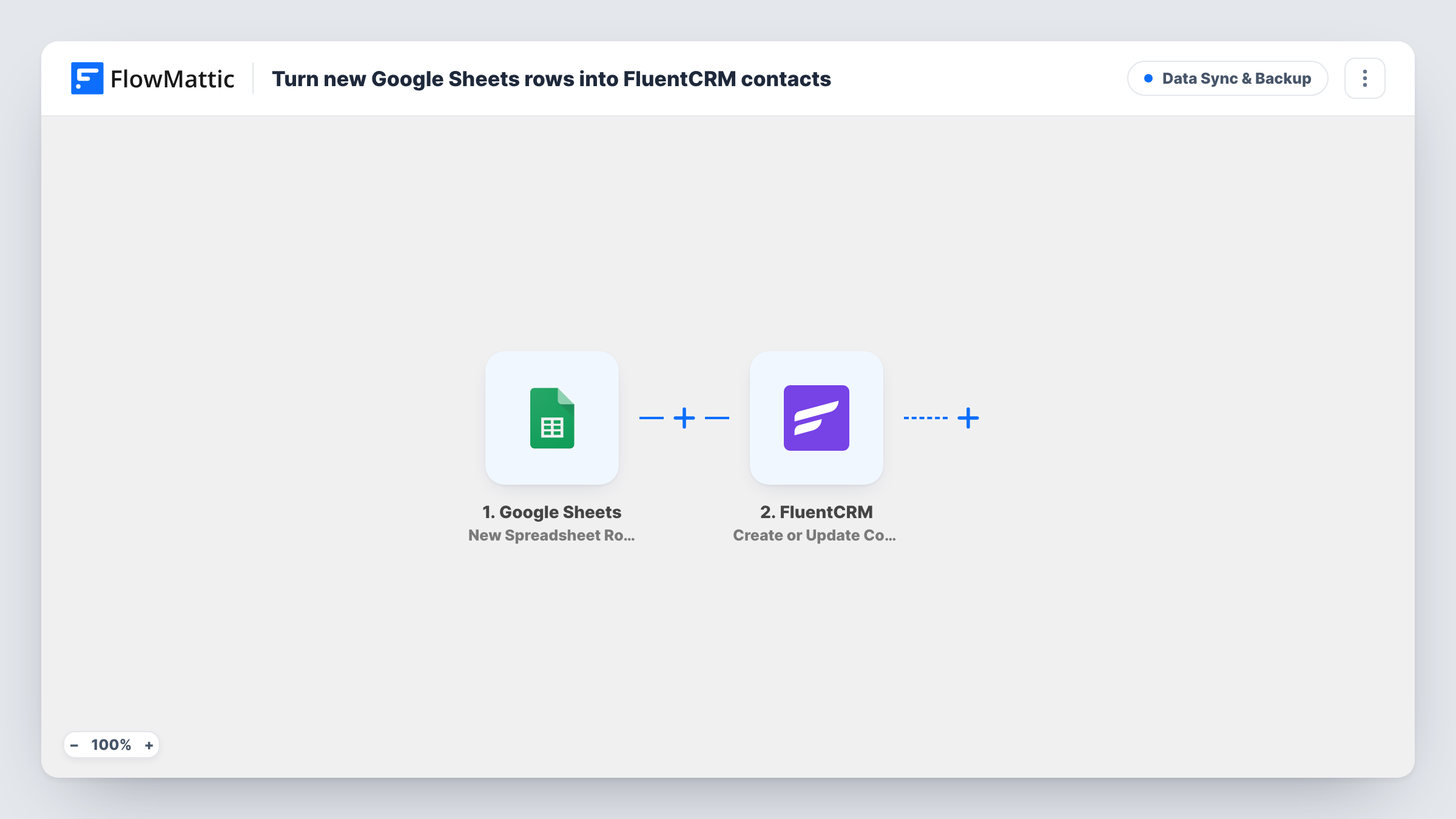
The Google Sheets trigger fires on a new row in the spreadsheet you connect. FlowMattic hands the row's values to FluentCRM, which runs Create or Update Contact. As shipped, the sheet's email column fills the contact email, first_name fills the first name, and last_name fills the last name.
Because the action creates or updates, a row whose email already belongs to a contact refreshes that contact instead of making a duplicate. The contact is stored in FluentCRM on your WordPress site, where you can add it to lists, tag it or include it in email campaigns. If your column headers are different, remap the three values after import.
Trade show badge scans
Staff paste the day's scanned leads into a shared sheet, and each new row becomes a FluentCRM contact you can email after the show.
Leads from a tool without a WordPress link
If a service you use can write to Google Sheets but not to WordPress, the sheet becomes the bridge that brings those contacts into FluentCRM.
A sales team's shared prospect list
Reps add prospects to one spreadsheet, and the marketing team finds every new name in FluentCRM without asking for an export.
How this workflow runs
What happens at each step once the workflow is on, and what you need before you import it.
 Google Sheets New Spreadsheet Row
Runs when a new row is added to the Google Sheets spreadsheet you connect. The row's columns, including email, first_name and last_name, become values for the FluentCRM step.
- FluentCRM Create or Update Contact
Creates a FluentCRM contact from the row, or updates the existing contact with that email. The template maps the email, first_name and last_name columns to the matching contact details.
What you need
- FlowMatticCore
- Google Sheets AccountAccount
- FluentCRM PluginPlugin
After importing, map your own data. To keep the template universal, not every step is pre-filled. Open each step in the builder and connect your accounts and fields (channels, lists, sheets, recipients) before you switch the workflow on.
Make it yours
Changes worth making after you import it.
- Add a Filter after the trigger that continues only when the email column is not empty, so blank or half-filled rows don't reach FluentCRM.
- If your sheet holds more about each person, open the FluentCRM step after import and see which other contact details it lets you fill, then map the matching columns.
- After import, add one row with your own email to the sheet, then open FluentCRM and Task History to confirm the first and last name landed where you expect.
Questions about this workflow
Are rows already in the Google Sheet sent to FluentCRM?
No. The trigger responds to new rows, so rows that were in the sheet before you turned the workflow on are not sent. Bring those in with FluentCRM's CSV import.
What happens if the email is already a FluentCRM contact?
The step updates that contact with the row's names instead of creating a second contact with the same email.
My sheet uses headers like Email Address and First Name. Will it still work?
The template expects columns called email, first_name and last_name. Remap the three values in the FluentCRM step to your own headers after import.
Does editing a row in Google Sheets update the FluentCRM contact?
No. Only new rows start the workflow. Changes to existing rows are not sent.
More Data Sync & Backup workflows
Other ready-to-import templates from the same category.





Import this workflow into your WordPress site
Download the JSON, import it from the Workflows screen and connect your accounts. Every run stays on your server, with no per-task fees.
30-day money-back guarantee Unlimited workflows and runs Self-hosted