

Automatically tag support tickets by topic using AI
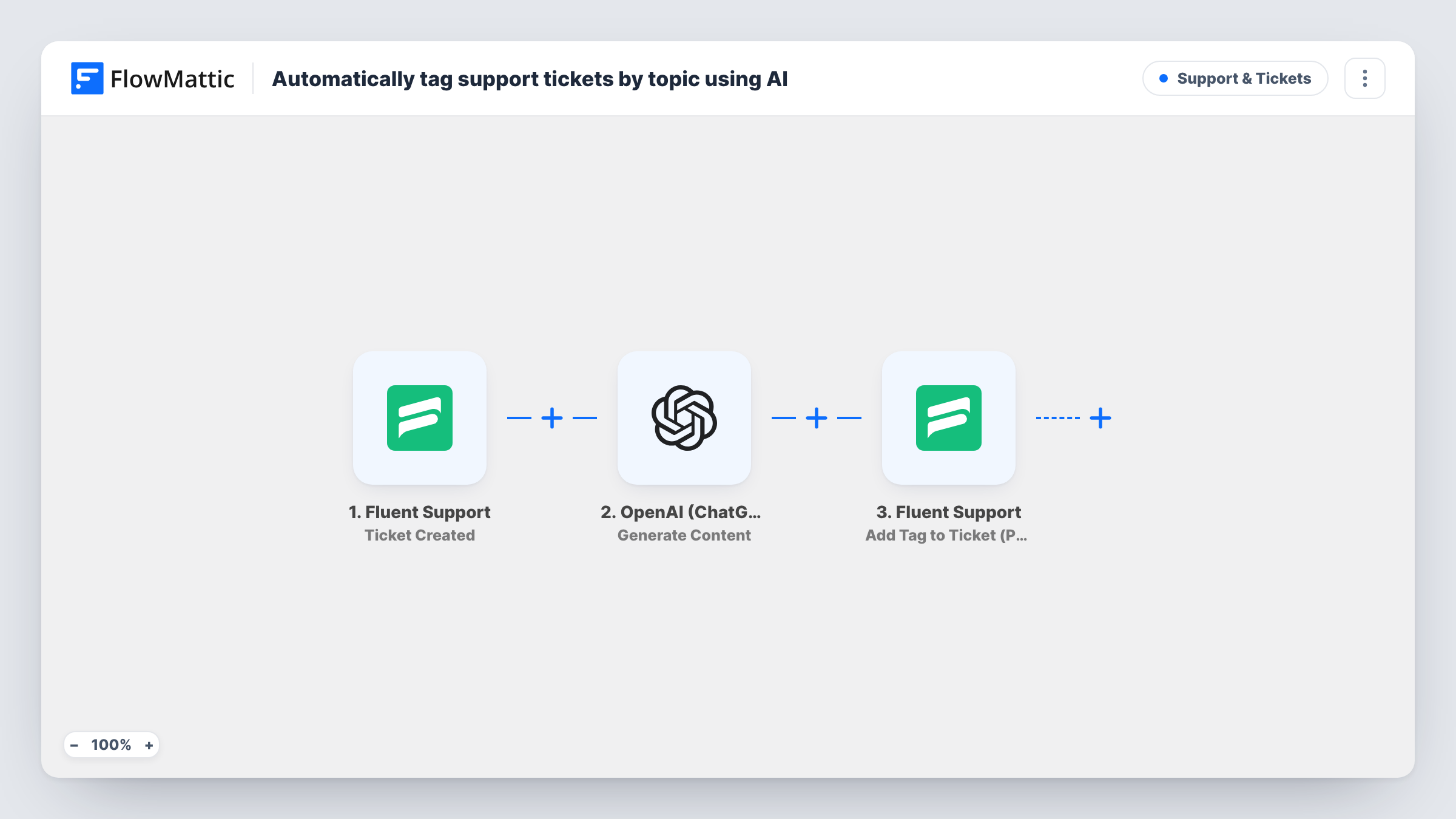
OpenAI reads each new Fluent Support ticket and replies with one topic: Billing, Bug, HowTo or Feedback. A Router then runs the route for that topic, where a Fluent Support step adds the tag you pick.
 Fluent Support
 OpenAI (ChatGPT)
 Router
7 steps Setup ~12 min Used on 519 sites Support Free to import
What this workflow does
Tagging tickets by hand is easy to skip on a busy day, and untagged tickets make it hard to see how many billing questions or bug reports came in. This workflow asks OpenAI to name the topic of every new ticket and tags it for you, so your queue and reports stay sorted without anyone stopping to do it.
The Fluent Support trigger fires when a ticket is created, by a customer or an agent. The OpenAI Generate Content step sends the ticket's subject and content to GPT-4o with an instruction to reply with one topic tag: Billing, Bug, HowTo or Feedback.
A Router then has four routes, one per topic. Each checks whether OpenAI's reply contains its word, with capitals ignored, so billing and Billing both count. The Router runs every route that matches, so a one-word reply runs one route, while a reply that names two topics would tag the ticket twice. On each route, an Add Tag to Ticket step tags the same ticket by its ID. The tag itself ships unset: after import, pick the matching Fluent Support tag on each of the four routes.
If OpenAI's reply contains none of the four words, no route runs and the ticket stays untagged. Create the four tags in Fluent Support first, then send a few test tickets and read OpenAI's replies in Task History.
Billing questions to the right person
A software company tags every billing ticket automatically, so the person who handles refunds and invoices can filter the queue to just those.
Bug report counts after a release
After shipping an update, a plugin developer checks how many new tickets were tagged Bug that week.
Finding gaps in the docs
A support lead reviews tickets tagged HowTo each month to see which questions the knowledge base should answer.
How this workflow runs
What happens at each step once the workflow is on, and what you need before you import it.
 Fluent Support Ticket Created
Fires when a new ticket is created in Fluent Support, whether by a customer or an agent. The ticket ID, subject and content are passed to the next steps.
- OpenAI (ChatGPT) Generate Content
Sends the ticket's subject and content to OpenAI's GPT-4o and asks for one topic tag: Billing, Bug, HowTo or Feedback.
- Router 4 paths
Has four routes, one per topic. Each runs when OpenAI's reply contains its word in any case, even inside a longer word such as debug. A reply naming several topics would run each of their routes.
- Fluent Support Add Tag to Ticket (Pro)
On the Billing route, adds a tag to the ticket by its ID. Pick your Billing tag in this step after import, since the template leaves the tag unset.
- Fluent Support Add Tag to Ticket (Pro)
On the Bug route, tags the ticket with the tag you choose for bug reports. Only the ticket ID is mapped as imported.
- Fluent Support Add Tag to Ticket (Pro)
On the HowTo route, adds the tag you pick for how-to questions to the same ticket. Choose it after import.
- Fluent Support Add Tag to Ticket (Pro)
On the Feedback route, tags the ticket with your Feedback tag. Set the tag in this step before you turn the workflow on.
What you need
- FlowMatticCore
- Fluent Support PluginPlugin
- OpenAI (ChatGPT) AccountAccount
After importing, map your own data. To keep the template universal, not every step is pre-filled. Open each step in the builder and connect your accounts and fields (channels, lists, sheets, recipients) before you switch the workflow on.
Make it yours
Changes worth making after you import it.
- Tighten the OpenAI prompt to say "Reply with only the tag word, nothing else", so the reply never mentions two topics and runs two routes.
- Create Billing, Bug, HowTo and Feedback tags in Fluent Support before import, so you can pick them in the four Add Tag to Ticket steps.
- To change or add topics, edit the list in the prompt and add a route with a matching condition and its own Add Tag to Ticket step. Use words that don't contain each other.
- Lower the max tokens on the OpenAI step, since the reply should be one word.
Questions about this workflow
What happens if OpenAI's reply doesn't match any of the four Fluent Support topics?
No route runs, so the ticket isn't tagged. Capitals aren't the cause, since "billing" in lower case still takes the Billing route, but a reply such as "Payment issue" misses all four. Check the replies in Task History and adjust the prompt if that happens.
Can a ticket get more than one tag?
Only if OpenAI's reply contains more than one of the four words, because the Router runs every route whose condition matches. Ask for a single word in the prompt to keep it to one tag.
Do I need Fluent Support Pro for the tagging steps?
The Add Tag to Ticket action is labelled Pro in FlowMattic, so check that your Fluent Support setup includes the Pro add-on before you rely on it.
Does this workflow change the ticket in any other way?
No. It only adds a tag. The ticket's status, priority and assignee stay as they were, and the customer doesn't see anything from this workflow.
More Support & Tickets workflows
Other ready-to-import templates from the same category.




Import this workflow into your WordPress site
Download the JSON, import it from the Workflows screen and connect your accounts. Every run stays on your server, with no per-task fees.
30-day money-back guarantee Unlimited workflows and runs Self-hosted