

Alert Telegram and log to Google Sheets for every new support ticket
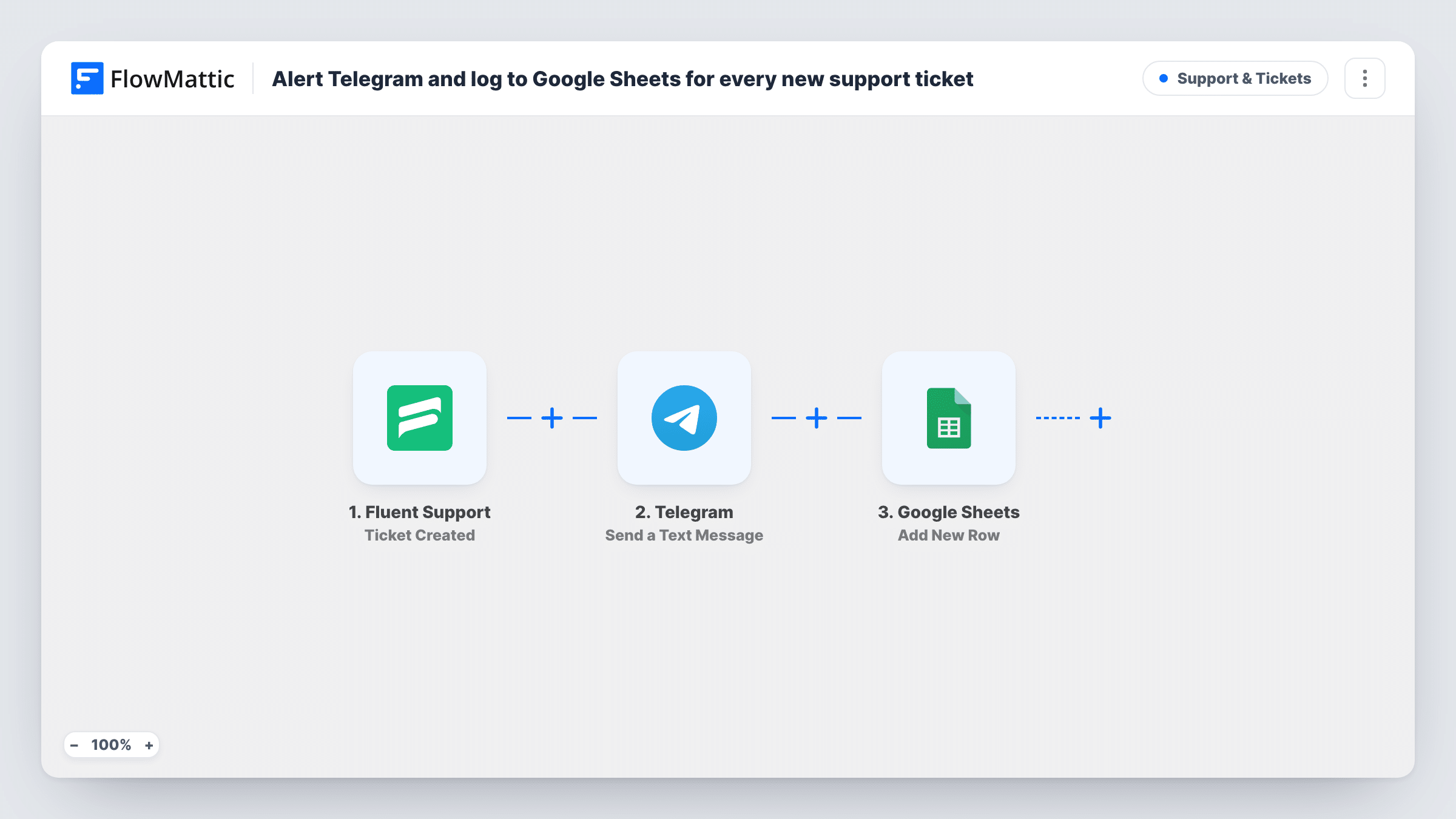
Each time a customer opens a ticket in Fluent Support, this workflow posts the ticket number, subject and customer name to Telegram, then adds the ticket to a Google Sheets row as a running log.
 Fluent Support
 Telegram
 Google Sheets
3 steps Setup ~5 min Used on 3.3k sites Support Free to import
What this workflow does
A small support team rarely sits inside the helpdesk all day. If nobody has the ticket screen open, a new request can wait hours before anyone sees it. This workflow puts a short alert on your phone through Telegram and keeps a plain log of every ticket in a spreadsheet you can sort and share.
The Fluent Support trigger fires when a ticket is created on your WordPress site. FlowMattic then sends a Telegram text message built from the ticket: the ticket ID, the subject and the customer's name, formatted in HTML mode. After the message goes out, the Google Sheets step adds a new row. The template leaves that row unmapped, so you choose which ticket details go into which columns.
The steps run in a fixed order for every ticket: alert first, then the row. There is no condition in between, so every new ticket produces one message and one row. Fluent Support keeps the ticket and its replies as usual; the workflow only reads the new ticket and passes its details on.
Solo founder answering support from a phone
You run a plugin shop on your own. A Telegram alert with the subject tells you a ticket is waiting while you are away from your desk, and the sheet shows the day's tickets in one list.
Weekly ticket review with a partner
Your business partner has no helpdesk login. The Google Sheets log lets them see each ticket's subject and customer before your weekly call.
Shared Telegram group for a two-person team
Both of you see each new ticket in the same Telegram conversation, so you can agree in the chat who picks it up.
How this workflow runs
What happens at each step once the workflow is on, and what you need before you import it.
 Fluent Support Ticket Created
Starts the workflow when a new ticket is created in Fluent Support. The ticket ID, subject, customer name and other ticket data become available to the Telegram and Google Sheets steps.
- Telegram Send a Text Message
Sends a Telegram text message reading New ticket, the ticket ID, the subject and the customer name in brackets. Parse mode is set to HTML. Connect your Telegram account on import and run a test to confirm where the message lands.
- Google Sheets Add New Row
Adds a new row to Google Sheets after the alert is sent. The template has no columns mapped yet, so connect your Google account, pick the spreadsheet and map ticket fields such as ID, subject and customer name to its columns.
What you need
- FlowMatticCore
- Fluent Support PluginPlugin
- Telegram AccountAccount
- Google Sheets AccountAccount
After importing, map your own data. To keep the template universal, not every step is pre-filled. Open each step in the builder and connect your accounts and fields (channels, lists, sheets, recipients) before you switch the workflow on.
Make it yours
Changes worth making after you import it.
- Add a Filter between the trigger and Telegram if you only want alerts for some tickets, for example a priority that contains a certain word. Note that the Filter would stop the Google Sheets row for those tickets too.
- Want the log even for tickets you don't get alerted about? Move the Google Sheets step to sit directly after the trigger, then put the Filter and Telegram step after it.
- Edit the Telegram message text to add more ticket data from the trigger, such as the ticket content, so you can read the request without opening the helpdesk.
- Create one test ticket after import so FlowMattic captures the ticket fields, then map them to your sheet's columns before switching the workflow on.
Questions about this workflow
Does every Fluent Support ticket trigger a Telegram message?
Yes, as imported. There is no Filter, so each ticket created in Fluent Support sends one Telegram message and adds one Google Sheets row.
Are replies to an existing ticket sent to Telegram?
No. The trigger is Ticket Created, so only new tickets start the workflow. Customer replies and agent responses on an open ticket do not.
What does the Telegram alert contain?
The words New ticket, the ticket ID, the subject and the customer name. You can edit the text in the Telegram step and add any other field the trigger provides.
Which columns does the Google Sheets row fill?
None until you map them. The Add New Row step ships without mapped fields, so you pick the spreadsheet and decide which ticket details go into each column.
More Support & Tickets workflows
Other ready-to-import templates from the same category.



Import this workflow into your WordPress site
Download the JSON, import it from the Workflows screen and connect your accounts. Every run stays on your server, with no per-task fees.
30-day money-back guarantee Unlimited workflows and runs Self-hosted