

Welcome new WooCommerce customers and add them to Mailchimp
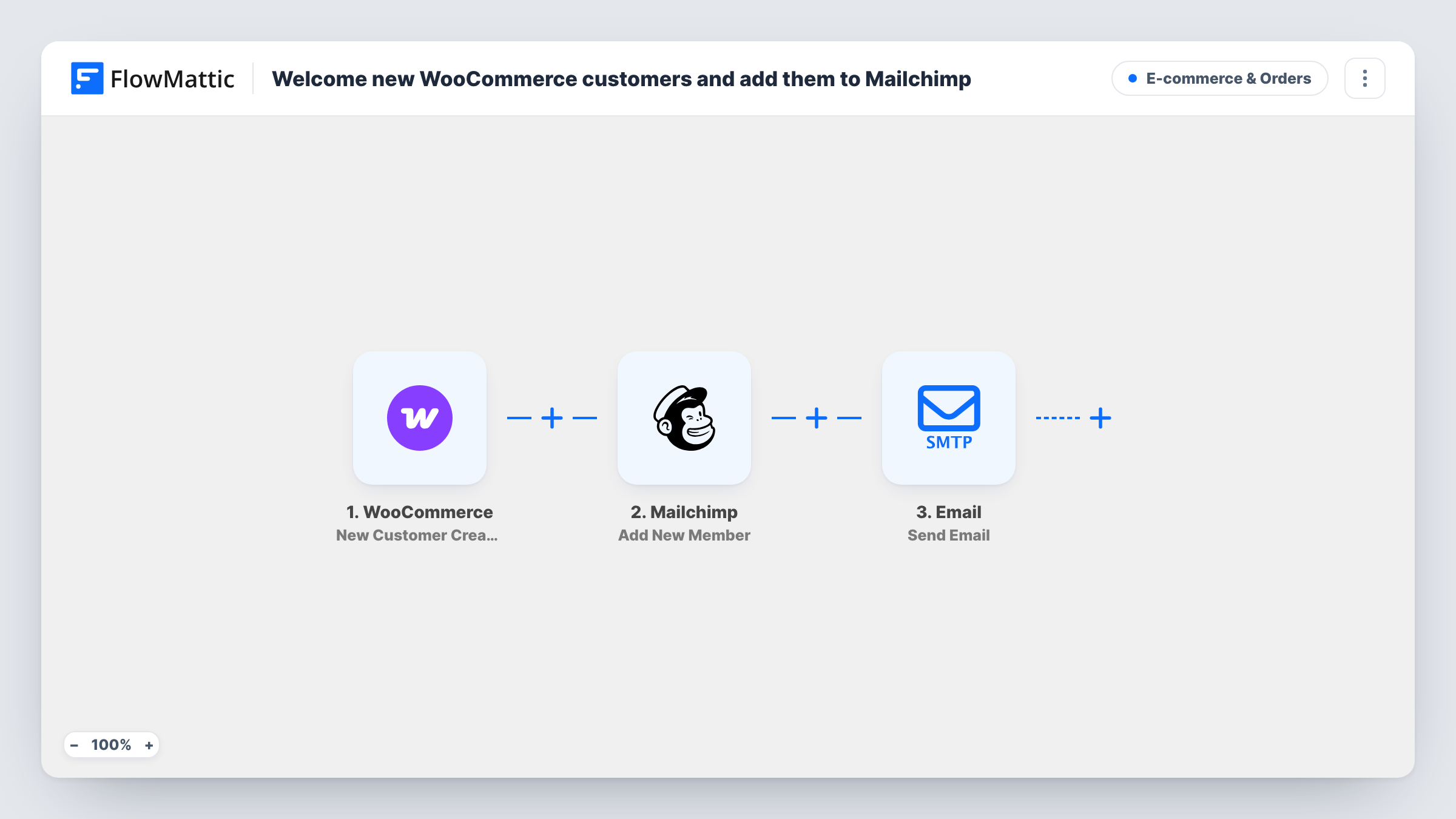
When a new customer account is created in WooCommerce, this workflow adds the customer to your Mailchimp audience as subscribed and sends them a welcome email addressed by first name.
 WooCommerce
 Mailchimp
 Email
3 steps Setup ~5 min Used on 998 sites Revenue Ops Free to import
What this workflow does
WooCommerce and Mailchimp don't share contacts by themselves. Exporting customers to Mailchimp now and then leaves gaps, and the welcome note arrives late or not at all. This workflow does both jobs when the customer record appears in your store.
The WooCommerce trigger runs on New Customer Created. FlowMattic sends the customer's email, first name and last name to Mailchimp with Add New Member, setting the status to subscribed. The Email step then writes to the same address with a subject that welcomes the customer by first name.
The welcome body in the template mentions 10% off the next order but contains no code or link, and ends in dots. Put your real coupon and wording in before you turn the workflow on, or remove the offer. Because the Mailchimp status is subscribed, only use this flow where customers have agreed to receive your marketing emails. The Email step sends through the SMTP connection you configure in FlowMattic.
Store with a sign-up consent checkbox
Customers who create an account and agree to updates go straight into your Mailchimp audience, ready for your next campaign.
Welcome offer for repeat purchases
Each new customer gets a welcome email carrying the coupon code you write into the template, with nobody sending it by hand.
Small shop moving off CSV exports
Instead of exporting customers to Mailchimp each month, every new account is added as it is created, so your audience stays current.
How this workflow runs
What happens at each step once the workflow is on, and what you need before you import it.
 WooCommerce New Customer Created
Runs when WooCommerce creates a new customer. The customer's email address, first name and last name are passed to the Mailchimp and Email steps.
- Mailchimp Add New Member
Adds the customer to your Mailchimp audience with their email, first and last name, and the status set to subscribed. You link Mailchimp to FlowMattic when you import the workflow.
 Email Send Email
Emails the new customer a welcome message whose subject greets them by first name. Replace the placeholder body, including the 10% off line, with your real offer and set up SMTP on import.
What you need
- FlowMatticCore
- WooCommerce PluginPlugin
- Mailchimp AccountAccount
After importing, map your own data. To keep the template universal, not every step is pre-filled. Open each step in the builder and connect your accounts and fields (channels, lists, sheets, recipients) before you switch the workflow on.
Make it yours
Changes worth making after you import it.
- Write a real coupon code into the email body, or remove the 10% off line. As imported, the email mentions a discount but gives no way to claim it.
- If your checkout has a marketing consent checkbox, add a Filter before the Mailchimp step so only customers who ticked it are added as subscribed.
- Create a test customer account after import and check Task History to confirm the Mailchimp step and the welcome email both ran.
Questions about this workflow
Do guest checkouts in WooCommerce trigger the welcome email?
The trigger fires when a customer is created. Guest orders that don't create an account may not count as one, so place a guest test order to see how your store behaves.
What if the email address is already in my Mailchimp audience?
The Mailchimp step updates a WooCommerce customer who is already a member, without creating a duplicate. Their first name, last name and subscribed status are replaced with the values from the new customer record.
Are the WooCommerce customers added to Mailchimp as subscribed or pending?
Subscribed, as set in the template. If you need customers to confirm by email first, change the status in the Add New Member step.
Does this replace WooCommerce's own new account email?
No. The workflow sends its own welcome message and leaves WooCommerce emails as they are, so customers may get both.
More E-commerce & Orders workflows
Other ready-to-import templates from the same category.





Import this workflow into your WordPress site
Download the JSON, import it from the Workflows screen and connect your accounts. Every run stays on your server, with no per-task fees.
30-day money-back guarantee Unlimited workflows and runs Self-hosted