

Write WooCommerce product descriptions with AI and save them for review
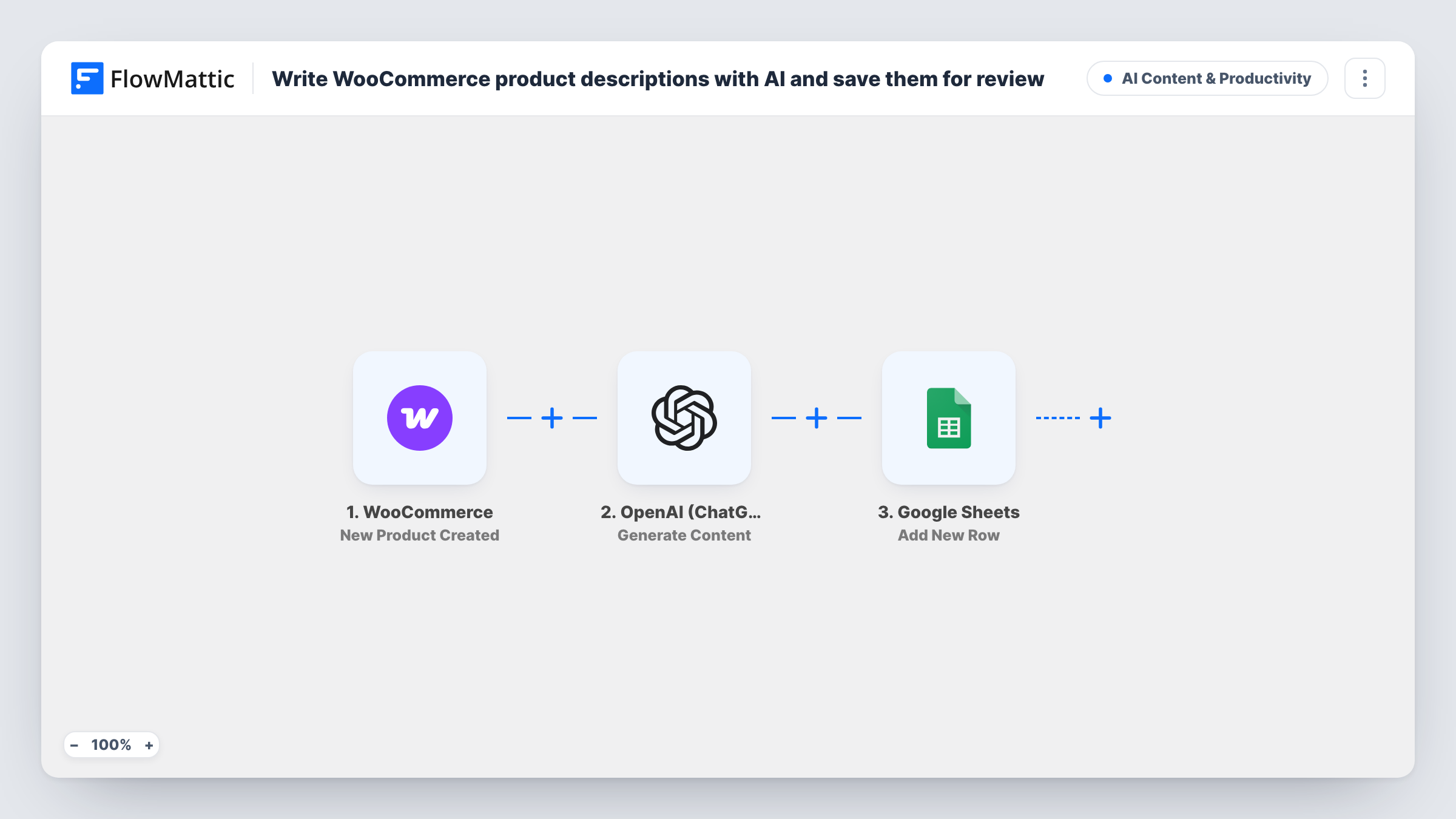
When you create a WooCommerce product, OpenAI writes a 60-word description from its name and category, and FlowMattic adds it to a Google Sheets row where you can review it before it goes on the product page.
 WooCommerce
 OpenAI (ChatGPT)
 Google Sheets
3 steps Setup ~5 min Used on 1.5k sites Content Ops Free to import
What this workflow does
Adding products is quick; writing a description for each one is the part that piles up. This workflow gives you a short first draft for every new product and keeps the drafts together in one spreadsheet, so you can read, edit and approve them before anything changes in your store.
Each run begins in WooCommerce, at the moment a product is added to your catalogue. FlowMattic sends the product name and categories to OpenAI with the prompt "Write a 60-word e-commerce product description for" that product, using gpt-4o with a 600-token limit. The last step adds a row in Google Sheets. The template leaves the columns for you to map, so after import you pick which column gets the product name, the AI text and anything else you want to see while reviewing.
The workflow does not write the description back to WooCommerce. When you are happy with a draft, you copy it into the product yourself. Because only the name and categories go into the prompt, the draft won't know about materials, sizes or other details unless you add them.
Loading a new seasonal range
You add twenty products in one afternoon. Each one you create adds a draft description to the sheet, so you can do one editing pass at the end.
A copywriter who works outside WordPress
Share the spreadsheet with a freelance writer. They polish the AI drafts in the sheet, and you paste the final text into each product.
Keeping a record of AI-written copy
The sheet keeps every original draft, so you can see what the AI produced next to what you finally published.
How this workflow runs
What happens at each step once the workflow is on, and what you need before you import it.
 WooCommerce New Product Created
Starts a run each time a product is added to your WooCommerce catalogue. The product's name and categories are passed to OpenAI, and other product details are available to map in the sheet.
- OpenAI (ChatGPT) Generate Content
Asks OpenAI for a 60-word e-commerce description of the product, using its name and category. The template uses gpt-4o with a 600-token limit, and the text comes back as the step's response.
- Google Sheets Add New Row
Writes a new row to your review spreadsheet in Google Sheets. Connect your Google account, then map the product name, the OpenAI response and any other columns you want for review.
What you need
- FlowMatticCore
- WooCommerce PluginPlugin
- OpenAI (ChatGPT) AccountAccount
- Google Sheets AccountAccount
After importing, map your own data. To keep the template universal, not every step is pre-filled. Open each step in the builder and connect your accounts and fields (channels, lists, sheets, recipients) before you switch the workflow on.
Make it yours
Changes worth making after you import it.
- Add more product details to the OpenAI prompt, such as the short description or attributes you fill in first, so the draft has more to work with. A test product shows which values the trigger provides.
- Change the word count or tone in the prompt to match your store, for example 40 words in a plain, friendly voice.
- Add a Status column to the sheet and mark each row once you have copied the description into the product, so you know which drafts are done.
Questions about this workflow
Does the AI description get added to the WooCommerce product automatically?
No. The workflow saves the draft to Google Sheets only. You review it and paste it into the product yourself.
What does OpenAI base the description on?
The prompt includes the product name and its categories. Anything else, such as price or attributes, is left out unless you add it to the prompt.
Will products I already have get descriptions?
No. The trigger runs when a new product is created, so only products added after you turn the workflow on are sent to OpenAI.
Which spreadsheet columns get the product name and the AI draft?
The template does not preset any. After import, map the product name, the OpenAI response and any other values to the columns in your spreadsheet.
More AI Content & Productivity workflows
Other ready-to-import templates from the same category.





Import this workflow into your WordPress site
Download the JSON, import it from the Workflows screen and connect your accounts. Every run stays on your server, with no per-task fees.
30-day money-back guarantee Unlimited workflows and runs Self-hosted