

AI agent that repurposes every new post into social and email
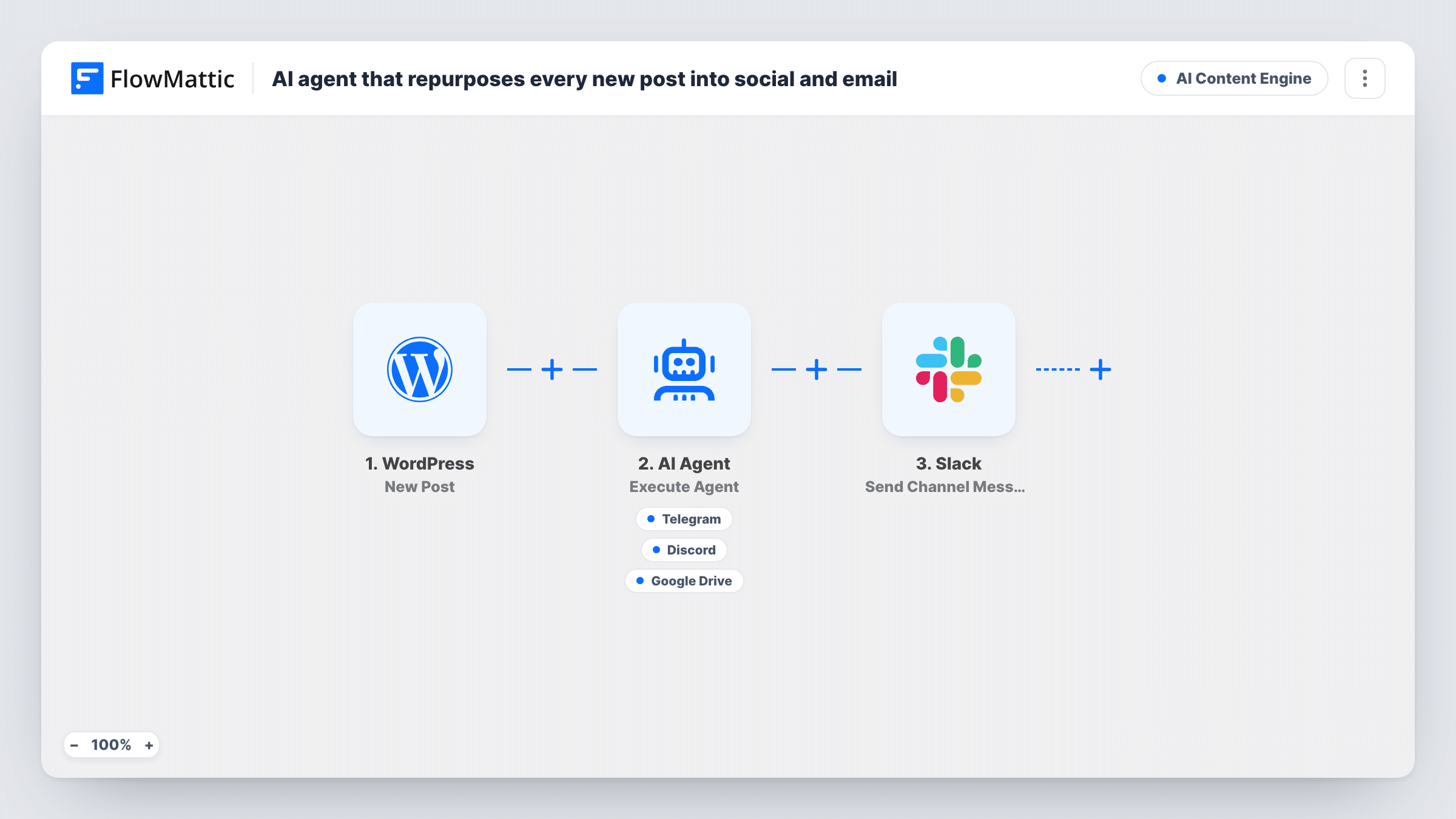
When you publish a post, an AI agent writes a Telegram teaser, a Discord announcement, and a newsletter blurb, posts them, and saves the blurb to Google Drive for your editor.
 WordPress
 AI Agent
 Telegram
 Discord
 Google Drive
 Slack
Slack6 steps Setup ~12 min Used on 352 sites Content Ops Free to import
What this workflow does
Publishing a post is only half the job. You still have to tell people about it in each place they follow you, and write something for the next newsletter. Doing that by hand for every article is the part that slips. This workflow hands the post to an AI agent that writes and shares the short versions.
The WordPress New Post trigger starts the run. The AI Agent receives the post title, URL and full content, and is told to write and post a Telegram teaser and a Discord announcement and save a newsletter blurb to Drive. Its three tools are Telegram Send a Text Message, Discord Send Channel Message and Google Drive Create File From Text, where the agent sets the file name and content.
Nothing is emailed. The newsletter blurb is saved as a file for you or your editor to paste into your email tool. The agent decides when to call each tool, and the closing Slack step posts a fixed note naming the post on every run, so check Task History to see what actually went out. Test with a draft to confirm when the trigger fires. The agent runs on OpenAI's GPT-4o unless you change it.
A blog with a Telegram channel and Discord server
Each new article gets a short teaser for Telegram readers and an announcement for your Discord members, both written from the post itself.
Weekly newsletter preparation
Your editor opens the Drive folder at the end of the week and finds a blurb for every post, ready to paste into the newsletter.
Small teams without a social media role
The writer publishes and moves on. The agent covers the promotion, and the Slack note tells everyone the post went out.
How this workflow runs
What happens at each step once the workflow is on, and what you need before you import it.
 WordPress New Post
The workflow starts automatically when a new post is published in WordPress. FlowMattic captures that data for the steps below.
- AI Agent Execute Agent
An AI agent reads the incoming data and decides what to do on its own, choosing from its tools (Discord, Google Drive, Telegram) to complete the task. Connect an AI provider on import.
- Telegram Send a Text Message
A tool the AI agent can call — Telegram — sends a text message with support to markup. The agent uses it only when the task needs it; connect your Telegram account on import.
- Discord Send Channel Message
A tool the AI agent can call — Discord — post a new message to a specific #channel you choose. The agent uses it only when the task needs it; connect your Discord account on import.
- Google Drive Create File From Text
A tool the AI agent can call — Google Drive — create a new file from plain text. The agent uses it only when the task needs it; connect your Google Drive account on import.
- Slack Send Channel Message
Slack — post or Schedule a new message to a specific #channel. Data is mapped from earlier steps; connect your Slack account on import.
What you need
- FlowMatticCore
- AI ProviderAccount
- Telegram AccountAccount
- Discord AccountAccount
- Google Drive AccountAccount
- Slack AccountAccount
After importing, map your own data. To keep the template universal, not every step is pre-filled. Open each step in the builder and connect your accounts and fields (channels, lists, sheets, recipients) before you switch the workflow on.
Make it yours
Changes worth making after you import it.
- Describe your voice in the agent's instructions, for example a casual tone for Discord and one line plus the link for Telegram, so each channel gets the style it suits.
- Remove a tool and its mention in the instructions if you don't use that channel. The agent then won't try to post there.
- Add a Delay before the agent if you often fix typos right after publishing, so the teasers are written from the corrected post.
Questions about this workflow
Does this send the newsletter?
No. The agent saves a newsletter blurb to Google Drive as a file. You paste it into your email tool yourself, or add an email step that uses it.
Will older WordPress posts be repurposed?
No. Only posts that trigger New Post after you switch the workflow on are sent to the agent.
Does the Telegram and Discord copy include the post link?
The agent receives the post URL along with the title and content, so it can include it. To be sure, tell it in the instructions to always add the link.
Is the Slack note proof that everything was posted?
No. It is fixed text that runs after the agent every time. Task History shows which tools the agent called and whether each one succeeded.
More AI Content Engine workflows
Other ready-to-import templates from the same category.



Import this workflow into your WordPress site
Download the JSON, import it from the Workflows screen and connect your accounts. Every run stays on your server, with no per-task fees.
30-day money-back guarantee Unlimited workflows and runs Self-hosted